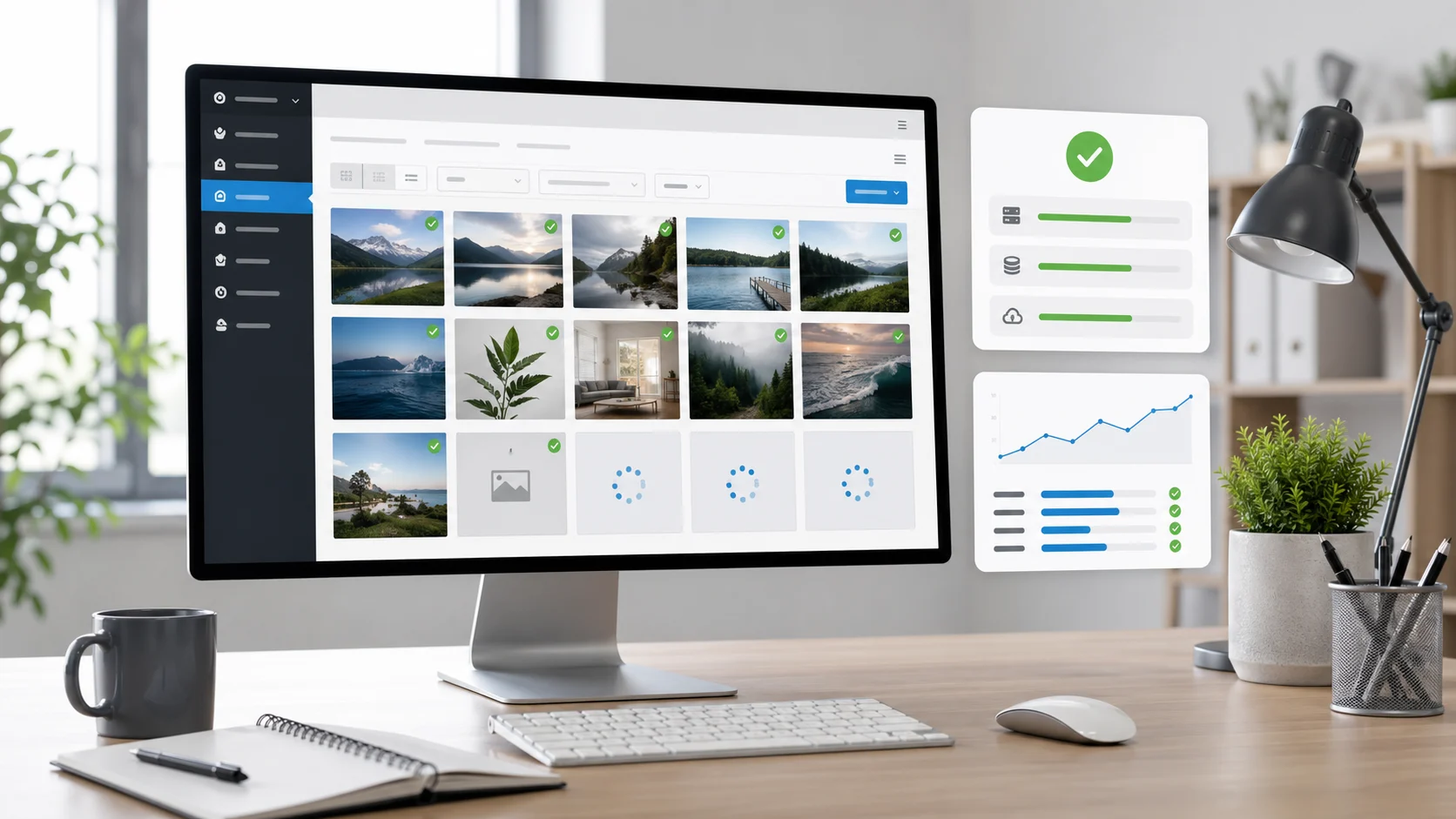
When your WordPress media library is not loading, the cause is usually a plugin conflict, a JavaScript error, a stale browser cache, or wrong file permissions on the uploads folder. Fix it by clearing the cache, deactivating plugins, switching to a default theme, and checking the PHP memory limit until the grid loads again.
Few problems are as frustrating as opening Media → Library and seeing a blank screen, a spinning loader, or missing thumbnail previews. The good news: the WordPress media library not loading is one of the most fixable issues in WordPress, and you rarely need a developer. This guide walks through the common reasons the library breaks and a safe-to-invasive sequence to fix it fast.
If your media library suddenly stopped loading, you are not alone, it is one of the most common WordPress problems. There are several quick ways to fix it, whether the fault affects your whole WordPress site or only stops you when you upload images. Below you will learn how to fix WordPress media library errors and the display issues behind missing WordPress media library thumbnails.
Common Causes of WordPress Media Library Issues
Before you start troubleshooting, it helps to know what actually breaks the media library. In most cases the media library is not showing images because of one of these causes:
- Plugin conflict: a plugin loads broken JavaScript that stops the library grid from rendering. This is the single most common reason.
- Theme compatibility: a poorly coded WordPress theme enqueues scripts that clash with the dashboard.
- Browser cache and cookies: your browser is serving an old, broken version of the dashboard assets.
- Incorrect file permissions: the
wp-content/uploadsdirectory or folder is not readable, so media files and previews fail to appear. - PHP memory limit: too little memory means the upload and library scripts time out.
- Outdated WordPress core, plugins, or PHP: version mismatches break the REST API the library depends on.
Knowing the likely cause lets you fix the WordPress media library in minutes instead of guessing. Work through the steps below in order; each one is safe and reversible.
Start Troubleshooting With Safe Browser and Dashboard Checks
Start with the least invasive checks before touching plugins or files.
- Clear your browser cache. A stale browser cache is the number-one false alarm. Clearing your browser cache and cookies, then reloading the WordPress dashboard, fixes a surprising number of media library not loading reports. Try an incognito window or a different browser to confirm.
- Check the browser console. Press F12, open the Console tab, and reload Media → Library. A red JavaScript error usually names the plugin or script that is breaking the library grid.
- Update everything. Make sure WordPress core, your plugins, and your theme are on the latest version. An outdated WordPress install is a frequent source of media library issues in 2026.
- Run Site Health. Tools → Site Health flags a low PHP memory limit, a missing module, or REST API failures that stop the media library loading.
How to Fix WordPress Media Library Not Showing Images: Plugins and Themes
If the safe checks did not fix it, the problem is almost certainly a plugin conflict or a theme issue. This is where most media library problems are solved.
- Deactivate all plugins. Go to Plugins, select every plugin, and choose Deactivate. Now reload the media library. If the grid and thumbnails load, a plugin was the culprit.
- Reactivate one by one. Reactivate each plugin and recheck the library after every one. The plugin that breaks it again is your conflict, replace it or contact its developer. Our guide to resolving a WordPress plugin conflict shows the full isolation method.
- Switch to a default theme. Temporarily switching to a default theme like Twenty Twenty-Five rules out theme compatibility problems. If switching to a default theme fixes the media library, the issue is in your theme. See how to fix a broken theme in WordPress to repair it safely.
If deactivating all plugins triggers a different problem such as the white screen, follow our fix for the WordPress critical error first, then return here.
Check Loading, File, and Server Errors
When plugins and themes are not the cause, look at the server and your media files.
- Increase the PHP memory limit. Add
define('WP_MEMORY_LIMIT', '256M');towp-config.php. A starved memory limit makes the library and upload screens hang on loading. - Read your error logs. Enable
WP_DEBUGand check the log for the exact failure when the media library is loading. - Confirm a supported image format. An unsupported file type or an oversized file size can make a single image file fail to upload or preview. Re-save the image as a standard JPG, PNG, or WebP within your upload size limit.
Review File Permissions, Folders, and Media File Paths
If files exist on the server but previews are blank, suspect file permissions. WordPress must be able to read and write the uploads directory.
- Connect over FTP or your host’s file manager and open
wp-content/uploads. - Set the folder and every sub-folder to 755 and media files to 644. Incorrect file permissions are a classic reason media files exist yet thumbnails and previews never load.
- Confirm the upload path under Settings is correct so WordPress points to the right directory.
Use Thumbnail and Cache Checks Carefully
Sometimes the media files are fine but the thumbnail versions are missing or corrupt.
- Regenerate thumbnails. A trusted regenerate-thumbnails plugin rebuilds every thumbnail so the library grid renders. Deactivate it again once finished.
- Clear server and page cache. If you run a caching plugin or a CDN, clearing that cache removes stale dashboard assets that block the media library. Our caching decision tree explains which cache layer to purge.
When to Ask Your Hosting Provider for Help
If you have worked through every fix and the media library still is not loading, contact your hosting provider. Ask them to confirm the PHP memory limit, file permissions on the uploads directory, the PHP version, and whether a server firewall is blocking the WordPress REST API. A good host can check server logs you cannot reach. For a wider diagnostic flow, our WordPress troubleshooting guide covers related dashboard failures. The official WordPress media library documentation and the MDN guide to HTTP caching are useful references, and the PHP memory_limit manual explains the memory setting in detail.
How to Prevent Media Library Display Issues
Once you fix the media library, keep it healthy:
- Keep WordPress core, plugins, and your theme updated, and test updates on staging first.
- Stick to lightweight, well-maintained plugins to avoid future plugin conflict.
- Optimize and compress images before upload so file size stays small and optimization is consistent.
- Clear your browser cache periodically and run Site Health monthly.
FAQ
Why is my WordPress media library not loading images?
Most often a plugin conflict or a JavaScript error stops the library grid from rendering. Deactivate all plugins, clear your browser cache, and switch to a default theme to find the cause.
Why is WordPress media not showing all images?
If only some images are missing, the thumbnails are likely missing or corrupt. Regenerate thumbnails and confirm the uploads directory has correct file permissions so every image file can be read.
How do I fix images not showing in the WordPress media library?
Clear your browser cache, deactivate all plugins, switch to a default theme, increase the PHP memory limit, and verify file permissions on wp-content/uploads. One of these fixes resolves nearly every case.
Why are images not showing in the media library after migration?
After a migration the upload path or file permissions are usually wrong. Check the upload directory setting, reset folder permissions to 755 and media files to 644, and regenerate thumbnails.
How do I access the media library in WordPress?
Open your WordPress dashboard and go to Media → Library. If the screen is blank, the troubleshooting steps above will get the media library loading again.
Can a cache plugin break the media library?
Yes. A caching plugin or CDN can serve stale dashboard scripts. Clearing that cache, along with your browser cache, often fixes the media library not loading instantly.
Should I regenerate thumbnails?
Regenerate thumbnails when media files exist but previews are blank. It rebuilds every thumbnail size. Activate a trusted plugin, run it once, then deactivate it.
How can I prevent media library problems from returning?
Keep WordPress core, plugins, and your theme updated, avoid heavy or abandoned plugins, optimize images before upload, and review Site Health regularly to catch issues early.