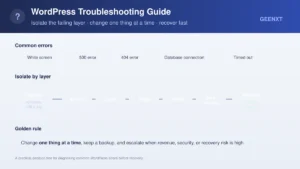
To fix a WordPress critical error, check your admin email for a WordPress recovery mode link, or enable debug mode in wp-config.php to read the exact fatal error. Then isolate the cause: deactivate plugins, switch to a default theme, raise the PHP memory limit, or restore core files, until the wordpress error clears.
What “There Has Been a Critical Error on This Website” Means
A WordPress critical error is a PHP fatal error that stops a page from loading. Instead of showing raw code, WordPress catches the failure and displays a generic message so visitors do not see a broken page full of technical output. The real cause, whether it is a plugin, a theme, or a resource limit, is written to your error log rather than the screen. Seeing this wordpress error message does not mean your site is destroyed; it means one specific line of code stopped WordPress from finishing the page, and that line can be found and fixed.

Common Causes of a WordPress Critical Error
Most critical errors trace back to one of a small set of causes. Knowing the usual suspects before you start narrows the fix considerably:
- A wordpress plugin conflict or a broken plugin update. This is the single most common cause behind the error message, and arguably the most common error site owners run into overall.
- An incompatible or corrupted theme, often after a manual edit to
functions.phpor a theme update. - An exhausted PHP memory limit, where a page or process needs more memory than your host currently allows.
- An outdated PHP version that a newer plugin or theme no longer supports.
- Corrupted WordPress core files, usually from an update that did not finish cleanly.
A wordpress critical error on website almost always fits one of these five buckets, which is why the steps below work through them in order of likelihood rather than randomly.
Before You Start: Capture the Error and Back Up
Two minutes of preparation saves a lot of guesswork later. Screenshot or copy the exact error text and the time it appeared. Confirm a recent backup strategy is actually running, or trigger a manual backup now if you are not certain. Note the last change you made to your wordpress site: a plugin install, an update, or an edit to a theme file. That single detail often points straight at the cause before you touch anything else.
Step 1: Check the Admin Email and Use WordPress Recovery Mode
WordPress automatically emails the site administrator a special recovery mode link the moment a critical error occurs. Open that email and click the link: it logs you into the wordpress dashboard with the offending plugin or theme paused, so you can see and deactivate the cause even while the public site still shows the error. This is the fastest fix when it is available, since it needs no FTP access and no file editing. If the email never arrives, check spam, confirm the admin address in your user profile is current, and move on to manual debugging below.
Step 2: Enable Debug Mode to Read the Error Log
When recovery mode is not available, debug mode and error logging together are the fastest way to see what WordPress is actually hiding, instead of guessing at the fatal error. Edit wp-config.php (through FTP or your host’s file manager) and add these lines above the “stop editing” comment:
define( 'WP_DEBUG', true );
define( 'WP_DEBUG_LOG', true );
define( 'WP_DEBUG_DISPLAY', false );
Reload the page showing the critical error, then open /wp-content/debug.log in the same folder. The error log names the exact file and line number that triggered the failure, usually a plugin file or a theme template, which turns a guessing game into a direct fix. See the official WordPress debugging guide for every constant this file accepts. Once you have the answer, set WP_DEBUG back to false: leaving it on exposes internal file paths to anyone who views your source.
Step 3: Deactivate All Plugins, Then Reactivate One by One
Because a plugin conflict causes more critical errors than anything else, this test carries the highest odds of a fix. If you can reach the dashboard, deactivate every plugin at once from the Plugins screen. If you are locked out, connect over FTP and rename the /wp-content/plugins folder to something like plugins-off: WordPress can no longer load any of them, which usually clears the error immediately. Rename the folder back, then reactivate plugins one at a time, reloading the site after each one. Whichever plugin brings the error back is the cause; update it, replace it, or remove it to resolve the issue for good. If a specific incompatibility keeps resurfacing, our guide to resolving a plugin conflict covers the isolation process step by step and can help fix the issue faster than trial and error.
Step 4: Switch to a Default Theme to Rule Out the Theme
If deactivating plugins did not resolve it, the theme is the next suspect. From Appearance → Themes, activate a default wordpress theme such as Twenty Twenty-Four (or rename the active theme folder over FTP if you cannot reach the dashboard). If the site recovers, the previous theme, or a recent edit to its functions.php, was triggering the error. Our walkthrough on fixing a broken theme in WordPress goes further into safely restoring theme files without losing customizations.
Step 5: Increase the PHP Memory Limit or Update PHP
If your debug log mentions an exhausted memory allocation, the page simply ran out of room to finish running. That specific failure gets its own deep walkthrough, including how to identify which plugin is consuming the memory, in our guide to the memory exhausted error. The quick fix is adding this line to wp-config.php:
define( 'WP_MEMORY_LIMIT', '256M' );Some hosts cap memory at the server level regardless of what wp-config.php requests; if the limit will not move, raise it in php.ini or ask your host directly. While you are checking, confirm the site runs a currently supported PHP version, since an outdated release or a plugin that has not caught up to a newer one can both throw a fatal error. See WordPress’s own wp-config.php reference for every memory and debug constant available.
Step 6: Restore Core Files or Reinstall WordPress
If plugins, the theme, memory, and PHP version all check out, corrupted wordpress core files from an interrupted update are the remaining explanation. Download a fresh WordPress copy from WordPress.org and, over FTP, replace the wp-admin and wp-includes wordpress files plus the loose files in the root, but not wp-content (your themes, plugins, and uploads) and not wp-config.php. This overwrites damaged wordpress core without touching your content. If the critical error persists after that, restore from the backup you confirmed in the first step: it is the fastest way back online when a specific fix stays out of reach.
Related WordPress Errors and Where to Fix Them
Not every wordpress error you hit is this one. WordPress.org’s own troubleshooting FAQ groups several common wordpress errors together, and the critical error is only one of them. If your symptom looks different, these related guides go deeper on the specific cause for your wordpress website:
- 500 internal server error: a broader server-level failure, not always tied to a specific plugin. See our 500 internal server error guide.
- 404 error on pages that used to work, usually a permalink or redirect problem rather than a fatal error. Covered in our 404 and redirects fix.
- 403 forbidden error, often triggered during file uploads or a security plugin misconfiguration. Detailed in our 403 and JSON error guide.
- Error establishing a database connection: a separate failure mode where WordPress cannot reach the database at all. Walked through in our database connection error guide.
- A parse or syntax error, usually from a mistyped code snippet, is normally more specific than the critical error message and names the exact file and line on screen.
- WordPress not sending email or a blank white screen are usually unrelated to the critical error message and have their own causes worth ruling out separately.
Prevent Future Critical Errors
Once your site is back online, a small amount of process keeps the critical error from returning. Test plugin and PHP updates on staging before they reach production, so a conflict never touches visitors. Keep automated backups running on a schedule, so any future fatal error becomes a quick restore instead of a scramble. Review installed plugins periodically and remove ones you no longer use, since every active plugin is one more thing that can conflict with a WordPress core or PHP update down the line. The goal is not just to fix the error once, but to make the next one rare and quick to spot.
When the Fix Isn’t Worth the Risk Yourself
Some critical errors are simple: one bad plugin, one clean deactivation, done. Others involve a business-critical site, an unclear cause, or a fix you are not confident making without a backup at hand. For that second case, GEENXT’s agent-driven WordPress support works differently from a typical support ticket: you describe the symptom in plain English (what the error says, when it started, what changed recently), and the agent reads your connected site against that description and proposes the exact fix, the file and the lines it would change, as a reviewable change. You approve it or decline it. Nothing risky or destructive applies itself; anything the agent is not confident about goes to a human first. Once approved, the fix is applied with a backup behind it and logged, so undoing it later is a request rather than a rebuild. See the full range of WordPress emergency fixes this covers, or start with our WordPress troubleshooting guide if you want to keep working through it yourself first.
If the critical error followed a suspicious login, an unexpected admin user, or defaced content, treat it as a security incident rather than a routine bug: our incident response after a WordPress hack guide covers the extra steps that situation needs before you reopen the site publicly.
FAQ: WordPress Critical Errors
How do you fix the “There has been a critical error on this website” message?
Open the recovery mode link WordPress emails to the site admin, or enable WP_DEBUG in wp-config.php to read the fatal error in your log. Then isolate the cause: deactivate all plugins, switch to a default theme, raise the PHP memory limit, and, as a last resort, restore core files or roll back to a backup.
What is a critical error in WordPress?
A critical error in WordPress is a fatal PHP error that stops a page from loading. WordPress hides the technical detail behind this generic wordpress error message and writes the real cause to the error log instead of the screen.
What causes the “There has been a critical error on this website” error?
The usual causes are a plugin conflict, a broken or incompatible theme, an exhausted PHP memory limit, an outdated PHP version, or corrupted core files. A plugin or theme is behind most critical errors, which is why isolating them comes first.
What is WordPress Recovery Mode and how does it help?
Recovery mode is a safe login link WordPress emails the site admin when a fatal error occurs. It loads the dashboard with the offending plugin or theme paused, so you can fix the cause even while the front end still shows the critical error. See WordPress’s own recovery mode documentation for the full mechanism.
How do I enable debug mode to find the error?
Add WP_DEBUG and WP_DEBUG_LOG as true in wp-config.php, reload the broken page, then open /wp-content/debug.log to see the exact file and line that triggered the failure.
How do I troubleshoot if I can’t access the WordPress dashboard?
Use FTP or your hosting file manager. Rename the /wp-content/plugins folder to deactivate every plugin, or rename the active theme folder to force a default theme. Both isolate the cause without needing dashboard access.
How can I restore my site from a backup to fix it?
Use your backup plugin or your host’s restore tool to roll the files and database back to the last working point. A recent backup is the fastest way back online when the cause is unclear or a manual fix feels too risky to attempt live.
When should I get help instead of troubleshooting myself?
When the site is business-critical, the cause is not obvious after checking the log, or you are not comfortable editing files on a live site. Rather than a generic support ticket, GEENXT lets you describe the symptom in plain English and get back a proposed, reviewable fix you approve before anything changes, with a backup and a log behind it either way.