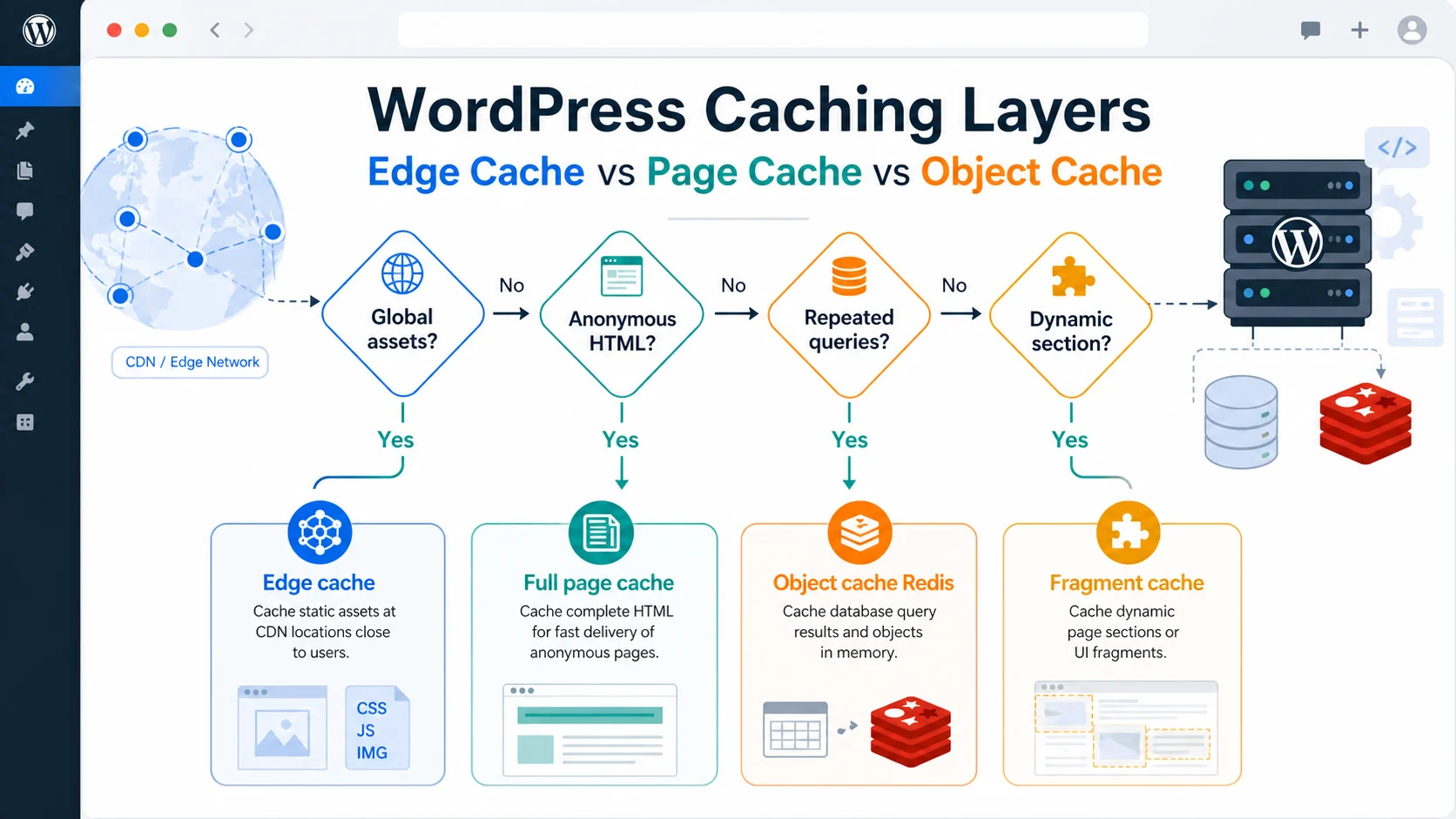
Edge cache (a CDN) serves static assets and cached HTML globally from servers near each visitor; page cache stores full HTML responses so WordPress skips PHP; and object cache holds database query results in memory with Redis or Memcached. Use all three layers together for the lowest TTFB.
Most WordPress performance advice tells you to “add caching” as if it were one switch. It isn’t. There are three distinct caching layers (edge, page, and object) plus fragment caching for the pieces in between, and each one removes a different bottleneck. Pick the wrong layer and you either leave speed on the table or break logged-in functionality. This decision tree walks through what every layer does, when to use it, and how to stack them safely on a real WordPress site.
Quick Decision Tree
Before the detail, here is the short version. Answer these in order and you will land on the right caching strategy for your site:
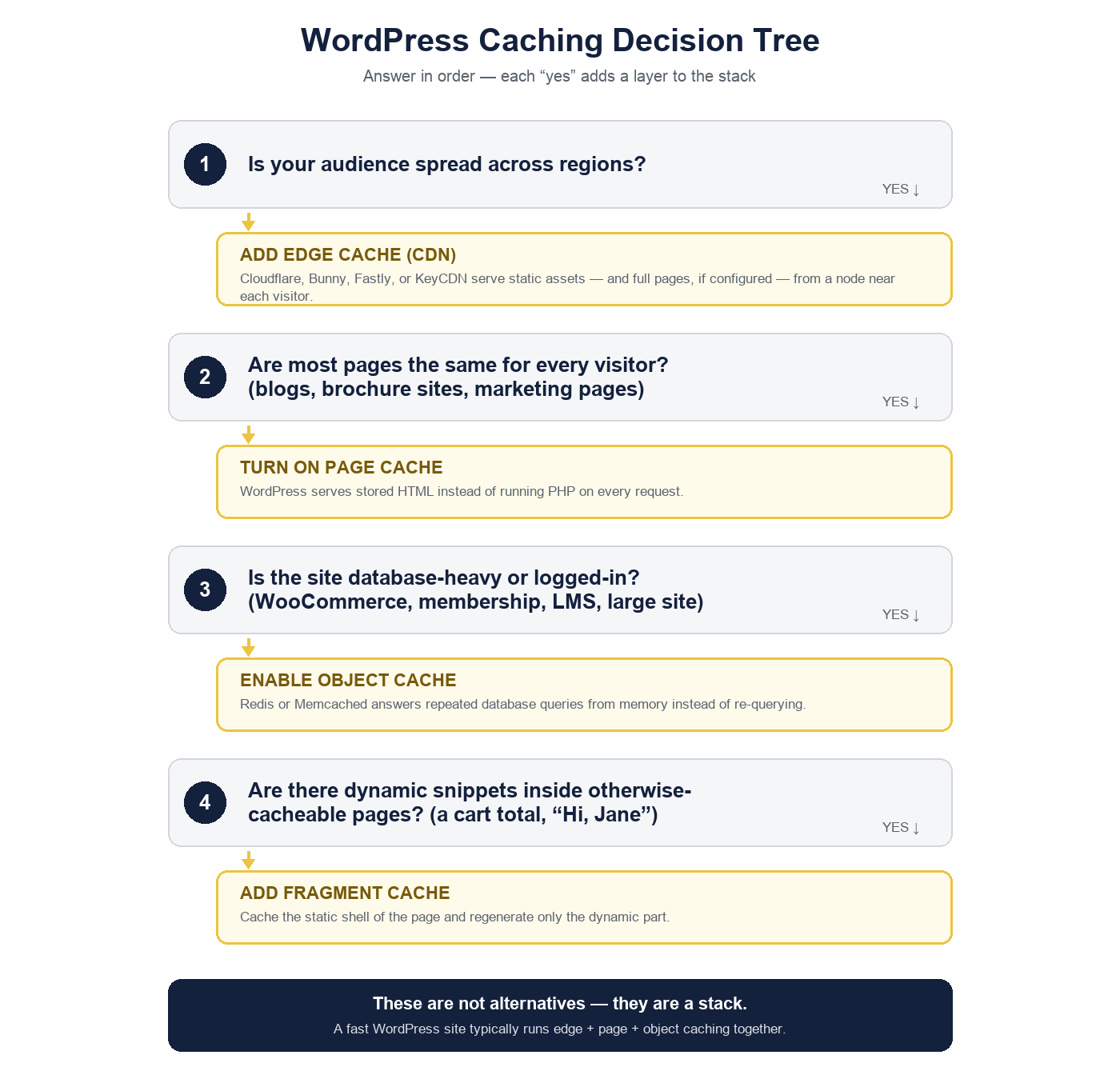
- Is your audience spread across regions? Add edge caching (a CDN) first, it cuts the network distance every static file and cached page travels.
- Are most pages the same for every visitor (blogs, brochure sites, marketing pages)? Turn on full page cache so WordPress serves stored HTML instead of running PHP on every request.
- Is your site database-heavy or logged-in (WooCommerce, membership, LMS, large WordPress site)? Enable object cache with Redis or Memcached so repeated database queries are answered from memory.
- Do you have dynamic snippets inside otherwise-cacheable pages (a cart total, “Hi, Jane”)? Reach for fragment cache to cache the static shell and regenerate only the dynamic part.
The layers are not alternatives: they are a stack. A fast WordPress site usually runs edge plus page plus object caching at the same time, because each one stores a different thing at a different point in the request.
What Edge Cache (CDN) Does
Edge caching pushes copies of your content onto a content delivery network (CDN), a fleet of servers distributed around the world. When a visitor in Sydney requests your WordPress site hosted in Frankfurt, the CDN serves images, CSS, JavaScript, and (if configured) cached HTML from a node near Sydney instead of making the request cross continents. That shorter network hop is often the single biggest win for loading times on a geographically spread audience, because assets start loading from a nearby node instead of crossing the planet.
At minimum, every WordPress site should put static files behind a CDN: images, fonts, CSS, and JavaScript rarely change, so the edge can store them for a long time. The more advanced move is full-page edge caching, where the CDN stores the rendered HTML page itself and serves it without ever touching your origin server. Cloudflare, Bunny, Fastly, and KeyCDN all support this. Edge caching reduces origin load dramatically because cached requests never reach WordPress at all, they are answered at the network edge.
The trade-off is freshness. Because the edge is far from your application, you need a reliable way to purge the CDN when content changes, or visitors will see a stale cached page. Good caching plugins and host integrations handle this purge automatically on publish, and you can also clear your WordPress cache manually when you need an immediate refresh. If your content delivery network is serving static assets but not HTML, you still benefit, you have simply not yet pushed the page layer to the edge.
What Full Page Cache Does in WordPress
Page caching is what most people mean when they say “WordPress caching.” On a normal request, WordPress boots PHP, loads plugins, runs database queries, and assembles an HTML page, every single time. Full page cache stores that finished HTML the first time it is built, then serves the saved copy to the next visitor directly, skipping PHP execution and the database entirely. This is server-side caching at its most effective: a cached page finishes loading in a few milliseconds instead of the hundreds of milliseconds a full WordPress render takes, so the page starts loading for the visitor almost immediately.
Page caching is ideal when most pages look the same for every visitor, blog posts, landing pages, brochure sites, news. A caching plugin such as WP Super Cache, W3 Total Cache, WP Fastest Cache, or a host-level cache builds and stores the HTML, then purges and rebuilds the cached page when you update content. Because it removes PHP and database work from the hot path, full page caching is usually the highest-leverage change for a content WordPress site and the fastest route to better load times.
The catch: page caching alone breaks down the moment a page must differ per user. A logged-in WordPress user, a WooCommerce cart, or a “members only” price cannot be served from one shared cached HTML page, which is exactly where the next two layers come in.
When Should I Use Object Cache (Redis or Memcached)?
Object cache stores the results of individual database queries in memory so WordPress does not have to query the database for the same data twice. Out of the box, WordPress has a built-in object cache, but it is non-persistent, it only lives for a single page load and is thrown away when the request ends. A persistent object cache backed by Redis or Memcached keeps those query results in memory across requests, so expensive lookups are answered instantly the second time and beyond.
This is the layer that helps where page caching cannot: dynamic, logged-in, and database-heavy pages. A WooCommerce store, a membership site, a forum, or any large WordPress site runs the same option lookups, term queries, and metadata reads on nearly every request. Object caching stores the results of those database queries in memory, so the database is queried once and the cached value serves everyone after. On an admin dashboard or a logged-in user’s account page (which can never be full-page cached) persistent object caching with Redis is often the only thing standing between a snappy site and a slow one.
Is a Redis object cache required for every WordPress site? No. A small brochure blog that is fully page-cached barely touches the database on front-end requests, so object caching helps very little there. Object cache earns its keep when traffic is high, when the site is logged-in heavy, or when the database is the bottleneck. Many managed WordPress hosting plans (WP Engine, Kinsta, Pressidium, SiteGround) offer object caching with Redis or Memcached as a one-click add-on, and enabling object caching on those plans is usually as simple as installing the Redis Object Cache plugin and flipping it on.
Redis vs Memcached for object cache: both store key-value data in memory and both are fast. Redis is the more common default today because it supports persistence to disk, richer data types, and better tooling; Memcached is leaner and still excellent for pure caching. For most WordPress object caching, choose whichever your host offers first-class support for, the performance difference between them is small next to the difference between having a persistent object cache and not having one.
What Fragment Cache Does
Fragment cache is the in-between layer. Sometimes a page is 95% identical for everyone but contains one small dynamic piece, a cart subtotal, a “Welcome back, Jane,” a personalized recommendation block. Full page cache cannot store that page as-is, because the dynamic fragment would be wrong for the next visitor. Fragment caching solves this by caching the expensive static shell and regenerating only the small dynamic snippet on each request.
In WordPress this typically means caching the rendered output of a costly widget, menu, or query block with the Transients API or an object-cache-backed helper, while the surrounding template stays dynamic. Fragment caching is more developer work than flipping on a plugin, but on a complex WordPress site it captures most of the benefit of page caching for pages that can never be fully cached.
The WordPress Caching Layer Comparison
Here is how the layers line up. The pattern to notice: each one stores a different thing, at a different place, to skip a different kind of work.
| Layer | What it stores | Where it lives | Work it skips | Best for |
|---|---|---|---|---|
| Edge cache (CDN) | Static assets + cached HTML | Global CDN nodes near the visitor | Network distance + origin hits | Geographically spread audiences |
| Page cache | Full rendered HTML page | Origin server (disk/RAM) or host | PHP execution + database | Pages that look the same for everyone |
| Object cache | Database query results | In-memory store (Redis/Memcached) | Repeated database queries | Logged-in, dynamic, database-heavy sites |
| Fragment cache | One rendered page section | Object cache / transients | Re-rendering one costly snippet | Mostly-static pages with a dynamic part |
| Browser caching | Assets on the visitor’s device | The user’s browser | Re-downloading unchanged files | Repeat visits |
Browser caching belongs on the list too: it stores static files directly on the user’s device so repeat visits re-download nothing. It is set with HTTP headers rather than a plugin, and it stacks underneath everything else for free.
How To Pick The Right Cache Layer For Common WordPress Sites
The right caching strategy depends on what kind of WordPress site you run. A few common shapes:
- Blog or brochure site: page cache does almost all the work. Add edge caching for a global audience and browser caching for repeat visitors. Object cache is optional: the database is barely touched once pages are cached.
- WooCommerce store: page-cache the catalog and content pages, but exclude cart, checkout, and account. Then lean hard on object cache (Redis) because product, cart, and session queries hammer the database. This combination is the standard high-traffic WooCommerce stack.
- Membership / LMS / forum: most pages are logged-in, so full page cache barely applies. Persistent object caching with Redis or Memcached is the primary win, supported by fragment caching for shared components and edge caching for static assets.
- Large editorial WordPress site: use all four. Edge cache the HTML for reach, page cache the origin, object cache the heavy term and meta queries, and fragment cache personalized blocks.
If you are not sure where your bottleneck is, start by checking whether slow responses trace back to the server rendering pages or to the network, our guide on what to do when your website took too long to respond walks through isolating the cause before you add a caching layer.
Cache Rules That Protect Business Functionality
Caching is only safe if it never serves the wrong page to the wrong person. The hard rules:
- Never full-page-cache for logged-in users. A cached page built for one logged-in user must never be served to another. Every serious caching plugin bypasses page cache when a login cookie is present, confirm yours does.
- Exclude cart, checkout, and account pages. Can full page cache break WooCommerce? Yes: if you cache the cart, a shopper can see someone else’s items or a stale total. Exclude those URLs and let object cache handle their database load instead.
- Purge on change. When you update content, the cached pages that show it must be regenerated. Make sure your stack purges the page cache and the CDN edge on publish, or readers will see old content.
- Keep nonces and sessions dynamic. Security tokens and session data must never be baked into a shared cached page.
Get these rules right and caching is invisible to your users; get them wrong and caching becomes the most confusing class of bug on a WordPress site.
Measurement Before And After Changes
Never add a caching layer blind. Measure first so you know which layer actually moved the needle. The metric that matters most here is TTFB (time to first byte) (how long the server takes to start responding) because page cache and object cache both attack it directly. Google’s guidance on reducing TTFB is the canonical reference for what “good” looks like.
Capture a baseline before you change anything, then re-measure after each layer:
- Check TTFB and full page loading time with a tool like PageSpeed Insights or WebPageTest, logged out and logged in, and note how long the page keeps loading after the first byte.
- Confirm the page cache is actually working, look for a cache HIT header, or watch whether a second request is dramatically faster than the first.
- Verify object cache is connected: the Redis Object Cache plugin and Query Monitor both report whether a persistent object cache is enabled and how many queries it served from memory.
- Watch Core Web Vitals over time, not just a single lab run.
For a deeper, ordered walkthrough of cutting server response time, see our guide to reducing TTFB on WordPress, and track the field impact with our Core Web Vitals for WordPress in 2026 playbook.
Recommended WordPress Caching Stack
If you want a safe default that fits almost any WordPress site, build it in this order:
- Browser caching via long cache-control headers on static assets, free, set once.
- Edge caching (CDN) in front of the whole site for static files, then HTML if your audience is global.
- Full page cache through a caching plugin or your host, with logged-in users, cart, checkout, and account excluded.
- Persistent object cache with Redis (or Memcached) once the site is logged-in heavy, runs WooCommerce, or pushes real traffic.
- Fragment cache last, for the specific dynamic snippets that block full-page caching.
Not every site needs all five at once. A new blog can stop after page caching once loading feels instant; a high-traffic store needs the full stack to keep loading fast under load. To compare the plugins that handle the page and object layers, see our roundup of the best WordPress caching plugins for business sites, and our broader website performance hub for everything around it.
Final Recommendation
Stop thinking about WordPress caching as a single on/off switch. Edge, page, and object cache are three layers that store different things (global assets, full HTML, and database query results) and the fastest sites run them together. Start with page caching for the biggest, easiest win, put a CDN at the edge for reach, and add a persistent object cache with Redis or Memcached the moment your site is logged-in or database-heavy. Measure TTFB before and after each layer so you can prove which one helped, and guard the cache rules so dynamic pages stay correct. Do that, and every layer of your stack is answering requests at the level it is fastest at. Revisit the stack on the same cadence as the rest of your site upkeep, our WordPress maintenance checklist for business websites covers where a cache review fits into that routine.
FAQs
What is the difference between edge cache, page cache, and object cache in WordPress?
Edge cache (a CDN) stores static assets and cached HTML on servers around the world so content travels a shorter distance. Page cache stores the full rendered HTML page on your server so WordPress skips PHP and the database. Object cache stores individual database query results in memory with Redis or Memcached so repeated queries are answered instantly. They operate at different points in the request and are designed to run together.
Is a Redis object cache required for every WordPress site?
No. A small, fully page-cached blog barely queries the database on front-end requests, so a persistent object cache adds little there. Object caching with Redis or Memcached pays off on logged-in, high-traffic, or database-heavy sites (WooCommerce stores, membership sites, and large WordPress sites) where the same database queries run constantly.
When should I use object caching versus page caching?
Use page caching for pages that look the same for everyone (blogs, landing pages, brochure sites) because it skips PHP entirely. Use object caching for dynamic or logged-in pages that cannot be full-page cached, where the win comes from storing repeated database query results in memory instead of re-querying the database.
Can full page cache break WooCommerce?
Yes, if it is misconfigured. Caching cart, checkout, or account pages can show a shopper stale or someone else’s data. The fix is to exclude those URLs from page cache and let object cache handle their database load, while page-caching the catalog and content pages normally.
How does edge caching work with WordPress?
A CDN stores copies of your content on nodes near each visitor and serves them without contacting your origin server. At minimum it caches static assets (images, CSS, JavaScript); with full-page edge caching it serves the HTML too. You configure a purge so the edge is refreshed when you publish or update content.
Should I use a caching plugin if my host already provides caching?
Usually let the host cache lead, since host-level page caching is faster and avoids conflicts. Add a caching plugin only for layers the host does not cover, for example, an object cache drop-in for Redis, or browser-cache and asset-optimization features. Running two full page caches at once causes purge conflicts, so pick one owner for each layer.
What is fragment cache in WordPress?
Fragment cache stores the rendered output of one expensive section of a page (a widget, menu, or query block) usually via the Transients API or an object-cache-backed store, while the rest of the template stays dynamic. It lets you cache the costly parts of a page that cannot be fully page-cached because it contains a small per-user element.
How do I know whether my WordPress cache is working?
Check for a cache HIT header in the response, confirm a second page load is far faster than the first, and use Query Monitor or the Redis Object Cache plugin to verify a persistent object cache is connected and serving queries from memory. Measure TTFB before and after with PageSpeed Insights to confirm the layer actually reduced server response time.