When a plugin is not working in WordPress, deactivate every plugin first, then reactivate them one by one until the broken plugin reveals itself. Once you spot the culprit, update it, replace it with an alternative, or contact the developer. If you are locked out, deactivate plugins through FTP.
Before you start deactivating anything, check which plugin was updated or activated last if the site broke right after a change. That plugin is the most likely cause, so testing it first saves you time. In the plugin conflicts GEENXT gets called in to fix, the most common pattern is two plugins loading the same JavaScript library or hooking the same WordPress action twice, not a single corrupted file. If reactivating one plugin brings the error straight back, the conflict lives with either your theme or another active plugin, so switch to a default theme like Twenty Twenty-Four next to isolate the true source before reinstalling anything. If you would rather not chase the conflict yourself, GEENXT’s WordPress plugin development service handles diagnosis, fixes, and ongoing compatibility testing for you.
GEENXT’s July 2026 SEO audit found this guide ranking at position 10 for “plugin not working in wordpress,” a query with about 11,000 monthly U.S. searches, the highest-volume WordPress troubleshooting query GEENXT tracks in its own keyword research.
A single faulty plugin can break a checkout, blank out a page, or lock you out of the dashboard entirely. A broken WordPress plugin is one of the most common issues site owners run into, and the good news is that almost every case follows the same diagnostic path, so you rarely need to hire a developer for it. This guide walks through how to troubleshoot a plugin not working in WordPress, find the root cause, and fix it without losing any data. It is the cornerstone of our WordPress emergency fixes hub, so bookmark it for the next time something breaks.
Why WordPress plugins stop working or fail to activate
Plugins are small programs that add functionality to your WordPress site, so they break for the same reasons any software does. The most common reasons a WordPress plugin stops working are:
- Plugin conflict: two plugins try to do the same job, or load files in an order that collides, and one of them fails.
- Outdated code: a plugin that has not kept pace with WordPress core or with PHP can throw a fatal error after an update, and an outdated WordPress install makes the clash more likely.
- PHP version mismatch: the plugin needs a newer PHP version than your hosting provider runs, so it refuses to activate.
- Low memory limit: a heavy plugin (page builders, WooCommerce extensions) exhausts the PHP memory limit and the page stops loading.
- Corrupted upload: an interrupted install leaves a broken plugin folder that WordPress cannot read.
- Theme incompatibility: the active theme hooks the same area as the plugin and the two cancel each other out.
When a plugin fails to activate, WordPress usually shows an error at the top of the dashboard, often a brief “plugin could not be activated because it triggered a fatal error” notice. Read that message before you change anything; it is your first real clue.
Common signs a plugin is not working
You do not always get a tidy error, and a single plugin can cause several different symptoms. Watch for these common issues:
- A blank white screen (the white screen of death) on the front end or in wp-admin.
- A “There has been a critical error on this website” message. Our guide to the WordPress critical error covers that exact screen.
- Features that simply stop working: a form will not send, a slider will not load, the media library keeps spinning.
- The dashboard loads slowly or partially, often a sign that a plugin is timing out.
- JavaScript errors in the browser console that break buttons and editors.
If you can still reach the WordPress admin dashboard, you are in the easiest position to troubleshoot. If you cannot, skip ahead to the locked out section.
How to find the conflicting plugin manually
This is the core fix and it works in almost every case. The idea is simple: turn everything off, then turn each plugin back on until the problem returns, which isolates the source of the issue by elimination. Before you start, take a backup of your website so you can roll back if needed.
- Step 1: Deactivate all plugins. In the dashboard go to Plugins → Installed Plugins, select every plugin with the top checkbox, choose “Deactivate” from the Bulk actions menu, and apply. Deactivating does not delete settings, so you will not lose your configuration.
- Step 2: Test your site. Refresh your site in a fresh browser tab (clear the cache or use a private window). If the problem is gone, a plugin was the cause and you can now isolate which one.
- Step 3: Reactivate plugins one at a time. Switch on a single plugin, then refresh the affected page. Repeat for each plugin, testing after every activation. The moment the issue returns, the plugin you just enabled is the culprit.
- Step 4: Fix the culprit. Update that plugin to its latest version first. If it is already current, look for a known conflict in its support forum, replace it with an alternative that does the same job, or contact the developer with the exact error.
Reactivating plugins one by one is tedious on a large site, but it is the most reliable way to pin down the problematic plugin without guesswork. Once your website is back to normal, you can resolve the issue at its source.
How to check for conflicts with the Health Check plugin
If you would rather not knock your live site offline while you test, the official Health Check & Troubleshooting plugin from wordpress.org runs the same elimination process inside a private session instead. Its Troubleshooting Mode disables all plugins and switches to a default theme for your browser only, so ordinary visitors keep seeing the live site the whole time. You then re-enable plugins one at a time from the admin bar until the fault reappears. This is the safest way to troubleshoot a plugin not working in WordPress on a busy production site.
How to fix a plugin when you are locked out of admin
When a fatal error takes down wp-admin, you cannot deactivate anything from the dashboard. Deactivate the plugin via FTP or your file manager instead.
- Connect to your site with an FTP client (FileZilla) or open the file manager in your hosting provider control panel.
- Navigate to the
wp-content/pluginsfolder in the root directory of your WordPress install. - If you already suspect one plugin, use the file manager to rename the folder of the plugin (for example
woocommercetowoocommerce-off). WordPress cannot find a renamed folder, so WordPress will automatically deactivate that plugin and bring your website back online. - If you are not sure which plugin broke the site, rename the whole
pluginsfolder toplugins-off. That deactivates everything at once. Create a fresh emptypluginsfolder, then move plugins back one by one through FTP and test after each move.
Once you regain access to the dashboard, finish the diagnosis there. Renaming a folder through FTP or the file manager only deactivates a plugin; it never deletes your settings.
Diagnose faster with error logs, WP_DEBUG, and Query Monitor
Guesswork is slow. Let WordPress tell you what failed. Turn on WordPress debug mode by editing wp-config.php in the root directory and setting the debug constants as the WordPress debugging documentation describes:
define('WP_DEBUG', true);
define('WP_DEBUG_LOG', true);
define('WP_DEBUG_DISPLAY', false);
With logging on, WordPress writes every notice and fatal error to wp-content/debug.log. Open that file and the last entries usually name the exact plugin file and line that failed. Enable error logging this way and, for a live view, install Query Monitor, which shows slow queries, PHP errors, and which plugin fired them right inside the dashboard. Reading error logs turns a vague “something is broken” into a precise fix.
Check PHP version and memory limit issues
Some plugins do not throw a conflict at all; they simply outgrow your server. Two settings matter most:
- PHP version: modern plugins often require PHP 7.4 or newer. Check yours under Tools → Site Health → Info in the dashboard. If it is old, ask your hosting provider to raise the PHP version, then retry the plugin.
- Memory limit: if a plugin causes a white screen only on heavy pages, you are likely hitting the PHP memory limit. Raise it in
wp-config.phpwithdefine('WP_MEMORY_LIMIT', '256M');. The PHP memory_limit reference explains how the underlying limit works if your host caps it lower.
A mismatch in PHP version or memory limit is a frequent hidden cause when a plugin worked yesterday and stopped after a WordPress core or plugin update.
Rule out a theme conflict too
Sometimes the plugin itself is fine and the active theme is the real problem, so it is worth confirming which one is actually at fault. Switch your theme to a default WordPress theme like Twenty Twenty-Four, then reload the affected page. If the plugin starts working again, the conflict lives in your theme, not the plugin. Our walkthrough on fixing a broken theme in WordPress picks up from there, and a stuck media library that will not load is often the same kind of conflict wearing a different symptom.
Test safely on a staging site
Never debug a plugin conflict on a live store if you can avoid it. Create a clone of your live site on a staging site (most hosts offer one click staging), reproduce the issue there, and test fixes freely. When the fix works on staging, push it to production with confidence. Our staging checklist before plugin updates shows the safe order of operations.
How to prevent plugins from breaking in the future
Most plugin emergencies are avoidable. Build these habits:
- Apply WordPress core updates on staging first and keep your plugins updated. Plugins that are left out of date are a top cause of breakage.
- Run a scheduled backup of your website so a bad update is a five minute restore, not a crisis.
- Test new plugins on staging before you add them to your live WordPress site, and install fewer, well maintained plugins from trusted authors.
- Check the “tested up to” WordPress version and the required PHP version on each plugin page before you install it.
- Review your plugins quarterly and remove anything you no longer use.
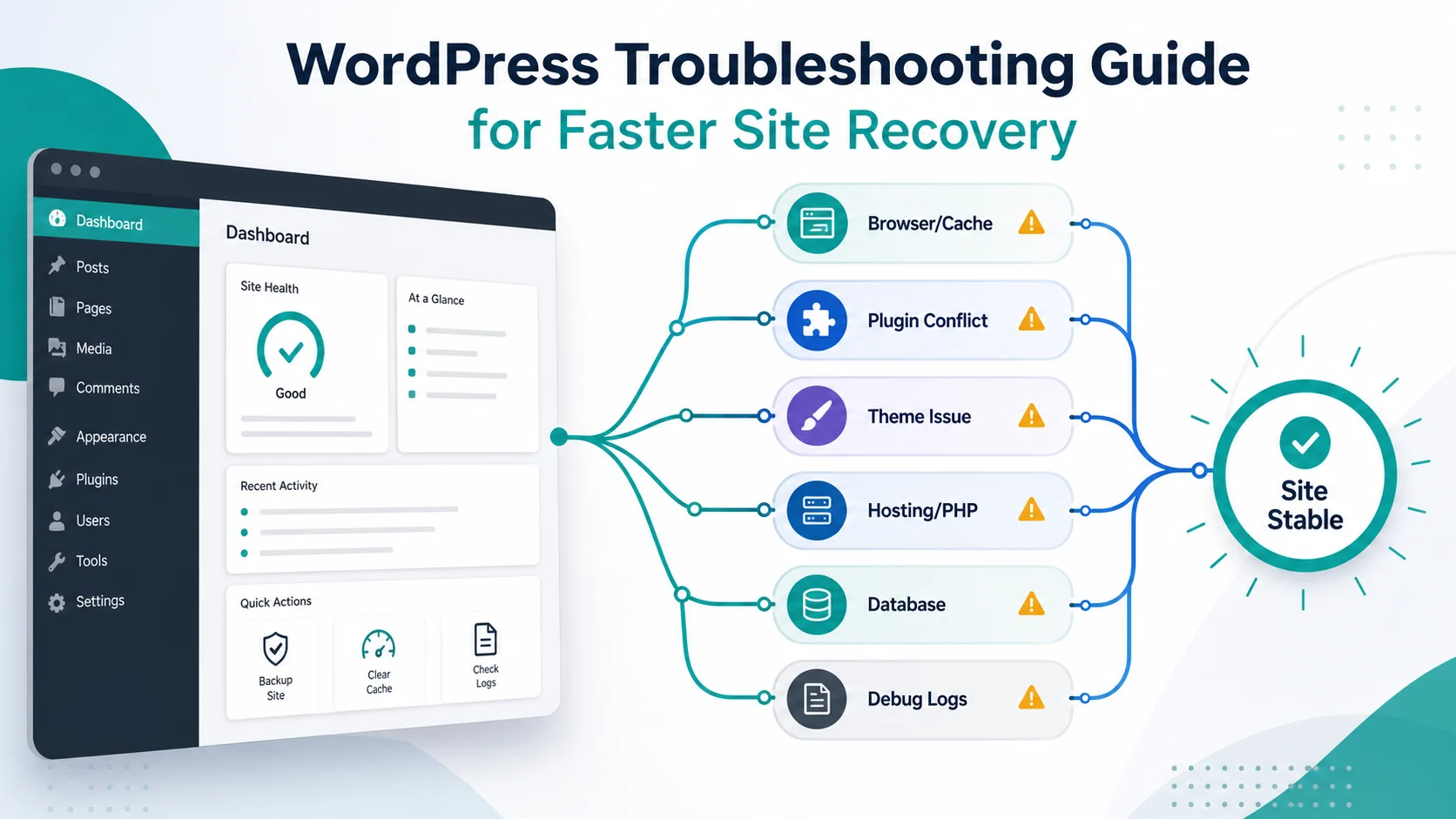
The fastest way to fix a WordPress site is methodical elimination, not panic, and it works almost every time. If a fix ever spirals into a wider outage, our WordPress troubleshooting guide and the white screen of death fix cover the next steps to get your WordPress site working for good.
Frequently asked questions
Why are plugins not working in WordPress?
Plugins usually stop working in WordPress for one of five reasons: a conflict between two plugins that load the same script or hook the same action, plugin code left outdated after a WordPress core update, a PHP version mismatch where the plugin requires a newer PHP release than your host runs, a memory limit too low for the plugin to finish loading (WordPress defaults to 40MB for single sites), or a corrupted install from an incomplete upload or interrupted update. You can confirm your PHP version and memory limit under Tools, then Site Health, then Info in the WordPress dashboard. To isolate which cause applies, deactivate every plugin and reactivate them one at a time until the broken one reappears, since that pinpoints the exact plugin responsible.
Why do WordPress plugins fail to activate?
A plugin fails to activate when it triggers a fatal error, usually because it needs a newer PHP version, conflicts with another plugin, or its files uploaded incompletely. The activation screen normally shows an error message naming the file that failed.
How do I fix a plugin that failed to load?
Update the plugin first. If it is already current, deactivate it, delete it, and reinstall a fresh copy from wordpress.org. If it still fails to load, the cause is often your PHP version or memory limit, so check both in Site Health.
How can I fix a broken plugin if I cannot access the WordPress dashboard?
Use an FTP client or your hosting provider file manager, open the wp-content/plugins folder, and rename the problem plugin folder. WordPress deactivates it automatically and your site comes back online so you can finish troubleshooting from the dashboard.
Will I lose my plugin settings if I deactivate plugins?
No. Deactivating a plugin, or renaming its folder through FTP, only switches it off. Your settings stay in the database and return when you reactivate it. You only lose data if you delete the plugin and it cleans up on uninstall.
What if the issue persists after deactivating every plugin?
If the problem survives with all plugins off, it is not a plugin. Switch to a default WordPress theme to rule out the theme, check your error logs and debug mode output, and review recent WordPress core changes. Contact your hosting provider if a server error remains.
How do I check for PHP version or memory limit problems?
Open Tools → Site Health → Info in the dashboard to see your PHP version and memory limit. Raise the PHP version with your hosting provider and increase the limit in wp-config.php if a plugin needs more than the current allocation.
How do I prevent plugin conflicts going forward?
Update plugins on a staging site before production, take a backup of your website before every change, install only well maintained plugins, and confirm each plugin supports your WordPress and PHP version. Quarterly cleanups keep your plugin list lean and stable.