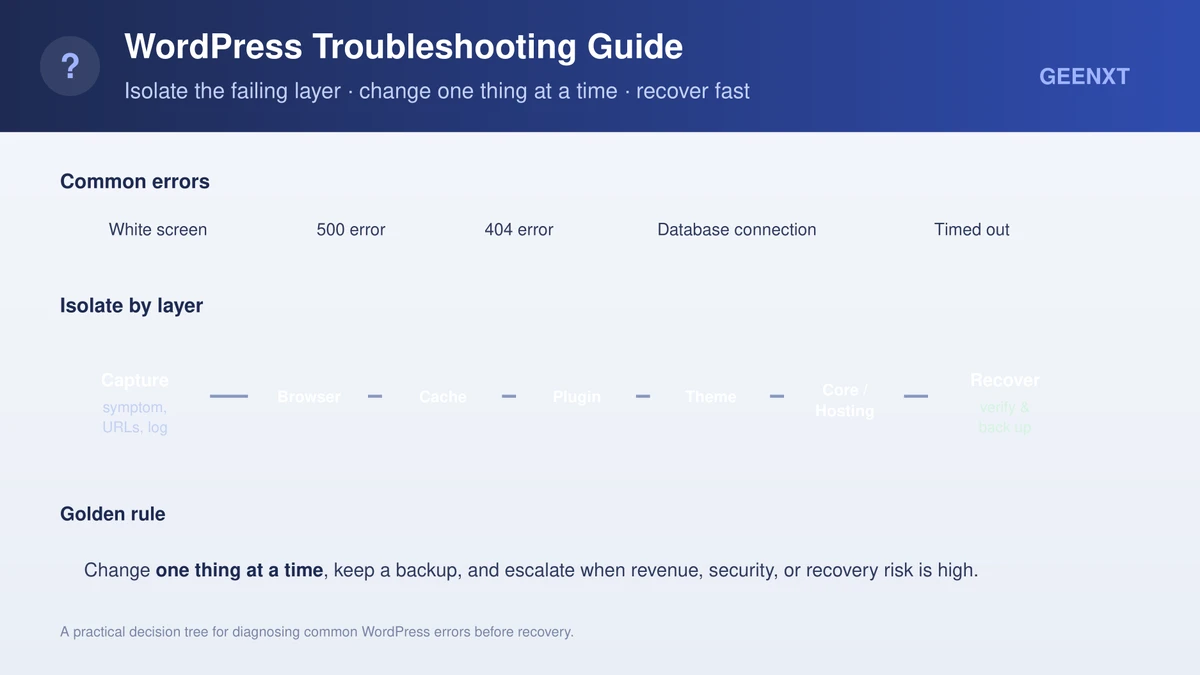
Fast answer: To troubleshoot WordPress, first record the exact error message, the affected URLs, and any recent change, then check whether the dashboard still loads. Isolate the cause one layer at a time (browser, cache, plugin, theme, core, hosting, or database) changing a single thing at a time and keeping a backup before you act.
When a site breaks, the visible symptom is usually only the first clue. A blank page, broken layout, failed login, missing form submission, or an unexpected maintenance screen can each come from many places. It may be a plugin conflict, a theme update, a caching layer, a PHP fault, a database problem, a firewall rule, or a deployment that did not finish. This WordPress troubleshooting guide gives you a calm, repeatable method so you can find the cause without making the incident worse.
It is written for owners, marketers, operators, and internal teams who are not developers but still need to act during a stressful moment. You do not need to write code to apply these troubleshooting techniques, you need a clear order, a way to find the failing layer, and the discipline to change one thing at a time. If your WordPress site already affects leads, sales, bookings, or client work, treat speed and control as the priority and bring in professional WordPress support when recovery risk is high.
Before you troubleshoot WordPress, protect the recovery path
The first rule is to avoid making the problem harder to reverse. Before you disable anything, switch themes, or edit code, take a short evidence pass so you can resolve the issue with facts instead of guesses.
- Write down the exact symptom or error, word for word.
- Record when it started, including timezone if you can.
- List the affected URLs, forms, templates, or admin screens.
- Confirm whether the WordPress dashboard is reachable.
- Note whether it began after you update a plugin or theme, edit code, run a migration, purge a caching layer, change DNS, or adjust hosting.
- Confirm you have a recent backup of files and database, and back up your site again if you can.
This matters because two failures can look identical from the outside while needing completely different fixes. A WordPress error such as a blank screen after a fatal PHP fault is not the same problem as a stale cache, and a broken contact form is not the same as a database failure. The official reference on the most common WordPress errors pairs well with the layered method below.
Use a fixed order instead of guesswork
A good guide gives you repeatable troubleshooting steps. Random fixes create confusion because you cannot tell which change mattered. Run this first pass before you make changes that are hard to undo:
- Test the homepage, one inner page, one media file, and
/wp-admin/. - Open the failing page in another browser or a private window.
- Check whether logged-in and logged-out visitors see the same thing.
- Clear only the most relevant cached copy first, then retest.
- Review recent changes to plugins and themes, plus any WordPress core update.
- Read the hosting logs, the PHP error log, or Site Health if available.
- Make one controlled change at a time and record the result.
This separates a browser problem from a platform problem. If the page works in one browser but not another, look at cookies, extensions, and stored scripts before you touch the site. If the front end is broken but the dashboard loads, the cause is likely a theme template, extension output, permalink rule, or caching layer. If both fail, think bigger: PHP, the database, hosting, or the core itself. The sections below cover the specific errors that site owners meet most often.
The white screen of death
The white screen of death is alarming because it often shows no detail at all. The usual causes are a fatal PHP fault, an exhausted memory limit, a broken extension, an incompatible theme, or an update that failed midway. For the complete walkthrough, see our guide to the WordPress white screen of death. Start with scope: does the dashboard load, does only one page fail, and did it begin after an update?
If the dashboard still works, deactivate the most recent extension or switch briefly to a stock theme to test. If nothing loads, turn on logging before you change more, because the log usually names the file causing the crash. When a fatal fault takes down the whole site, the platform now sends a recovery email instead of a blank screen; our walkthrough on how to fix the WordPress critical error covers that recovery mode step by step.
The internal server error (500)
This error returns an HTTP 500 status with no detail, which makes it one of the harder faults to read. Common causes include a corrupted .htaccess file, an exhausted memory limit, a faulty extension or theme, or wrong file permissions on the hosting server.
Work it in order. Re-save your permalinks to regenerate .htaccess, raise the PHP memory ceiling, then deactivate extensions to see which plugin is causing the fault. If you cannot reach the dashboard, switch off plugins by renaming the plugins folder over SFTP, then re-enable each one until the fault returns. If it survives a default theme and every extension, contact your hosting provider, because the root cause is often server configuration rather than the platform.
Error establishing a database connection
This database connection message means the platform cannot reach the database that stores your posts, settings, and users. The usual culprits are wrong credentials, a database server that is down or overloaded, or corrupted tables.
First, check the database name, user, password, and host inside the wp-config.php file against what your host provides. If those are right, confirm the database server is responding, on shared hosting it can stall during traffic spikes. The platform also ships a repair routine you enable by adding define('WP_ALLOW_REPAIR', true); to the same file. Because this fault can also signal a wider outage, our dedicated guide to a database connection failure covers credential checks, table repair, and when to escalate.
The 404 error on a post or page
A 404 means the requested URL was not found. Site-wide after a migration or a permalink change, it almost always points at a broken rewrite rule rather than missing content. On a single post, the content may have been renamed, moved, or deleted.
For a site-wide case, open Settings → Permalinks and re-save to flush the rewrite rules, then confirm .htaccess is writable. For a single missing post, check whether the slug changed and add a redirect to the correct address. A media file that fails to load inside the admin can mean something else entirely, if thumbnails or uploads disappear, see media library not loading in WordPress for the asset-path and REST checks that apply.
Stuck in maintenance mode
Maintenance mode normally appears for a few seconds during updates, when the screen reads “briefly unavailable for scheduled maintenance.” It turns into a problem when an update fails or times out and the site stays frozen on that screen long after the window closes.
The fix is usually to remove a leftover .maintenance file from the root directory of your WordPress installation via FTP or through your host file manager. Before you delete it, confirm what changed: was the core updated, was a plugin or theme update interrupted, or did the host run automatic updates? Treat the frozen screen as the surface symptom of an unfinished update, then verify the WordPress files, active plugins, and active theme all updated cleanly.
The memory exhausted error
An “allowed memory size exhausted” error means a PHP process tried to use more than the configured memory limit. It often appears alongside a blank screen or during heavy work such as imports, backups, or image processing. Our dedicated guide explains how to fix the WordPress memory exhausted error in depth.
Raise the ceiling by adding define('WP_MEMORY_LIMIT', '256M'); to wp-config.php, or ask your host to lift the server-level PHP memory_limit. If one extension keeps triggering it, treat it as a plugin issue: switch off that particular plugin, confirm the fault clears, then look for a lighter alternative. Constant memory pressure across many requests usually means the site has outgrown its current hosting plan.
The connection timed out error
A connection timeout means the server took too long to respond and the request was dropped. It usually points at an overloaded server, an inefficient extension, or a script that exceeds the PHP execution-time limit.
Begin by switching off heavy extensions to find one that is draining resources, then raise max_execution_time if your host allows it. Because timeouts are usually a performance problem rather than a single broken file, the deeper fixes live in our guides on why a website took too long to respond and how to reduce TTFB on WordPress. If timeouts only show up under load, the answer is caching and hosting capacity, not configuration alone.
How to troubleshoot plugin conflicts safely
Extensions are a common source of trouble, but not every incident should become a mass shutdown. A careful process is faster than panic, and it is the most reliable way to find which plugin owns the failure. See our full WordPress plugin conflict guide for the complete isolation process.
- If the dashboard works, export or screenshot the active list.
- Identify recently updated, newly installed, or feature-owning extensions.
- Deactivate the most likely one first, then retest the exact failing path.
- If the dashboard is unreachable, disable plugins via FTP by renaming the
pluginsfolder, only with a recovery path ready. - Reactivate the plugins one at a time until the fault returns.
- Record the name, version, message, and affected URL.
The aim is to find the owner of the fault, not to blame extensions as a category. A caching plugin can serve stale assets, a security tool can block legitimate requests, a WordPress plugin for forms can break after an API change, and an SEO add-on can affect redirects or schema. If a clash between an extension and the theme seems likely, switch to a default WordPress theme just long enough to test. If the problem vanishes, inspect the custom theme, its template overrides, and the page builder, many compatibility issues trace back to a theme that has not kept up with the current version. If the problem stays, return to the extensions, hosting, the caching layer, or the database. A theme that itself fails to load has its own path in how to fix a broken WordPress theme.
Know when cache is hiding the real result
Caching makes the platform faster, but it can disguise recovery. A fix may be live on the origin while visitors still see an old copy, or the front end may look broken because optimized scripts and stale styles load out of order. Purge stored copies in a controlled order:
- Clear the caching plugin’s stored pages if one is active.
- Purge the host’s server-side copy from the hosting panel.
- Purge the CDN for the affected URL, not always the full site.
- Clear your browser cache or test in a private window.
- Retest the exact URL and workflow that failed.
Avoid purging everything repeatedly while you also swap extensions and themes, that makes the incident impossible to read. Good recovery depends on knowing whether a change affected the site, the stored copy, the browser, or a single visitor path.
Use debug tools and the error log carefully
When you enable debug output, do it deliberately. The WordPress Codex guidance on debugging recommends setting WP_DEBUG and WP_DEBUG_LOG so notices are written to a private error log instead of shown to visitors. Capture the timestamp, read the first fatal line rather than the noise that follows it, and turn public display back off once you finish. One accurate line of debug output beats an hour of guessing, and it is usually the quickest way to trace which file is behind a specific fault.
Know when to escalate
Strong triage means knowing when to keep going and when to hand off. A site owner can safely collect evidence, test browsers, confirm recent changes, purge a targeted copy, and check whether the dashboard works. A developer or specialist should handle deeper edits, database repair, repeated fatal faults, a suspected compromise, or production changes without a verified backup. Escalate faster when:
- The homepage, checkout, booking path, or lead form is down.
- The dashboard and front end fail at the same time.
- Fatal faults repeat after one controlled rollback.
- The same plugin or theme breaks again after you re-enable it.
- You suspect malware or unauthorized access: follow incident response after a WordPress hack rather than poking at a live, possibly compromised site.
- You have no clean backup and the site is business-critical.
Good escalation is not giving up; it is part of responsible recovery. A short incident note saves hours: include the start time, affected URLs, recent changes, the current extension list, the PHP and WordPress version, the active theme, screenshots, and the first useful log line.
After recovery, reduce repeat WordPress issues
The best moment to improve your workflow is right after the site is stable. Turn the lesson into a habit so you meet fewer common WordPress issues next time.
- Keep backups for files and database, and test the restore steps.
- Use staging before major updates on important sites.
- Update your plugins and themes in smaller batches.
- Document which extension owns each critical feature.
- Track your caching layers so the team knows what to purge.
- Keep a simple change log for updates, launches, and hosting edits.
This is also where teams learn WordPress more effectively. Real incidents show how extensions, themes, hosting, caching, and browser behaviour fit together. The point is not to memorize every fault; it is to build a repeatable way to troubleshoot the platform without letting any incident grow larger than it needs to be. Many of the incidents on this page trace back to a routine step that got skipped, our WordPress maintenance checklist for business websites covers the recurring tasks that prevent most of them before they start.
Quick troubleshooting checklist
- Capture the exact symptom and the affected URLs.
- Check whether the dashboard loads.
- Test another browser and a private window.
- Review recent changes to your extensions and themes.
- Confirm the stored copy is not hiding a fix.
- Look for PHP faults, failed updates, or hosting warnings.
- Switch off only the most likely extension first.
- Use a stock theme only as a short diagnostic test.
- Read the log carefully and keep that output private.
- Escalate when revenue, security, or recovery risk is high.
Troubleshooting FAQ
How do I troubleshoot a WordPress website?
Start by recording the error, the affected URLs, recent changes, and whether the dashboard works. Then test the browser, the stored copy, plugins, themes, hosting, and the database in order. Change one thing at a time so you can pinpoint and fix the cause cleanly.
What is the first thing to check when the site breaks?
Check scope. Find out whether the whole site is down, only the front end is broken, only the dashboard fails, or only one feature stopped. Scope decides the safest next step.
How do I know if a plugin caused the issue?
Look for recent updates, feature ownership, and a log line pointing to an extension path. If the dashboard works, deactivate the most likely extension first. If access is lost, switch them off by renaming the plugins folder and re-enable each one until the fault comes back.
What causes the white screen?
It usually comes from a fatal PHP fault, an exhausted memory limit, an incompatible extension, a broken theme function, or a failed update. The log normally gives the fastest clue to which file failed.
Why is my site stuck in the maintenance screen?
The site stays frozen when an update is interrupted and leaves a temporary .maintenance file behind. Confirm recent core, plugin, and theme updates, then remove that file once you verify the update finished.
How do I fix a database connection failure?
Check the credentials in your wp-config.php file, confirm the database server is running, and run the built-in repair routine if tables are corrupted. If everything looks correct, ask your host, since the database may be down or overloaded.
Should I restore from backup or keep troubleshooting?
Restore from backup when the site is business-critical, the outage is costly, and you have a verified restore point. Keep troubleshooting when the fault is narrow, low-risk, and you still have the evidence you need.
Can I learn to troubleshoot without coding?
Yes. You can learn this recovery process by understanding scope, backups, plugins, themes, caching, dashboard notices, and escalation points. Code knowledge helps, but a controlled process is valuable even for non-developers.