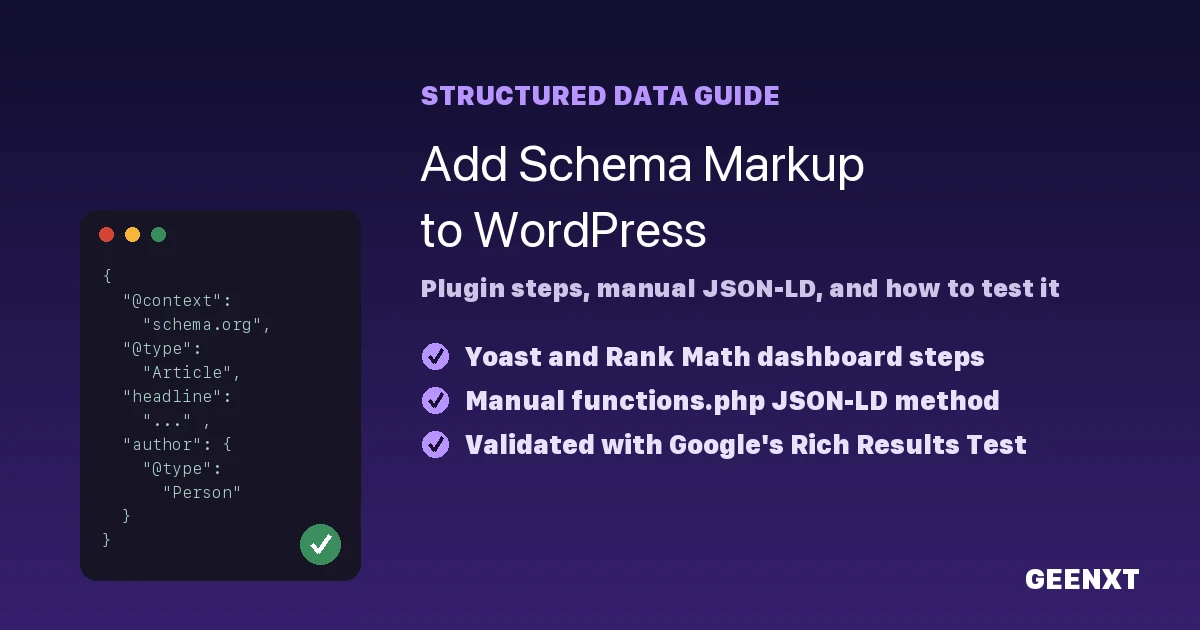
You add schema markup to WordPress in three ways: through an SEO plugin like Yoast or Rank Math, by pasting JSON-LD code into your child theme’s functions.php file, or through a theme template file. Schema markup is structured data in JSON-LD format that tells Google and AI search tools exactly what a page is about.
Most WordPress sites already carry partial schema from their SEO plugin (Organization, WebSite, basic Article types), but dashboards rarely expose page-specific types like FAQPage or Product without extra setup. Which method you pick depends on comfort level: a plugin such as Yoast SEO or Rank Math handles common schema types through dropdown menus with no code, while a manual functions.php snippet gives full control over every field Google’s structured data guidelines require. Either way, add schema markup to WordPress in a form you can update easily, then confirm it renders correctly with Google’s Rich Results Test before you rely on it.
What Is Schema Markup?
Schema markup is a standardized vocabulary (maintained at schema.org) that describes the content on a page in a format search engines and AI systems can parse without guessing. Instead of a crawler inferring that a page is a recipe, a product, or a how-to guide from surrounding text, schema markup states it directly: this is an Article published on this date by this author, or this is a Product with this price and this availability. Google recommends adding this schema.org markup as JSON-LD (JavaScript Object Notation for Linked Data), a small script block placed in the page’s HTML that does not touch the visible layout or the WordPress theme’s design. How you implement schema, whether through a plugin or by hand, doesn’t change how Google or an AI system reads it, provided every required field Google’s structured data guidelines mark as mandatory for that type is filled in.
Why Add Schema Markup to Your WordPress Site?
Schema markup does two jobs at once. First, it makes individual pages eligible for rich results in Google Search: star ratings, FAQ dropdowns, breadcrumb trails, and event details that take up more space and earn a higher click-through rate than a plain blue link. Second, and increasingly important, it gives AI search tools like Google AI Overviews, ChatGPT, and Perplexity a clean, structured summary of the page they can cite with confidence, because the schema type, headline, author, and date are already labeled rather than buried in prose.
GEENXT’s own June 2026 GEO audit scored the site’s Schema and Structured Data category 70 out of 100: strong post-level coverage was already in place across Article, HowTo, FAQPage, and BreadcrumbList types, but the audit flagged one specific problem. HowTo is a rich-results type Google deprecated in September 2023, meaning it no longer earns the visual rich-result treatment even though the markup still validates. That finding is exactly why this guide recommends an ordered list (ItemList) for step-by-step content instead of HowTo going forward.
3 Ways to Add Schema Markup in WordPress
There is no single correct method. Pick the one that matches how much control you want and how comfortable you are editing files on your WordPress sites. Anyone researching schema markup WordPress options for the first time usually lands on the same fork: use a plugin, or write the code by hand.
Method 1: Using an SEO Plugin (Yoast or Rank Math)
An SEO plugin is the fastest way to add schema markup to WordPress without touching code, and it is the right call for most business sites.
Yoast SEO: after you install and activate the plugin, go to Yoast SEO in the left sidebar, then General, and set Site representation (organization or person, plus logo). For an individual post or page, open the editor, scroll to the Yoast SEO panel below the content area, and click the Schema tab. Use the Page type and Article type dropdowns to set the correct schema type for that page (Article, Product, Service, and so on) and fill in any additional fields the panel exposes.
Rank Math: click Rank Math in the WordPress sidebar, then Schema Templates. Click Add New, choose a schema type from the library (Article, FAQ, Service, Product, and more are all available), and Rank Math generates the JSON-LD automatically. You can also assign a schema template to a whole post type, category, or individual URL under Schema Generator so every matching page inherits it.
Common mistake with either plugin: leaving the schema type on a generic default (WebPage) instead of picking the type that actually matches the content, or filling in a headline field that does not match the visible page title. Both weaken the rich-result eligibility the schema markup is supposed to unlock. Always double-check that the added schema type matches the page before you publish.
Method 2: Adding Schema Manually via functions.php (No Plugin)
If you would rather not add another plugin, or you already have one SEO plugin and do not want a second schema layer fighting it, you can add structured data straight into your child theme’s functions.php file. Hook a small function to wp_head so it prints a JSON-LD block only on the post types you choose:
function geenxt_add_article_schema() {
    if ( ! is_singular( 'post' ) ) {
        return;
    }
    $schema = array(
        '@context'  => 'https://schema.org',
        '@type'     => 'Article',
        'headline'  => get_the_title(),
        'datePublished' => get_the_date( 'c' ),
        'dateModified'  => get_the_modified_date( 'c' ),
        'author'    => array(
            '@type' => 'Person',
            'name'  => get_the_author(),
        ),
    );
    echo '<script type="application/ld+json">' . wp_json_encode( $schema ) . '</script>';
}
add_action( 'wp_head', 'geenxt_add_article_schema' );
This is the same pattern GEENXT uses on its own full plugin-free WordPress SEO guide, which covers the broader manual SEO workflow (titles, meta descriptions, sitemaps) alongside this schema code. Keep the function in a child theme so a parent theme update never wipes it out, and never run this schema code alongside a plugin generating the same schema type on the same page. Two Article blocks on one page is a duplicate-schema error, not extra credit. Verify the added schema in Google’s Rich Results Test before you consider the job done.
Method 3: Adding Schema via a Child Theme Template
For a custom post type that needs a schema type no plugin template covers well (a specific Service or Event layout, for example), you can echo the JSON-LD directly inside the relevant template file (single-service.php, for instance) rather than hooking into wp_head site-wide. This keeps the schema code scoped to exactly the template that needs it, which is useful on larger wordpress sites running several custom post types side by side. It is the least common route of the three because it requires editing a specific theme file rather than a single shared function, so reserve it for cases the other two methods genuinely cannot handle.
How to Add FAQ Schema to WordPress
FAQ schema (the FAQPage type) marks up a visible list of questions and answers so they can appear as an expandable dropdown in search results and be quoted cleanly by AI tools. In Rank Math, choose the FAQ schema type on the Schema Templates screen and add each question and answer pair in the block editor’s FAQ block. In Yoast, the same FAQ block in the editor auto-generates the schema when you add questions to it. If you are adding schema markup manually, mirror the pattern from Method 2 above but use “@type”: “FAQPage” with a mainEntity array of Question and Answer objects, matching the exact questions and answers visible on the page: schema should never describe content a visitor cannot actually see.
How to Test and Validate Your Schema Markup
Never publish schema markup without checking it first. The workflow is three steps:
- Run the page through Google’s Rich Results Test. Paste the live URL (or the raw code) into the tool and let it parse the page.
- Read every warning and error, not just the pass/fail summary. A missing recommended field shows as a warning; a missing required field shows as an error and blocks rich-result eligibility for that type.
- Fix the flagged fields and re-test the same URL. Schema markup validator tools cache aggressively, so re-run the test against a fresh URL parameter if a fix does not show up right away.
Do this every time you change the schema type, update a plugin that generates schema, or switch WordPress themes, since a theme switch can silently drop a template-level JSON-LD block from Method 3. Any time you’ve added schema markup to a new page for the first time, run it through the validator before you call the job finished.
Common Schema Markup Mistakes to Avoid
- Running two schema sources at once. An SEO plugin and a manual functions.php snippet both outputting an Article type on the same page creates duplicate, conflicting schema.
- Using a deprecated schema type for the wrong reason. HowTo no longer earns rich results in Google Search (deprecated September 2023); use an ordered ItemList for step sequences instead if you want AI systems to still parse the structure clearly.
- Leaving required fields blank. A Product type without a price or availability, or an Article without a headline, fails validation even though the schema block technically exists.
- Forgetting to re-test after a theme or plugin update. Schema markup that worked last month can silently break after an update changes template structure.
- Marking up content that is not visible to users. Schema (especially FAQPage) should mirror exactly what a visitor sees on the page.
Next Steps: Where This Fits in Your WordPress SEO Setup
Schema markup is one piece of a larger technical SEO setup, not a standalone fix. Once your schema type is live and validated, work through this short checklist:
- Confirm the schema markup you added matches what Search Console reports under Enhancements.
- Check that your SEO plugin is not generating a second, conflicting schema block for the same type.
- If you run an online store, review Product and Review schema for ecommerce for the fields Google expects on product pages specifically.
- Revisit your schema markup whenever you redesign a template or migrate to a new WordPress theme.
- If ongoing upkeep is more than you want to own in-house, GEENXT’s WordPress support plans include schema and technical SEO maintenance as part of routine site care.
For the full picture of doing WordPress SEO without relying on a plugin for everything (permalinks, meta tags, sitemaps, and this schema layer together), see GEENXT’s complete manual WordPress SEO guide.
Frequently Asked Questions
How do I add schema to a WordPress website?
Learning how to add schema in WordPress comes down to two routes: use your SEO plugin’s built-in schema panel (Yoast’s Schema tab or Rank Math’s Schema Templates), or add a JSON-LD script manually via your child theme’s functions.php file. Both approaches produce the same schema.org markup; the plugin route needs no code, while the manual route gives full control over every field. Whichever you choose, confirm the added schema validates in Google’s Rich Results Test before you publish.
How do I know if my WordPress website has schema markup?
View the page source (or use Google’s Rich Results Test on the live URL) and look for a script tag with type=”application/ld+json”. Most SEO plugins add basic Organization and WebSite schema by default, so many wordpress sites already have some coverage even without manual setup.
What are the different methods to add schema markup in WordPress?
There are three: an SEO plugin’s schema panel (no code), a manual JSON-LD snippet in functions.php (full control, no plugin dependency), or a schema block inside a specific child theme template file (for a custom post type a plugin template does not cover).
What is the best schema markup plugin for WordPress?
Yoast SEO and Rank Math are both widely used, well-maintained options with dedicated schema panels; Rank Math’s Schema Templates offer more granular type-by-type control out of the box, while Yoast’s schema settings integrate tightly with its existing SEO fields. Either is a reasonable seo plugin choice for most WordPress sites; pick whichever you already run for meta titles and sitemaps to avoid managing two plugins.
How do I add FAQ schema to WordPress?
Add an FAQ block in the block editor with your visible questions and answers, then let your SEO plugin auto-generate the FAQPage schema from that block (both Yoast and Rank Math support this). If you are working without a plugin, write the FAQPage JSON-LD manually using the same question and answer text that appears on the page.
What are Google’s guidelines for schema markup?
Google’s structured data guidelines require that markup describe content actually visible on the page, use a schema.org type appropriate to that content, and include every field the specific rich-result type marks as required. Google also recommends JSON-LD over microdata or RDFa as the implementation format, and provides the Rich Results Test as the official markup validator for checking compliance before publishing.
How can I test my schema markup in WordPress?
Paste your live URL into Google’s Rich Results Test and review every warning and error the tool returns, not just the overall pass or fail status. A missing recommended field appears as a warning and rarely blocks eligibility; a missing required field appears as an error and does block that page from qualifying for the rich result. Fix whatever the tool flags, then re-test the same URL to confirm the schema markup now validates cleanly. Repeat this check after any theme switch, plugin update, or manual edit to the JSON-LD, since each of those can silently break markup that worked before, and treat a clean validator pass as the minimum bar before you consider the schema markup finished.
Can I add schema markup to WordPress without a plugin?
Yes. Add structured data manually by hooking a JSON-LD script to wp_head in your child theme’s functions.php file, or by echoing it directly inside a specific template file. This avoids adding a plugin purely for schema, though it means you are responsible for keeping the schema code updated as the page content changes.