Direct answer: A WordPress maintenance checklist is a repeatable list of website maintenance tasks-backups, updates, security, performance, and content checks-organized by cadence. Run basic monitoring daily, operational checks weekly, controlled updates monthly, deeper audits quarterly, and a full review annually to keep your WordPress site secure, fast, and reliable.
Demand for this kind of structure keeps growing: GEENXT’s own July 2026 keyword research puts monthly US searches for “wordpress maintenance” at roughly 1,900, with a keyword difficulty score of just 9, meaning the topic is easy to research but hard to act on without a system. A checklist only helps once someone runs it on a fixed schedule. Treat each cadence as a standing commitment: daily checks protect availability, weekly checks catch operational drift, monthly checks handle deeper technical work, and quarterly plus annual reviews confirm the platform still fits the business. Skipping one cycle rarely causes damage, but skipping several in a row is how a maintained site quietly turns into a neglected one.

For a business website, maintenance is not just technical housekeeping. It protects the place where prospects learn about your company, customers submit forms, sales teams send traffic, and search engines evaluate your content. A neglected WordPress site can still look fine on the surface while backups fail quietly, plugins fall behind, contact forms stop sending, or slow load time begins hurting conversions.
This ultimate WordPress maintenance checklist is built for the website owner, marketing manager, or operations lead who needs a practical plan without turning every small update into a technical project. It gives you a cadence for daily, weekly, monthly, quarterly, and annual work, plus guidance on what to handle internally and when to bring in professional WordPress support. Use it as a working framework or hand it to a partner who will perform WordPress maintenance for you.
Why WordPress Website Maintenance Is Important
WordPress powers a huge share of the web, and that popularity is exactly why maintenance important to plan for. The same open WordPress ecosystem and plugin repository that make the platform flexible also create a moving target: core, themes, and every extension update on their own timelines, and security researchers probe the most common components first. Consistent, regular WordPress maintenance keeps your WordPress installation aligned with those moving parts instead of drifting into risk. Maintaining a WordPress site is an ongoing commitment, not a one-time project, and maintaining your WordPress site on a fixed schedule is what keeps small issues from becoming outages.
Timely maintenance also protects user experience and revenue. A secure website that loads quickly earns more trust, ranks more predictably in search engine results, and converts better than one that is slow or broken. When you leave a website untouched for months, small issues compound: outdated software opens security holes, oversized images on your website inflate load time, and broken link clutter erodes both user experience and crawlability. Regular maintenance helps you catch those problems while they are still cheap to fix, and the habit of maintaining your WordPress website keeps it dependable for visitors and search engines alike.
Finally, maintenance is about recovery, not just prevention. No amount of website upkeep guarantees a site never breaks, but comprehensive maintenance-backups, monitoring, and documentation-means that when something does go wrong, you can restore service quickly. That is the real value of a website maintenance checklist: it converts scattered firefighting into a calm, repeatable process. This WordPress website maintenance checklist will help your whole team stay aligned and keep your website secure and online. Keeping your WordPress site healthy this way is far cheaper than emergency recovery.
What Should Be Included in a WordPress Maintenance Checklist?
A complete WordPress maintenance checklist should include backup verification, plugin and theme updates, WordPress core updates, security monitoring, uptime checks, form testing, performance review, content review, analytics review, user access review, database maintenance, and restore planning. The goal is not to eliminate every possible issue. It is to reduce avoidable risk, catch problems earlier, and make recovery faster.
The right checklist also needs a schedule. Some work makes sense daily because it protects revenue or lead flow. Other maintenance tasks are better handled weekly or monthly because they require testing, staging, or a controlled update window. Quarterly and annual audits are broader: they help you decide whether your hosting, plugins, security rules, and content structure still fit the business. Grouping your WordPress website maintenance tasks by cadence turns a long to-do list into a plan you can actually follow, so the team always knows what they need to do. Maintenance on a schedule beats reacting to whatever breaks. Assigning each maintenance task an owner and a fixed cadence is the heart of consistent maintenance.
WordPress Website Maintenance Schedule by Cadence
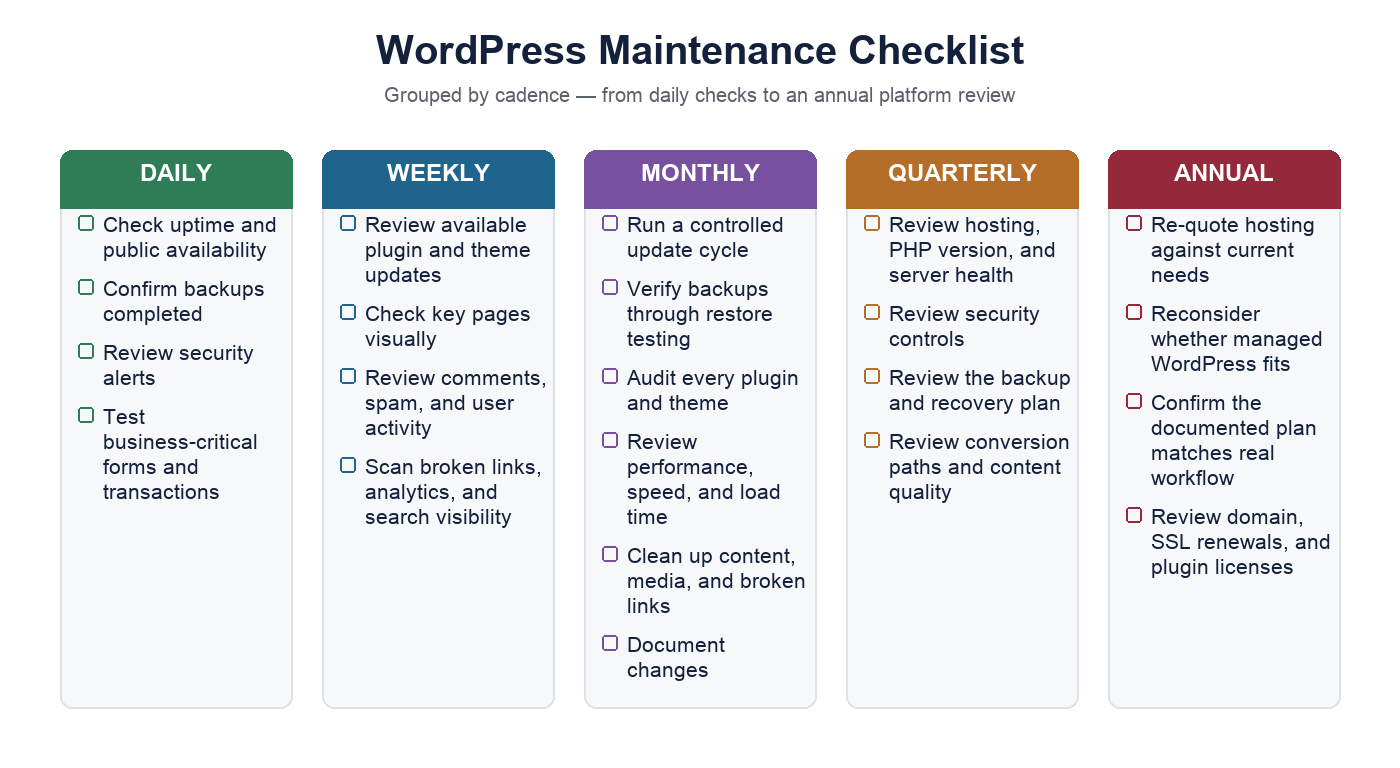
| Cadence | Main Focus | Typical WordPress Maintenance Tasks |
|---|---|---|
| Daily | Availability and critical signals | Check uptime, backup completion, security alerts, orders, forms, and obvious front-end issues. |
| Weekly | Operational health | Review update notices, test key forms, check spam and user activity, scan analytics and broken links. |
| Monthly | Controlled maintenance | Apply tested plugin and theme updates, verify restore points, review the stack, clean the database, document changes. |
| Quarterly | Strategic audit | Review hosting, security posture, backups, website speed, content quality, access permissions, and recovery procedures. |
| Annual | Whole-site review | Re-evaluate platform, design, plugin stack, hosting plan, and your overall website management approach. |
Daily WordPress Maintenance Tasks
Daily work should be quick. The purpose is to confirm the website is always available, important business functions still work, and no urgent alerts need attention. For many business sites this can be handled through monitoring tools and a short review from the WordPress dashboard, not a full manual inspection every morning.
1. Check Uptime and Public Availability
Confirm the site is loading from a normal visitor perspective. A business website can fail because of hosting issues, DNS problems, expired certificates, firewall blocks, conflicts, or database errors. Uptime monitoring can alert you, but someone still needs ownership of the response. At minimum, check the homepage and one or two conversion pages. If a page is slow or down, our guide to fixing a slow server response and TTFB is a good first stop.
2. Confirm Backups Completed
A backup system that silently stops working is one of the most common maintenance risks. Daily checks should confirm that the most recent scheduled backup of your website completed and was stored in the expected location. This does not mean a restore test every day, but it does mean watching for failed jobs, storage limits, or disconnected destinations. If your business depends on frequent transactions, backing up your website may need to happen more than once per day. For a deeper framework, see this guide to a WordPress backup strategy for business websites.
3. Review Security Alerts
Security tools create noise, so daily review should focus on alerts that suggest immediate risk: malware detections, unexpected admin logins, repeated login attempts, file changes in sensitive areas, or blocked requests that look targeted. WordPress security is layered-a firewall, a scanner, and a managed host dashboard each see different signals-so assign one person or partner to own critical alerts. An alert nobody reads is not a control. Our security checklist covers the controls that keep a WordPress site secure.
4. Test Business-Critical Forms and Transactions
Forms are easy to overlook because the page may load even when the submission workflow is broken. A software change, email authentication issue, CRM integration problem, or CAPTCHA failure can stop leads from reaching your team. Daily testing is not needed for every form, but high-value forms-contact, quote requests, booking, checkout-should be checked often. If a form feeds a CRM, verify both the front-end submission and the back-end delivery.
Weekly WordPress Maintenance Tasks
Weekly work is where you catch operational drift. These items are not usually urgent enough for daily review, but leaving them for months can create larger problems and slowly degrade website functionality.
1. Review Available Plugin and Theme Updates
Check core, plugin, and theme updates. Do not treat every notice the same way. Security patches and compatibility fixes may need faster action, while major version changes deserve a more controlled process. For business sites, plugin and theme updates should be backed by a restore point and tested when possible. If updates have broken your site before, the answer is a safer process, not freezing the site. Review our guide on how to update WordPress safely without breaking your site, and follow the official WordPress.org updating documentation for the core workflow.
2. Check Key Pages Visually
Open your most important pages and look for broken layouts, missing images, odd spacing, outdated banners, broken buttons, and mobile display issues. Automated tools help, but visual checks still catch problems scanners miss. Focus on pages that influence revenue or trust: homepage, services, pricing, contact, top posts, and checkout.
3. Review Comments, Spam, and User Activity
If comments are enabled, remove spam and moderate legitimate ones. Also review user activity: look for old accounts, unexpected role changes, new admin users, or accounts that belong to former employees and vendors. Access tends to accumulate over time, and weekly checks help keep the WordPress site secure by reducing unnecessary exposure.
4. Scan Broken Links, Analytics, and Search Visibility
This review does not need to be complex. Run a broken link scan-every broken link is a small leak in user experience and crawl budget-and look for sudden drops in traffic, conversion rate, indexed pages, or sales. A drop may be seasonal, but it may also reveal tracking errors, noindex mistakes, broken templates, or performance problems. For visibility, review basic search engine signals such as indexing issues, crawl errors, and page experience warnings before they become long-term problems.
Monthly WordPress Maintenance Tasks
Monthly maintenance is the core of a serious plan. This is where you handle controlled updates, deeper testing, cleanup, documentation, and backup verification-the slow-moving issues that daily checks miss.
1. Run a Controlled Update Cycle
Your monthly WordPress maintenance tasks should include a planned update window for core, plugins, and themes. For low-risk sites this may be straightforward. For sites with custom code, ecommerce, memberships, or complex integrations, changes should be tested in staging first. A controlled cycle usually includes a fresh backup, staging test, update application, visual checks, form checks, transaction checks, cache clearing, and documentation. For public-facing changes, switching on WordPress maintenance mode first keeps visitors from landing on a half-updated page while the work is in progress. If something breaks, roll back and investigate-our WordPress troubleshooting guide walks through the most common errors.
2. Verify Backups Through Restore Testing
Backup completion is not the same as recovery confidence. At least monthly, confirm backups can be restored in a test environment or by a documented process. This matters most before major updates, hosting changes, or migrations. The practical goal is to confirm that files, database, media uploads, and configuration can be recovered. If the restore depends on one person’s memory, document it.
3. Audit Every Plugin and Theme
Review installed plugins and themes. Remove inactive ones unless they are intentionally retained for a documented reason-unused software still creates risk. Every WordPress plugin you keep adds code you must maintain, so for each one check whether it is still maintained in the WordPress repository, compatible with your current core and PHP versions, and necessary for the business. If two tools overlap, decide which one owns the function. Plugin sprawl often starts as a quick fix and becomes a long-term burden, so apply plugin updates promptly but deliberately.
4. Review Performance, Website Speed, and Load Time
Run a performance check on the homepage, top landing pages, and any page that drives leads or sales. Watch for slow server response, oversized images, render-blocking scripts, excessive third-party tags, and layout shifts that hurt load time. Tie performance work to real user experience rather than vanity scores-Google’s Core Web Vitals guidance on web.dev explains which load time and stability metrics actually affect visitors. For a platform-specific walkthrough, see our guide to Core Web Vitals for WordPress.
5. Clean Up Content, Media, and Broken Links
Review recently published website content, outdated offers, expired promotions, old staff references, broken link issues, and missing images. Remove or redirect pages that no longer serve users, and update content that still ranks but has outdated details. Media cleanup should be careful: do not bulk-delete uploads unless you understand how your theme, page builder, and plugins reference them. The safer approach is to identify large files that waste resources and slow your website, then remove them after a backup. Trimming the size of your website’s media library is one of the simplest ways to improve website speed.
6. Document Changes
Every monthly cycle should leave a short record: the date, updates applied, issues found, fixes made, backup status, restore notes, and follow-up tasks. Documentation is easy to skip, but it becomes valuable when diagnosing a future issue-and it helps a website owner judge the quality of any maintenance service they pay for.
Quarterly WordPress Audit Tasks
A quarterly audit looks beyond routine upkeep. It asks whether the website is still set up correctly for the business it supports-the right cadence for reviewing architecture, access, hosting, and long-term maintainability. Our quarterly WordPress audit template turns this section into a repeatable worksheet.
1. Review Hosting, PHP Version, and Server Health
Check whether the WordPress hosting environment still fits the website. A site that was small two years ago may now have more traffic, more plugins, or ecommerce features. Review PHP version, database health, storage usage, caching configuration, SSL status, and error logs. Running a current, supported PHP release is one of the easiest performance and security wins available-the official PHP supported versions list shows which releases still receive fixes. If the site has recurring slowdowns, the root cause may be hosting capacity or uncached traffic rather than another plugin; our caching decision guide helps you choose the right layer.
2. Review Security Controls
Quarterly security review should include administrator accounts, password policy, two-factor authentication, firewall settings, malware scanning, backup isolation, file-editing restrictions, and access for agencies or contractors. Remove accounts that no longer need access and reduce permissions where possible. For business websites, the most practical posture is layered: no single plugin, host, firewall, or backup service removes all risk, so make sure your WordPress security combines prevention, monitoring, access control, and recovery planning.
3. Review the Backup and Recovery Plan
Revisit your recovery expectations. How much data can the business afford to lose? How quickly must the website be restored? Who has access to backups, and where are they stored? Has anyone tested the restore recently? These questions define your recovery point and recovery time objectives, even if you do not use those formal terms. The important part is that expectations are clear before an outage or compromise happens.
4. Review Conversion Paths and Content Quality
A maintenance checklist should include business outcomes, not only technical status. Review whether key pages still explain your services clearly, whether calls to action match current offers, and whether forms route to the right team. Check your highest-traffic articles for outdated advice, broken link problems, thin sections, and weak next steps. Maintenance is also a chance to strengthen trust signals: author details, review dates, and useful internal links.
Annual WordPress Maintenance Tasks
Once a year, step back from the checklist and evaluate the whole platform. Annual maintenance is where you decide whether your design, plugin stack, hosting plan, and overall website management approach still serve the business. Re-quote your WordPress hosting against current needs, reconsider whether managed WordPress would reduce your operational load, and confirm that your documented plan still matches how the team actually works. This is also a good moment to review your domain, SSL renewals, and any annual plugin licenses so nothing lapses unexpectedly. Treat this as your reset point each year so the maintenance checklist for 2025 and beyond stays current with how your business has changed.
WordPress Database Maintenance
Behind every site is a database that grows with each post revision, transient, spam comment, and plugin table. Left unmanaged, that growth increases backup size, slows queries, and can drag down load time. Database maintenance-clearing post revisions, expired transients, orphaned metadata, and trashed content-keeps the WordPress database lean. Many optimization plugins include safe cleanup tools, but always run a full backup first, because a careless bulk delete is hard to reverse. For most business sites, a light monthly pass plus a deeper quarterly review is enough.
Essential WordPress Maintenance Plugins and Tools
You do not need a large toolset to maintain a WordPress site, but a few categories of maintenance plugins make the work repeatable: a backup tool, a security and firewall plugin, a performance or caching plugin, an uptime monitor, and a broken link checker. Two built-in features also matter when you need to make changes safely. WordPress maintenance mode shows visitors a friendly “be right back” page while you apply updates, so they never see a half-broken site. WordPress debug mode-enabled with WP_DEBUG in wp-config.php-surfaces PHP notices during WordPress development or troubleshooting, then should be switched off on production. Used together, these tools let you perform WordPress maintenance with far less risk to the live experience and help ensure your WordPress site stays online during updates.
How to Build a Site Maintenance Plan
- List your business-critical pages and workflows. Include contact forms, checkout paths, booking tools, landing pages, gated downloads, and CRM integrations.
- Define the maintenance cadence. Assign daily, weekly, monthly, quarterly, and annual maintenance tasks based on business risk, not convenience.
- Confirm backup coverage. Document what is backed up, how often backups run, where they are stored, and how restores are tested.
- Create an update workflow. Decide which plugin and theme updates can be applied quickly and which require staging, testing, or approval.
- Assign ownership. Name the person or support provider responsible for monitoring, updates, security alerts, and escalation.
- Document the checklist. Keep a repeatable checklist so maintenance does not depend on memory-the most important step in your WordPress maintenance routine.
- Review results regularly. Use monthly notes and quarterly audits to adjust the plan as the site changes.
Download the WordPress Maintenance Checklist
A downloadable checklist works best when it mirrors the real cadence: daily, weekly, monthly, quarterly, and annual. It should include task owner, status, last completed date, notes, and escalation steps. If you use a support partner, ask them to include maintenance notes in a format your team can understand.
Download the checklist and use this comprehensive WordPress maintenance checklist as a working framework for your site maintenance plan.
WordPress Maintenance Plans and Professional Services
Not every business has the time or technical confidence to maintain a site consistently, which is where WordPress maintenance plans come in. A good plan packages the routine work above-monitoring, backups, updates, security, and reporting-into a predictable monthly maintenance service. Maintenance plans vary widely, so compare what is actually included rather than the headline price. For a transparent breakdown of what a plan typically covers, see our plans breakdown before comparing providers.
Professional WordPress maintenance services should clearly separate routine work from emergency fixes, performance work, security hardening, and new development. A trusted WordPress maintenance partner will explain the schedule, risk priorities, update process, and reporting format in plain language. Whether you choose a managed host with built-in upkeep or a dedicated agency, the goal is the same: ongoing maintenance that helps you keep your website in top shape and ensure your website is always ready for visitors, without you having to remember every task. If you manage multiple WordPress sites, consistent professional maintenance keeps every property aligned.
When Should a Business Outsource WordPress Maintenance?
Outsourcing makes sense when the website is important to revenue, reputation, customer support, or operations and the internal team cannot keep up. It also makes sense when the site has custom development, WooCommerce, membership features, complex forms, integrations, or strict recovery expectations. That does not mean every business needs an expensive retainer-the support model should match the site’s risk profile. If you are evaluating help, ask what is included in monthly maintenance, how updates are tested, how backups are verified, how urgent issues are handled, and what reports you receive. Clear process is usually more valuable than vague promises.
These wordpress maintenance tips work whether you run the checklist yourself or hand it to a team. You need to do maintenance whether you enjoy it or not. The only real question is whether it is planned or reactive. Use the checklist above to make it planned. If you would rather hand the routine work to a team that does this every day, GEENXT WordPress support can run your maintenance schedule, verify your backups, and keep your site secure and fast so you can focus on the business.
FAQ
How often should you perform WordPress maintenance?
Perform WordPress maintenance on a layered schedule: basic monitoring daily, operational checks weekly, controlled updates and backup verification monthly, broader audits quarterly, and a whole-site review annually. High-traffic, ecommerce, or business-critical sites may need a tighter schedule, but consistent effort on a fixed cadence beats sporadic bursts.
What are the most important monthly WordPress maintenance tasks?
The most important monthly tasks are tested plugin and theme updates, backup verification through restore testing, plugin and theme auditing, performance and website speed checks, security review, broken link checks, database maintenance, and documentation. These reduce preventable issues and make troubleshooting easier.
Can WordPress maintenance prevent every website problem?
No. Maintenance cannot guarantee a website will never break, get attacked, or experience downtime. It can reduce avoidable risk, catch problems earlier, and improve the chances of a faster recovery. That is why backups and documentation matter as much as prevention.
Should I update plugins automatically?
Automatic updates can be useful for low-risk plugins or urgent security releases, but they are not ideal for every business website. Sites with ecommerce, custom code, forms, or integrations should use a controlled update process with backups and testing so an update never breaks the live site.
Do I need a WordPress maintenance plan or can I do it myself?
If you have the time and confidence, the checklist above lets you maintain a WordPress site yourself. A maintenance plan makes sense when the site drives revenue, when downtime is expensive, or when you would rather hand routine upkeep to a professional WordPress maintenance service and focus on the business.
What should be included in a quarterly WordPress audit?
A quarterly audit should review hosting, PHP version, backups, restore testing, security controls, admin users, plugin health, performance, analytics, conversion paths, content quality, and support processes. The audit should produce a short list of risks and next actions rather than a pass/fail grade.
Can WordPress maintenance tasks be automated?
Some tasks can be automated safely: uptime monitoring, off-site backup scheduling, malware scanning, and low-risk plugin updates with automatic rollback. Automation is riskier for major core updates, custom code changes, and anything touching checkout, forms, or integrations, since those need a human to test before and after. The safest approach mixes both: let monitoring and backups run automatically in the background, but keep a person or WordPress maintenance service reviewing what those tools flag and approving any update carrying real risk.
Should I use a plugin, managed hosting, or an agency for WordPress maintenance?
A plugin is the cheapest option, but it leaves you responsible for reviewing alerts, testing updates, and handling anything the plugin cannot fix on its own. Managed WordPress hosting adds automatic backups, core updates, and basic security, but usually stops short of monitoring your specific plugins, forms, or business logic. An agency or dedicated WordPress maintenance service covers the full cadence, tests changes before applying them, and takes ownership when something breaks. Choose based on how much technical risk the site carries, not just budget.
Reviewed by: Mark Anthony Garcia, Geenxt WordPress Support.
Pair this checklist with a documented process: GEENXT’s Freelance Web Support SLA Template covers scope and response times, and the Resources Hub has more free templates for running WordPress maintenance.