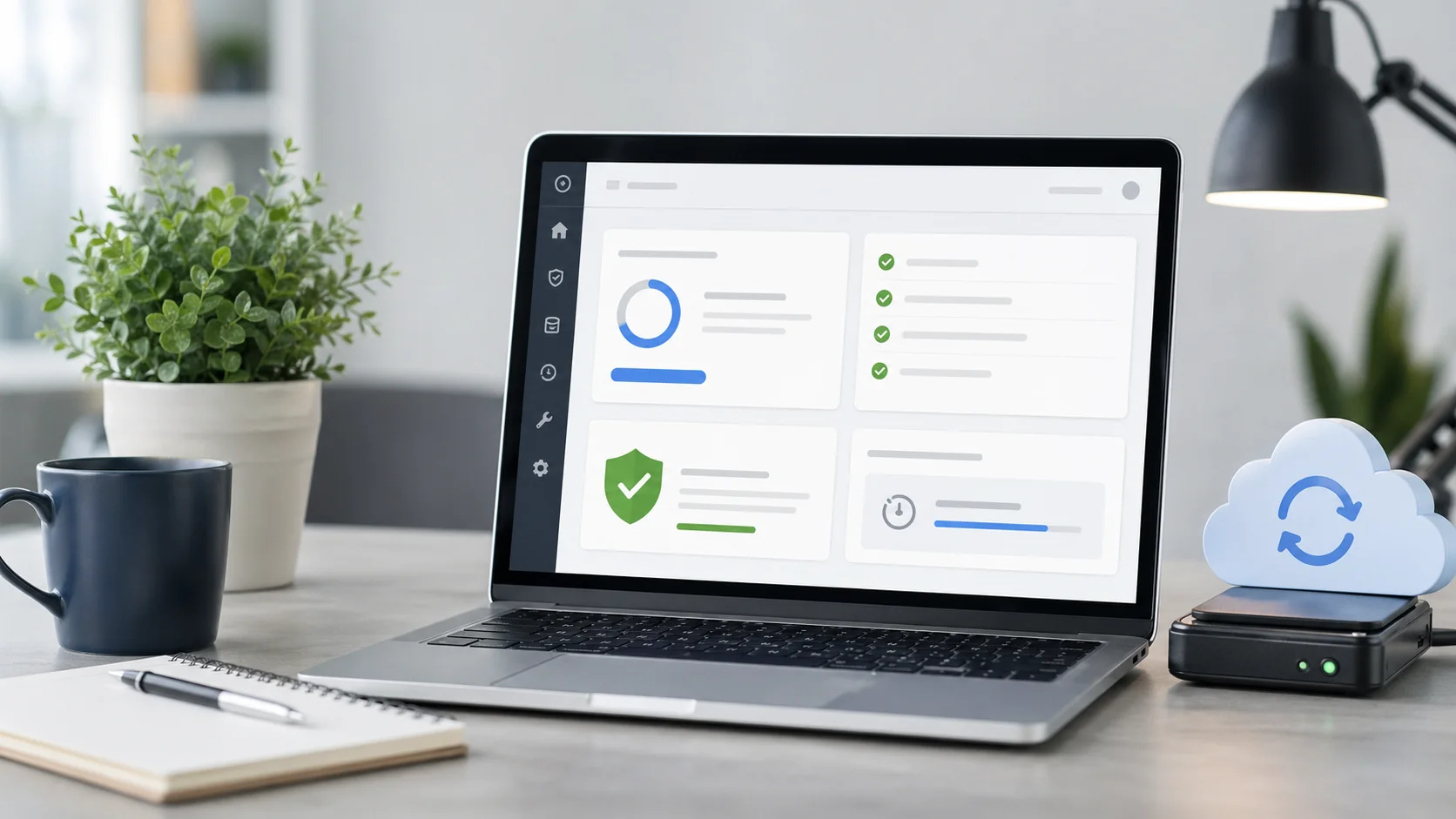
Here is how to update WordPress safely: back up your site first, then update core before plugins and themes, applying each in small batches. Test on staging when you can, verify key pages after each step, and keep a rollback plan ready in case something conflicts with the new version.
Why Updating WordPress Matters
Every WordPress core update ships more than new features. Many releases patch security holes that attackers actively scan for within days of disclosure, which is why staying current is one of the simplest ways to reduce risk. Skipping wordpress security updates leaves known vulnerabilities open on your site long after a fix exists. Beyond security, updates also fix compatibility bugs between core, plugins, and themes, so falling behind on wordpress updates tends to make the eventual update riskier, not safer, because more changes pile up at once.
The tradeoff is real: an update can also break something, usually a plugin or theme that has not been tested against the new core version. That is the reason this guide exists. The goal is not just to explain how to update wordpress, it is to explain how to do it without turning routine maintenance into downtime. On agency-managed accounts, the sites that break during an update are almost never the ones running a documented process like the one below. They are the ones that click update and hope, often on a site that has not seen a wordpress update in months.
Before You Update WordPress
Do not start a wordpress update without these four things in place first:
- A reliable backup. Back up the database and files together, and confirm you know where the restore tool lives before you need it. If you only remember one rule from this guide, back up before every update, no exceptions.
- A record of your current setup. Note the current WordPress version, active theme, key plugins and their versions, and your PHP version. If something breaks, this list is what you compare against.
- The release notes. Check whether the update is a security release, a minor release, or a major version bump. A security release should move fast; a major version of WordPress deserves more testing time.
- A staging environment, if you have one. Cloning your live wordpress site to staging first is the single best way to catch a conflict before visitors ever see it.
None of this needs to take long. Most sites can work through this checklist in under ten minutes, and skipping it is what turns a routine wordpress update into an afternoon of troubleshooting.
Choosing Your Update Path
Not every wordpress update needs the same level of care. Use this as a quick reference before you start:
| Update type | Recommended approach | Risk level |
|---|---|---|
| WordPress security release | Apply quickly, backup first | Low if backed up |
| WordPress minor core release | Apply within the week, test key pages after | Low |
| WordPress major version | Stage first, then apply on production | Medium to high |
| Low-risk plugin (non-critical) | Automatic updates are fine | Low |
| Business-critical plugin | Manual update, test before and after | Medium |
| Theme (especially customized) | Stage first, check child theme | Medium to high |
How to Update WordPress Step by Step
This is the same order GEENXT uses on managed WordPress Support accounts, whether the update runs through the dashboard, WP-CLI, or manual FTP file replacement.
- Record the current state. Note the current WordPress version, active theme, important plugins, PHP version, and hosting environment before you touch anything.
- Back up your website. Create a complete backup and confirm where the restore tool is located. Do this every time, even for a minor plugin update.
- Review available releases. Check whether a new update is available for core, plugins, or themes, and read the changelog for anything marked critical or breaking.
- Clone to staging. Test updates on a staging copy before changing the live site, especially for a major version of wordpress.
- Update WordPress core first, when appropriate. For most sites, updating to the latest version of wordpress before touching plugins and themes gives them the platform version they expect.
- Update plugins in small batches. For business-critical plugins, update one at a time so a failed plugin update is easy to isolate and roll back.
- Apply theme updates. Check a child theme after the parent theme changes, especially if templates or hooks have been customized.
- Test against real workflows. Submit forms, visit service pages, test menus, check mobile layouts, and confirm your conversion paths still work.
- Move to production carefully. Repeat the same order on the live site, or push the tested staging changes live, depending on your hosting workflow.
- Review after release. Check the site again once caches clear and real visitor traffic starts hitting it, not just your own test pass.
If you are working without staging, the manual path still applies: connect over ftp, replace the wordpress files with the new release, keep the wp-content folder and wp-config.php untouched, and remove any leftover .maintenance file so the site does not stay locked in maintenance mode.
Updating WordPress with WP-CLI
If you manage more than a handful of sites, WP-CLI turns the same checklist into a repeatable script instead of a series of dashboard clicks. wp core check-update shows whether a new version of wordpress is available, wp core update applies it, and wp plugin update --all (or a plugin name for a targeted, one-at-a-time update) handles plugins without opening the browser at all. The backup and staging steps still apply exactly as above; WP-CLI just makes the actual update step faster and easier to automate on a schedule, which is how GEENXT runs updates across managed WordPress Support accounts without touching every site by hand.
Automatic vs Manual vs Staged Updates: Which Should You Use?
There is no single right answer, it depends on what the update touches and how much the site can afford to break:
- Automatic updates are reasonable for minor core security releases and for low-risk plugins that do not touch payments, forms, or caching. WordPress applies these one-click update style releases in the background with minimal risk.
- Manual updates give you control over timing and order, which matters for a major version of wordpress or for plugins your business depends on. This is the safer default for anything customer-facing.
- Staged updates (test on staging, then push to production) are the right call whenever a wordpress update bundles core, several plugins, and a theme change at once, since a staging pass is the only way to see conflicts before customers do.
As a rule of thumb: let security patches auto-apply, stage anything that touches revenue-generating pages, and manually review everything else. A simple example: an online store running a checkout plugin should never let that plugin auto-update on production. Stage it, run a real test purchase, confirm the order still completes, then push it live. The same store can safely let a caching plugin’s minor patch releases auto-apply, since a caching bug is annoying but rarely takes checkout down the way a broken payment integration does.
What to Do If a WordPress Update Breaks Your Site
Start by identifying what actually changed. If you followed the steps above, you have a record of your current state and a fresh backup, which makes this much faster.
- Isolated plugin or theme conflict: deactivate the specific plugin or theme (via the dashboard, or by renaming its folder over ftp if the dashboard is unreachable) and confirm the site recovers.
- Site fully down (white screen or fatal error): use your host’s file manager or ftp to rename the plugins folder temporarily, which disables all plugins at once, then reactivate them one by one to find the culprit.
- Nothing else works: restore the backup you took in step 2. This is exactly why a documented backup strategy is not optional.
Most update failures come from a single plugin that was not tested against the new wordpress version, not from WordPress core itself. Working through the list above in order usually finds it within a few minutes. If you can still reach the dashboard, enabling WP_DEBUG in wp-config.php temporarily will show the exact file and line behind a fatal error, which usually points straight to the plugin or theme responsible instead of leaving you to guess.
Staying Ahead of New WordPress Core Releases
WordPress ships updates on a rolling cadence: security releases as needed (sometimes within hours of a disclosed vulnerability), minor releases every few weeks for bug fixes, and major releases roughly two to three times a year that can include bigger changes to core behavior. You do not need to track every announcement individually. Your dashboard already surfaces available releases under Updates, and WordPress.org’s own release archive is the canonical source if you want to check ahead of time what a specific version changes before it reaches your site.
Instead of watching for individual announcements, build the habit from this guide into a recurring check as part of a broader WordPress maintenance routine: review available releases weekly, apply security releases quickly, and schedule routine core, plugin, and theme updates on a fixed cadence rather than reacting to each new version of wordpress as it appears. Bookmark this page and treat it as your standing update runbook. That habit keeps you current without needing a separate page for every release cycle, and it means the next major version of wordpress arrives as a scheduled task instead of a surprise.
When to Let Someone Else Handle Your WordPress Updates
Some sites can run the checklist above safely in fifteen minutes a week. Others (ecommerce stores, membership sites, anything with custom-built functionality) carry enough risk that a wordpress update service makes more sense than DIY.
GEENXT’s WordPress Support retainer runs this exact workflow for clients: backup, staging test, ordered update, post-update verification, all logged and reviewed rather than left to a one-click auto-update. Update requests route through our structured WordPress maintenance and support workflow, so every change is tracked, tested against your real site, and reversible if something does not behave as expected. That includes coordinating plugin and theme updates around your business calendar, so a major version of wordpress never lands the same week as a product launch or a marketing push. If your team is spending more time recovering from broken updates than benefiting from new ones, that is the signal to hand the wordpress update service off to a team that does it daily.
Frequently Asked Questions
Is it safe to update WordPress as soon as the update appears?
It is safe to update immediately only when you have a backup, access to recovery tools, and a clear test path. For a security release, move quickly, but still confirm you can restore the site. For a major version of wordpress, test on staging first.
Should I update plugins before WordPress core?
It depends on the release. If your plugins require the latest version of wordpress, update core first on staging, then test the plugins against it. If a plugin release patches a security issue, prioritize that plugin update after taking a backup.
Can I enable automatic updates for every plugin?
You can enable automatic updates for low-risk plugins, but review business-critical plugins by hand. If a plugin controls payments, forms, SEO, caching, or memberships, test its update before letting it apply automatically.
What should I do if an update breaks my site?
Identify what changed first. If the issue is isolated to one plugin or theme, deactivate just that item. If the whole site is down, use hosting recovery tools, ftp, or your verified backup to restore service.
How often should I update my site?
Check for available releases weekly, apply urgent security updates right away, and schedule routine maintenance at least monthly. If you are asking how often should I update my site, the practical answer is: often enough that you are never several versions behind.
Does WordPress automatically update?
By default, WordPress automatically applies minor core releases and security releases in the background. Major version updates, plugin updates, and theme updates typically require manual approval unless you have specifically enabled automatic updates for them.
What should I do before updating WordPress?
Back up your database and files, record your current WordPress version, theme, and key plugin versions, read the release notes, and clone to staging if you have that option. Skipping these steps is the most common reason an update turns into an emergency.
How do I update WordPress themes and plugins?
From the dashboard, go to Updates, select the theme or plugin, and update it individually rather than in bulk for anything business-critical. For a manual path, download the new version, connect over ftp, and replace the old files while keeping any custom configuration intact.