The UpdraftPlus WordPress backup plugin automates scheduled copies of your files and database to remote storage, but a backup plugin alone is not a strategy. Pair it with the 3-2-1 rule (three copies, two storage types, one offsite) and regular restore tests to build a business-ready WordPress backup strategy that actually works when you need it.
A business website does not need a dramatic failure to prove that its recovery plan is weak. A bad update, expired license, server issue, hacked admin account, broken integration, or accidental deletion can create the same operational problem: the team needs a clean copy, knows where it is stored, and can bring the site back without guessing. That is why every WordPress website that earns leads or revenue needs a tested recovery plan you can prove works, and why the choice of backup plugin matters as much as the strategy around it.
Treat backup planning as business continuity, not a hosting checkbox. The goal is to reduce downtime or data loss and confusion when something goes wrong. A credible plan starts with the value of the site, the risk of lost orders or leads, and the practical time the team can tolerate before recovery is complete. Done well, a strong WordPress backup strategy gives owners and operators real peace of mind, because routine copies protect your data and your revenue.
Is UpdraftPlus a Legitimate WordPress Backup Plugin?
Yes. UpdraftPlus is one of the most widely installed WordPress plugins for backup and migration, and it has a long track record on the official wordpress.org plugin directory, with frequent updates and an active support team. That history is worth something, but legitimacy alone does not make it your whole strategy. Even a trustworthy plugin needs a schedule, a remote storage destination, and a restore test before you can call it a backup plan.
UpdraftPlus backups work by capturing your site files (themes, plugins, uploads) and your WordPress database on a schedule you set, then sending the resulting backup files to a remote storage location so a server problem cannot take every copy with it. The free version covers most small business sites; UpdraftPlus Premium adds incremental backups, more remote storage options, and migration tools for larger or more complex sites.
Why Backup Strategies Fail on a Business WordPress Site
Most backup strategies fail for ordinary reasons. The team assumes the host is keeping everything. A backup plugin is installed once and never checked. Files are copied but the database is missed. Someone downloads a zip archive and forgets where it went. The team has a recent backup, but no one has proven that it can actually recover the site. When recovery does start, a clear WordPress troubleshooting guide helps the team diagnose the failure before they restore.
For a typical WordPress site, recovery depends on more than one file. WordPress core, themes, media uploads, configuration, custom code, and the database all matter. The core WordPress files and the database need to come from the same point in time, or the site may load with missing images, broken settings, orphaned orders, or extension conflicts.
The larger issue is ownership. Many website owners discover during a crisis that the agency, host, IT contractor, and internal admin each assumed someone else would handle backups. A simple responsibility list prevents that. It should say who monitors the backup process, who reviews alerts, who can access storage, who approves a restore, and who communicates to staff or customers if the live site is unavailable.
Use the 3-2-1 Backup Rule as the Operating Standard
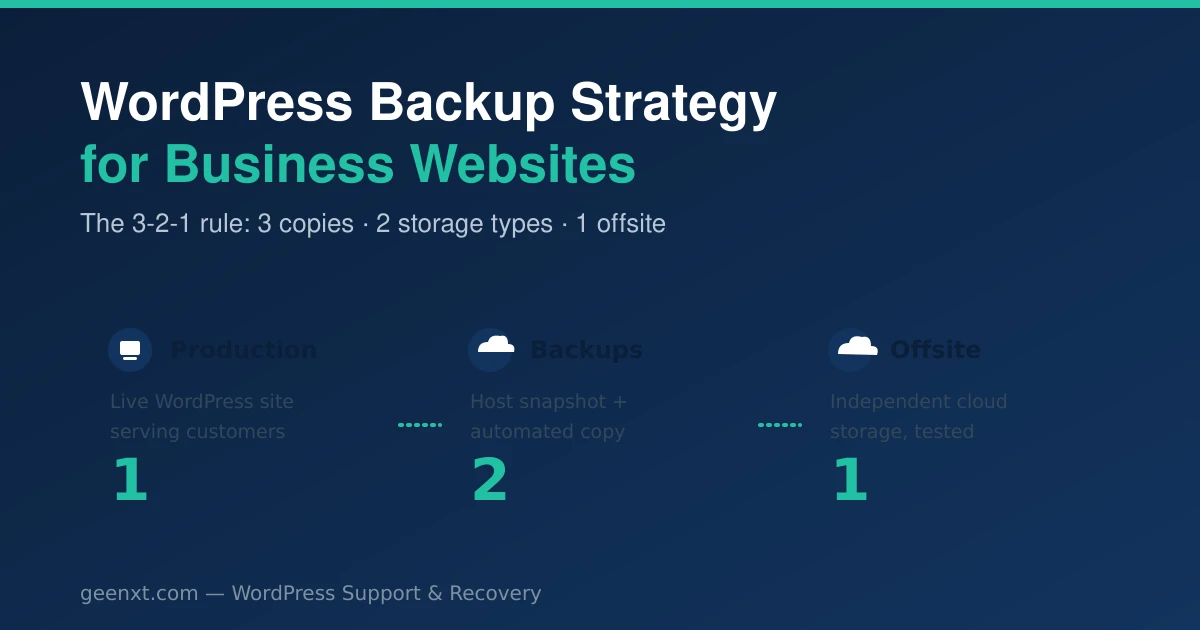
The cleanest structure is easy to explain, and the 3-2-1 model is the standard most business teams should adopt, whichever backup plugin sits underneath it:
| Layer | What it means | Business reason |
|---|---|---|
| Three copies | Production plus two recoverable copies | A single copy can fail, be incomplete, or be too old |
| Two storage types or locations | Separate host storage from an independent remote storage destination | A hosting or account issue should not remove every option |
| One offsite copy | Keep a remote backup outside the production environment | Recovery remains possible if the server, account, or data center is affected |
For many companies, this means the production site, a host-level snapshot, and an offsite copy in Google Drive, Dropbox, or Amazon S3. The offsite copy is the part teams skip most often, even though it is the protection that matters when the hosting account is compromised or the provider has an outage. The WordPress project itself recommends keeping backups off the same server as the website, because a server problem should never take your only copy with it.
Define RPO and RTO Before Choosing a Backup Plugin
RPO and RTO turn vague risk into operating requirements. Recovery Point Objective asks how much data the business can afford to lose. Recovery Time Objective asks how long the business can tolerate downtime while the team works. Both should shape how you configure any WordPress backup plugin, including UpdraftPlus.
| Site type | Practical RPO target | Practical RTO target | Suggested schedule |
|---|---|---|---|
| Brochure or service site | 24 hours | Same business day | daily backup plus weekly full copy |
| Lead generation site | 4 to 12 hours | 2 to 4 hours | daily copy plus form-entry export checks |
| Membership or booking site | 1 to 4 hours | 1 to 2 hours | incremental backup and tested rollback path |
| WooCommerce or payment site | 15 to 60 minutes | Under 1 hour where feasible | real-time backups and specialist review |
These targets are not promises. They are planning inputs. A small service page may not need minute-by-minute data capture. A store, learning portal, or booking platform may need tighter controls because lost orders or appointments create support debt. Once the target is clear, configure your backup plugin schedule to meet it in practice.
How Often Should You Back Up a WordPress Site? (Backup Frequency)
Backup frequency depends on how fast the site changes. A brochure site that updates monthly does not need the same cadence as a store taking orders every hour. As a baseline, schedule daily backups of the database and weekly backups of the full application, then tighten from there when the business case is clear.
- Low-change sites: daily database copy, weekly full copy.
- Active lead or content sites: daily copies of files and database, with retention long enough to catch slow problems.
- Transactional sites: real-time backups or hourly captures so a failed checkout does not become lost revenue.
The point is to set a cadence that protects your data without creating noise the team ignores. When the cadence matches real risk, you can restore quickly to a point that the business can live with.
How to Backup WordPress Site Data with UpdraftPlus
If your team is starting from zero, this is the practical sequence for setting up the UpdraftPlus WordPress backup plugin on a business site:
- Install and activate the UpdraftPlus plugin from the WordPress plugin directory or upload it manually if your host restricts the plugin installer.
- Open UpdraftPlus settings and choose what a backup should include: plugins, themes, uploads, and the database at minimum.
- Set your backup schedule separately for files and database, matching the RPO target from the table above.
- Connect a remote storage destination, such as Google Drive, Dropbox, or Amazon S3, so the backup does not stay on the same server as the site.
- Run a manual backup first and confirm the archive completes and lands in the connected storage location.
- Enable an automatic backup before updates so a plugin or theme update never runs without a fresh recovery point.
- Restore the backup to a staging copy of the site and confirm it opens cleanly before you trust the schedule day to day.
That last step is the one teams skip. A scheduled tool that has never produced a working restore is not a tested backup, it is an assumption.
Best WordPress Backup Plugin: How UpdraftPlus Compares
The best wordpress backup plugin for your site is the one that matches your risk, access, and restore needs, not the one with the busiest dashboard. Here is how UpdraftPlus stacks up against the other common options for a business WordPress site:
- UpdraftPlus (backup plugin): familiar in-dashboard workflow, scheduled files and database exports, remote storage integrations with Google Drive, Dropbox, and Amazon S3. Watch point: it can fail to run if the site itself is already down, so it should not be your only layer.
- Host snapshots: fast rollback inside the hosting account, useful after a bad update. Watch point: may not be offsite or kept long enough for delayed problems.
- External SaaS backup services: independent storage and monitoring outside your hosting account and outside any plugin running on the site. Watch point: adds a monthly cost and separate account access to manage.
- Manual export: useful immediately before a risky change, such as a major plugin update or migration. Watch point: easy to forget and hard to monitor as a routine.
- cPanel tools: direct file and database access for teams comfortable with server-level tools. Watch point: the interface and available options vary by host.
For most business sites, UpdraftPlus paired with an independent host layer covers the 3-2-1 rule without extra software. Larger or transactional sites often add an external SaaS service on top for a fully independent second opinion.
UpdraftPlus Free vs Premium: What You Get
The free version of UpdraftPlus handles scheduled backups, database and file exports, and one remote storage connection, which is enough for most small business sites. UpdraftPlus Premium adds incremental backups (so only changed data transfers after the first full backup), more remote storage options including Microsoft Azure and multiple destinations at once, premium support, and a smoother site-to-site migration workflow.
Choose the free version if your site changes infrequently and one storage location is enough for your 3-2-1 setup. Choose Premium if you run a larger WooCommerce store, need incremental backups to keep backup windows short, or plan to migrate the site to a new host in the near future.
Restoring and Migrating Your Site with UpdraftPlus
To restore a WordPress website using UpdraftPlus, open the plugin, select the backup set you need by date, and choose which components to restore: database, plugins, themes, or uploads. Always restore to a staging copy first so the recovered site does not affect live traffic while you check it.
UpdraftPlus can also migrate a WordPress website to a new host or domain, which is useful when you are moving off a legacy hosting plan or consolidating sites after an agency handoff. Premium adds a more direct site-to-site migration path that reduces the manual steps involved. Migrating a WooCommerce site works the same way, but confirm that order data and any custom database tables from checkout or subscription plugins are included in the backup set before you migrate, since a missed table can quietly drop recent orders.
Common UpdraftPlus Problems and How to Fix Them
A few issues come up often enough to plan around before they interrupt a real recovery:
- UpdraftPlus runs out of time during a backup: usually a large media library or a shared hosting time limit. Split the backup into smaller scheduled jobs, or move to a host with fewer resource restrictions for large sites.
- Multisite support: UpdraftPlus works with WordPress multisite networks, but network-wide settings and per-site backups behave differently, so review the multisite documentation before your first scheduled run.
- Large WordPress sites: incremental backups (Premium) reduce the size of each scheduled job after the first full backup, which helps sites with large media libraries or long content histories.
- Site slowdown during a backup: schedule backups outside peak traffic hours, and confirm your host has enough resources to run a backup and normal traffic at the same time.
What a Complete Recovery Copy Should Include
A proper backup should cover the parts needed to rebuild the site, not just the visible pages. A complete backup includes site files, uploads, theme and child-theme code, active plugin data, configuration, and the database. The files and the database need to line up so the recovered version is coherent.
The backup files should capture theme assets, media uploads, and plugin folders. Store the backup with enough context that someone can identify its date, source, and purpose from the WordPress dashboard or storage folder without opening it during an emergency. Before a major release, take a manual backup and keep that export separate from the tool you are changing, so a bad update never overwrites your last known good copy.
Restore-Test Runbook
This runbook is the practical checklist the team can follow during a real recovery. Work through the steps in order, and treat each pass condition as the gate before moving to the next.
| Step | Action | Pass condition |
|---|---|---|
| 1 | Pick the latest clean recovery point | The date and source match the incident window |
| 2 | Download the backup or connect the restore tool | The archive or service is accessible by the assigned owner |
| 3 | Restore to a staging site first | The staging copy loads without production traffic impact |
| 4 | Check admin login, forms, navigation, search, and key templates | The recovered site behaves normally |
| 5 | Compare recent content and orders against business records | Expected data is present or the known data gap is accepted |
| 6 | Approve production recovery | The decision owner confirms the tradeoff |
| 7 | Restore production during the safest available window | The public site returns with documented time and scope |
| 8 | Record findings | The team updates the plan before the next incident |
If the goal is to restore your site after a broken release, the safest path is often staging first, then production. If the incident is active exploitation, recovery may need security cleanup before the old version goes live. Security agencies that publish the 3-2-1 backup approach make the same point: untested backups are assumptions, not protection.
When to Use Manual, Automated, and Host Backups
Manual backup work is useful before known risk: plugin updates, theme changes, migration, DNS changes, or custom code deployment. It is not a substitute for automation because people forget, skip steps, or leave the archive in the wrong place.
Automating copy creation with a scheduled backup plugin like UpdraftPlus is better for routine protection. It reduces dependency on memory and supports consistent recovery points. The team should still review alerts, storage usage, and failed jobs, keep credentials controlled, and avoid storing every copy in the same account.
Host backups are valuable because they are fast. A host snapshot can bring back files and data quickly after a bad update. The limitation is independence: if the hosting account is suspended, compromised, deleted, or affected by a provider issue, the host copy may not be enough on its own. The strongest result combines a plugin, an independent remote storage location, and host-level snapshots, each covering a gap the others leave open.
Plugin and Hosting Decisions That Need Care
Every plugin added for recovery becomes part of the operational surface. Keep UpdraftPlus or any backup plugin updated, restrict access to its settings, and confirm it does not expose exports publicly. The WordPress plugin directory is useful for discovery, but business sites should still evaluate support, update history, restore workflow, and remote storage integrations before committing to one tool.
The same caution applies to other WordPress plugins that are not directly about recovery. Security, caching, ecommerce, and form plugins can change data or files, so a backup before making significant changes reduces rollback risk. Pair recovery with a hardened WordPress security checklist so a restored site is not reinfected, and keep an incident response plan ready in case a hack is what triggers the restore in the first place.
Frequently Asked Questions
How do I backup a WordPress site with UpdraftPlus?
Install and activate the UpdraftPlus plugin, choose what to include in the backup (files and database), set a schedule, and connect a remote storage destination such as Google Drive, Dropbox, or Amazon S3. Run a manual backup first to confirm it completes before relying on the schedule.
Which is the best WordPress backup plugin?
UpdraftPlus is a strong default for most business sites because of its remote storage options and restore workflow, but the best choice depends on your site size and budget. Pair it with an independent host or cloud layer rather than relying on any single plugin alone.
Is UpdraftPlus a legitimate and trustworthy plugin?
Yes. It is one of the most widely used backup and migration plugins on wordpress.org, with a long update history and active support. Trustworthiness does not remove the need for a schedule, remote storage, and a tested restore.
What is the difference between UpdraftPlus free and Premium?
The free version covers scheduled backups, database and file exports, and one remote storage connection. Premium adds incremental backups, more remote storage options, premium support, and an easier site-to-site migration path, which suits larger or more active sites.
Can UpdraftPlus migrate a WordPress website, including WooCommerce?
Yes. UpdraftPlus can migrate a WordPress site to a new host or domain, and the same process works for WooCommerce stores. Confirm that order tables and any custom plugin data are included in the backup set before you migrate.
What should I do if UpdraftPlus runs out of time during a backup?
Split the backup into smaller scheduled jobs (separating files from the database), or move to hosting with fewer resource restrictions if the site has a large media library. Running backups outside peak traffic hours also helps.
Does UpdraftPlus work with WordPress multisite, and will it slow down my site?
UpdraftPlus supports multisite networks, though network-wide and per-site backup settings behave differently, so review the settings before the first scheduled run. Backups can add temporary load, which is why scheduling them outside peak hours is recommended.
How often should a business back up a WordPress website?
Most service sites can start with daily copies of the database and weekly full copies. Sites with orders, bookings, memberships, or frequent content changes should use tighter recovery points based on the RPO and RTO targets covered above.
Final Takeaway
Backups are only useful when they are current, separate from production, and tested. For a business website, the plan should define storage layers, recovery targets, tool ownership, restore steps, and verification evidence. The UpdraftPlus WordPress backup plugin is a solid foundation for that plan, but the strategy around it (3-2-1 storage, a real schedule, and a rehearsed restore) is what actually protects the business when something breaks.
Ready to make recovery routine? Set up tested backups so recovery planning is handled before downtime, data loss, or a security incident forces the issue.
Backups are exactly the kind of routine work worth spelling out in a support agreement: see GEENXT’s Freelance Web Support SLA Template for a ready-to-use structure covering scope and response times.