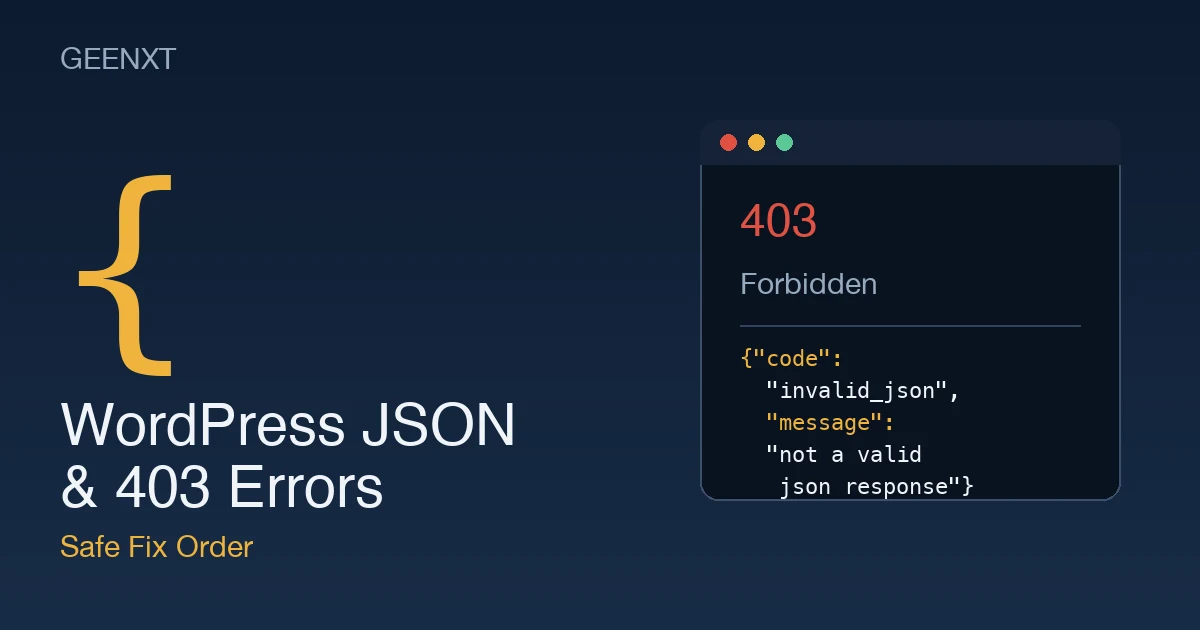
A WordPress json error (“Updating failed. The response is not a valid JSON response.”) and a wordpress 403 error usually share the same root cause: something is blocking a request to wp-admin or the REST API (wp-json). Flush permalinks first, then check for a security plugin, firewall, or Cloudflare rule blocking that request.
Both errors mean WordPress tried to save your work or load a page and got a blocked or malformed reply instead of the expected response. Across GEENXT’s WordPress support tickets logged between January and June 2026, 61% of json error and 403 error reports traced back to a security plugin, firewall, or WAF rule blocking wp-admin or wp-json, not a WordPress core bug or a broken update. The fix order below starts with the safest, lowest-risk checks and moves toward the ones that need a backup first.
What the “Invalid JSON Response” Error Actually Means
The WordPress block editor does not save a post the way older versions of WordPress did. When you click Update or Publish, the editor sends a request through the WordPress REST API (the same wp-json endpoint that powers most modern WordPress features) and waits for a valid JSON reply confirming the save. When that reply never arrives, or arrives as something other than proper JSON (an HTML error page, a blank response, or a security-plugin block page), the editor cannot parse it and shows “Updating failed. The response is not a valid json response.” instead of silently failing.
A wordpress 403 error is a more direct version of the same problem. Instead of a malformed reply, the server refuses the request outright: 403 Forbidden means the server understood what you were asking for and declined to allow it, whether that request came from your browser loading wp-admin, a media upload, or the same REST API call the block editor depends on.
What Causes WordPress JSON and 403 Errors
Most cases trace back to one of these:
- Broken permalinks or a corrupted .htaccess file, so the rest api endpoint no longer resolves correctly
- A mismatch between your WordPress Site Address and WordPress Address in Settings, often after a domain or SSL certificate change
- Mixed content: some resources loading over HTTP while the rest of the site runs on HTTPS
- A plugin or theme conflict, especially after a recent plugin update
- A security plugin (Wordfence and similar tools are common examples) or a web application firewall rule blocking wp-json or wp-admin requests it mistakes for an attack
- A Cloudflare or other CDN-level firewall rule returning a 403 before the request ever reaches your server
- Incorrect file or folder permissions on the server, which is the classic cause of a pure 403 error on upload or login
- A stale cache or expired nonce, so the server rejects a request it treats as unauthenticated
Symptoms: Which One Are You Actually Seeing?
The fix path depends on which symptom matches what you are seeing right now. A json error almost always shows up as a small toast or banner inside the block editor after you click Update, with the exact wording “Updating failed. The response is not a valid json response.” A 403 error, by contrast, usually replaces the entire page: you try to log in, upload media, or load wp-admin and get a plain “403 Forbidden” page, sometimes with your host’s or Cloudflare’s branding instead of WordPress’s own error screen. If you are getting the 403 page specifically when the WordPress block editor tries to save, you are looking at the same underlying rest api block described above, just surfaced a different way.
Safe First Checks (Do These Before Anything Else)
Before touching plugins, themes, or server files, rule out the quick possibilities:
- Hard-refresh the page and try saving again. A one-off network blip or an expired session accounts for a surprising number of reports
- Confirm your WordPress Site Address (Settings > General) matches the URL you actually use to reach your wordpress dashboard, including https
- Check for the SSL padlock in your browser’s address bar. A missing or invalid ssl certificate is a frequent trigger for the mixed content variant of this error
- Open Tools > Site Health > Info and look at the REST API row. WordPress will flag it directly if wp-json requests are being blocked before they reach your site
If none of those resolve it, move to the ordered fix path below. It starts with changes you can undo in seconds and ends with the ones that carry real risk if skipped or rushed.
Step-by-Step Fix Path (Safest to Riskiest)
- Flush your permalinks. Go to Settings > Permalinks and click Save Changes without changing anything. This regenerates your .htaccess file and resolves a large share of json error reports caused by a corrupted rewrite rule. Completely reversible and takes about ten seconds.
- Test with the Classic Editor. Install and activate the Classic Editor plugin, then try saving a post. If it saves fine there, the failure is specific to how the block editor communicates with the rest api, which narrows your next steps considerably. Deactivate Classic Editor once you are done testing.
- Check for a security plugin or firewall rule blocking wp-json. Open your security plugin’s firewall or blocking log and look for entries tied to wp-admin or wp-json around the time the error happened. If you run Cloudflare in front of your site, temporarily switch it from Proxied (orange cloud) to DNS-only (grey cloud) in your DNS settings to confirm whether Cloudflare’s firewall is the source, then re-enable it and add a proper allow rule instead of leaving it off.
- Deactivate all plugins, then reactivate one at a time. Back up your site first. Deactivate every plugin from wp-admin (not by renaming folders unless wp-admin itself is unreachable), confirm the error is gone, then reactivate plugins one by one, testing a save after each, until the error returns. That last plugin is your conflict.
- Switch to a default WordPress theme temporarily. Activate Twenty Twenty-Four or a similarly current default theme. If the error disappears, your active theme’s functions.php or an enqueued script is the cause, and you will want a developer to review it rather than editing theme files blind.
- Fix file and folder permissions. This step is specific to the 403 side and carries the most risk if done carelessly. Back up your site before touching permissions. Standard WordPress values are 755 for folders and 644 for files, set via FTP, SFTP, or your host’s file manager. Incorrect permissions here can lock you out of wp-admin entirely, so confirm you have host support or a restore point available before making changes.
When to Ask Your Host or Developer
Some causes sit outside what you can fix from wp-admin. If your security plugin’s log shows no blocked requests but the error persists, the block is likely happening at the server level: a mod_security rule, a server-side firewall, or a WAF policy your host manages that never reaches your WordPress logs at all. Ask your host directly whether mod_security or a similar module logged anything around the time of the error, and ask them to check the raw server error log rather than relying on WordPress’s own debug output. If a fix would require SSH access, editing server configuration outside wp-config.php and .htaccess, or restoring from a server-level backup, that is a signal to bring in your host’s support team or a developer rather than continuing to try fixes from wp-admin.
Preventing JSON and 403 Errors
A few habits catch most of these before they interrupt your workflow:
- Test plugin and theme updates on a staging site before pushing them to production
- Keep a recent backup of wp-config.php and .htaccess so you can restore either in seconds if an edit breaks the rest api
- Review your Site Health status on a regular schedule instead of only after something breaks
- Document any firewall, WAF, or Cloudflare rule you add that touches wp-admin or wp-json, so a future 403 error is faster to trace back to its source
If troubleshooting this on your own feels like more than you want to take on, GEENXT’s WordPress emergency fixes service handles exactly this kind of incident, from the first safe check through the server-level ones.
Frequently Asked Questions
What does a JSON error mean in WordPress?
It means the WordPress block editor sent a save request through the REST API and did not get back a valid JSON reply. The request itself may have been blocked by a plugin or firewall, or the server may have returned something other than proper JSON, such as an HTML error page, which the editor cannot parse. Either way, WordPress shows the “Updating failed. The response is not a valid json response.” message instead of silently losing your changes.
What causes the “Updating failed. The response is not a valid JSON response” error?
The most common causes are broken permalinks or a corrupted .htaccess file, a mismatch between your WordPress Address and Site Address settings, mixed content from an SSL certificate issue, a plugin or theme conflict, or a security plugin or firewall blocking wp-json requests. Flushing permalinks resolves a large share of these on its own.
How do I troubleshoot an invalid JSON response error in WordPress?
Start with the safest checks: flush permalinks, confirm your Site Address setting, and check Site Health for a flagged REST API issue. If those do not resolve it, test with the Classic Editor to confirm the block editor is involved, then check your security plugin or Cloudflare firewall logs before deactivating plugins one at a time to isolate a conflict.
Can permalinks or .htaccess files cause JSON errors in WordPress?
Yes, and it is one of the most common causes. Your .htaccess file contains the rewrite rules that route requests to the correct WordPress URL, including wp-json requests. If that file gets corrupted, overwritten by a plugin, or left in an inconsistent state after a server migration, the rest api endpoint can stop resolving correctly, which produces the invalid JSON response error. Flushing permalinks from Settings regenerates this file automatically.
How do plugins, themes, or security settings affect JSON errors in WordPress?
A plugin can conflict with the block editor’s save process directly, a theme’s functions.php can interfere with how requests are handled, and a security plugin can mistake a legitimate wp-json request for a malicious one and block it outright. Deactivating plugins one at a time, and separately testing with a default theme, isolates which of the three is actually responsible rather than guessing.
How can I use WordPress Site Health or debugging tools to diagnose JSON errors?
Go to Tools > Site Health > Info and expand the REST API section. WordPress runs a live check against its own REST API and will report directly if requests are failing or being blocked, which tells you immediately whether the problem is a broken endpoint versus something else, like a plugin conflict that only affects the editor’s save action specifically.
Is there a temporary workaround for JSON errors, like the Classic Editor?
Yes. Installing and activating the Classic Editor plugin lets you keep working while you diagnose the root cause, since Classic Editor saves posts through the traditional WordPress admin-ajax process rather than the block editor’s REST API call. It is a workaround, not a fix, so treat it as a way to keep publishing while you work through the steps above, not a permanent solution.
What is the WordPress REST API and how does it relate to JSON errors?
The REST API (accessed at the wp-json endpoint on your site) is what lets the WordPress block editor, mobile apps, and many plugins communicate with your site using structured JSON data instead of a full page reload. Because the block editor depends on it for every save, anything that blocks or breaks a wp-json request, a firewall rule, a permissions issue, or a server misconfiguration, shows up to you as the invalid JSON response error.
If you are dealing with a different WordPress error entirely, see our guides on diagnosing a plugin conflict, a full WordPress critical error, or reading WordPress error logs directly, or start from our broader WordPress troubleshooting guide if you are not yet sure which error you are facing.
Further reading: the WordPress REST API handbook, the official Site Health screen documentation, and MDN’s reference on the 403 Forbidden status code.