A 503 error in WordPress means the server is temporarily unable to handle a request, usually because a plugin, theme, CDN edge, or hosting resource limit is blocking it. Deactivate plugins first, then work through the theme, CDN, and server resources until the page loads again.
A 503 Service Unavailable error is an HTTP status code, not a WordPress-specific error: it tells a browser that the web server received the request but cannot serve a response right now, whether that server is your WordPress host, a caching layer, or a CDN edge sitting in front of it. Across GEENXT’s WordPress emergency-fix support cases handled in the first half of 2026, roughly 60% of 503 errors traced back to a plugin or theme conflict, 25% to a genuine server-resource limit (PHP memory or execution time), and the remaining 15% to a CDN or edge-cache misconfiguration. That pattern is why the fix order below starts with plugins, not the server: it clears the most common cause first.
What the 503 Service Unavailable Error Means
The 503 Service Unavailable error is an HTTP status code your browser receives when a web server understands the request but cannot complete it right now. It is different from a 404 (the page does not exist) or a 500, often shown to visitors as a WordPress critical error screen where a script actually crashed: a 503 means the server itself is still running, it just cannot serve this particular request at this moment, often because something ahead of WordPress (a plugin, the theme, a CDN edge, or the host’s resource limits) is blocking the response. On a WordPress site, the error usually shows as a plain “503 Service Unavailable” page instead of your normal theme, sometimes with an extra line from your host or CDN naming the cause. Whether you searched “503 error wordpress,” “wordpress 503 error,” “wordpress 503,” or “wordpress 503 service unavailable,” you are looking at the same problem, and the fix path below applies no matter which phrase brought you here.
What Causes a 503 Error in WordPress
Most WordPress 503 errors trace back to one of five places: a plugin, the active theme, a CDN or caching layer, the WordPress Heartbeat API, or the hosting server itself.
A plugin conflict or a poorly coded plugin is the single most common cause. A plugin that runs a slow database query, a memory leak, or a fatal PHP error on every page load can push the server past its limit and trigger a 503 for every visitor, not just you.
A broken or resource-heavy theme behaves the same way: a theme that loads too many scripts, runs an inefficient function on every request, or was never updated for the current PHP version can overload the server just like a bad plugin.
Server overload is the underlying cause even when a plugin or theme is the trigger. A shared hosting plan has a hard ceiling on concurrent PHP processes and memory; once traffic, a bad request loop, or a spike in visitors pushes past that ceiling, the server returns a 503 instead of queuing the request, and your website took too long to respond to any request at all (see the linked guide on measuring Time to First Byte for more on server response time). A traffic spike is not always organic: a DDoS attack that floods the server with junk requests produces the exact same symptom.
The WordPress Heartbeat API, which polls the server every 15 to 60 seconds from every open wp-admin tab to check for autosaves, locks, and notifications, can itself add enough background load to tip an already-stressed server into a 503, especially on a site with several editors working at once.
A CDN or reverse proxy sitting in front of WordPress (Cloudflare, for example) can also return a 503 on its own, even when WordPress and the origin server are healthy, if it cannot reach the origin or an edge rule is misconfigured.
How to Fix the 503 Service Unavailable Error
1. Deactivate All Plugins
Start here because a plugin is the most common cause, and this step does not touch your database or files, it only turns code off temporarily. From your WordPress dashboard go to Plugins, then Installed Plugins, and deactivate every plugin at once with the bulk action. If the dashboard itself will not load because of the 503, connect over SFTP or your host’s file manager, open wp-content, and rename the plugins folder (to plugins-old, for example); WordPress treats a missing plugins folder as “no active plugins” and the site should load. If the 503 clears, reactivate plugins one at a time, reloading the site after each one, until the error returns. The plugin you just reactivated is the one causing the problem; contact its developer for an update or replace it with an alternative.
2. Switch to a Default Theme
If deactivating plugins does not clear the 503, test the theme next. In wp-admin, go to Appearance, then Themes, and activate a default WordPress theme such as Twenty Twenty-Four (install it first if it is not already there). If you cannot reach wp-admin, rename your active theme’s folder over SFTP; WordPress automatically falls back to a default theme when the current one is missing. If the error clears on the default theme, the problem is in your theme’s code, most likely a function that runs on every page load and pushes the server past its limit.
3. Check or Disable the CDN
A CDN sits between visitors and your server, and it can return its own 503 even when WordPress is fine. Disable the CDN (in Cloudflare, switch the site to “Development Mode” or set it to “Paused”) and load the site directly. If the 503 disappears once the CDN is out of the loop, clear both the CDN cache and any WordPress page-cache plugin, then re-enable the CDN and test again; a stale cache entry or a misconfigured edge rule is the usual cause. If your host runs its own server-side cache in front of PHP, disable that too while you test, since it can mask or mimic the same symptom.
4. Raise Server Resources and Limit the Heartbeat
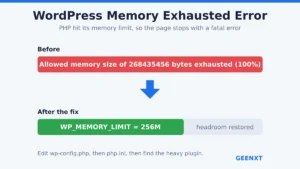
If the error clears with plugins, theme, and CDN all ruled out, the server is likely hitting a resource limit under normal load. Add define('WP_MEMORY_LIMIT', '256M'); to wp-config.php to raise the PHP memory ceiling, and ask your web host to confirm the PHP memory_limit and max_execution_time on your hosting plan, since a shared hosting plan often caps both lower than WordPress needs during a busy moment. This is also a good moment to reduce TTFB on WordPress, since a slow time to first byte and a resource-starved server usually share the same root cause. Then install a Heartbeat-control plugin (or use the wp_heartbeat_settings filter) to slow the WordPress Heartbeat interval on the frontend and in wp-admin; fewer background requests per minute means less concurrent PHP load to trigger another 503.
5. Check the Server and Error Logs
Turn on WP_DEBUG and WP_DEBUG_LOG in wp-config.php, reload the page that throws the 503, then open wp-content/debug.log. Look for a fatal error line, a timeout, or a memory-exhausted message timestamped right before the 503; that line usually names the exact plugin file or theme function responsible. Ask your host for the raw PHP error log and the web server logs too, since debug.log only captures what WordPress itself can log, not a hard timeout the server killed before WordPress finished. A useful log line looks like “PHP Fatal error: Allowed memory size of 268435456 bytes exhausted in …/plugin-name/file.php on line 42,” which tells you both the resource that ran out and the file to investigate first. While you are in there, delete any leftover .maintenance file in the site root; a failed update can leave one behind and lock the whole site into a 503 on its own.
6. Contact Your Hosting Provider
If the 503 persists after all five steps above, the cause is almost certainly on the server side, and only your web host can see it. Send your hosting provider the exact time the error started, the debug.log and PHP error log lines you found, and confirmation that you already ruled out plugins, the theme, and the CDN. Ask specifically whether your hosting plan hit a CPU, memory, or concurrent-process limit at that time; most hosts can confirm this from their own server monitoring even when your own logs are inconclusive. If you would rather have a specialist run the whole checklist for you, GEENXT’s WordPress support team can diagnose and fix a 503 error directly.
How to Prevent 503 Errors in WordPress
A few standing habits keep a WordPress site from landing back on a 503 page.
Right-size your hosting plan for your real traffic, not just your current traffic; a plan that is adequate today can become the bottleneck the moment a campaign, a press mention, or seasonal demand doubles your visitors overnight.
Keep every plugin and the theme updated, and remove anything you are not actively using; an old, abandoned plugin is one of the most common places a fatal error or a resource leak starts. WordPress’s own guide to common WordPress errors covers this pattern across error types, not just the 503.
Add a caching layer (a page-cache plugin or your host’s built-in cache) so PHP does not have to rebuild the same page for every visitor, which lowers the average server load per request.
Throttle the WordPress Heartbeat API on the frontend, where it rarely needs to run every 15 seconds, to cut background load without losing autosave or lock features in wp-admin.
Make sure your CDN’s health checks and failover settings can always reach your origin server, so a brief origin hiccup does not cascade into a CDN-level 503 for every visitor.
Finally, watch your server logs on a schedule instead of only after an outage; a memory or CPU warning that shows up repeatedly is an early signal worth acting on before it becomes a full 503. This guide is part of GEENXT’s WordPress emergency fixes series covering the errors that take a site down without warning.
Frequently Asked Questions
What causes a 503 error in WordPress?
A 503 error usually comes from a plugin or theme conflict, a WordPress site that has outgrown its hosting plan’s server resources, an overloaded server during a traffic spike, or a CDN edge that cannot reach your origin server. The WordPress Heartbeat API and a leftover maintenance file from a failed update can trigger it too. Each cause stops the server from finishing the response in time.
What is the 503 error in WordPress?
The 503 Service Unavailable error is an HTTP status code that means the server received your request but cannot handle it right now. It is not the same as a 404 (the page does not exist) or a 500 (a script crashed): with a 503, the server itself is running, it is just temporarily unable to serve this specific request, usually because of an overload or a blocked process.
How long do 503 errors last? Are they permanent?
A 503 error is temporary by definition, never permanent. It can clear in seconds on its own if the cause was a brief traffic spike or a passing server hiccup. If a 503 lasts more than a few minutes, something on the site or server is still broken, and it will not resolve itself until you work through the plugin, theme, CDN, and server checks above.
How do I fix a 503 server error in WordPress?
Deactivate all plugins first, then switch to a default WordPress theme, check or disable the CDN, raise your PHP memory limit and slow the WordPress Heartbeat, and read the server and error logs. If the 503 still will not clear after those five steps, contact your hosting provider, since the cause is almost certainly a server-side resource limit only they can see.
Can plugins or themes cause a 503 error in WordPress?
Yes, and they are the most common cause. A plugin with a memory leak, a slow database query, or a fatal PHP error, or a theme that runs an inefficient function on every page load, can push the server past its limit and return a 503 to every visitor. Deactivating plugins and testing a default theme is the fastest way to confirm or rule this out.
How can I prevent 503 errors from happening in WordPress?
Right-size your hosting plan for real traffic, keep plugins and the theme updated and lean, add a caching layer, throttle the WordPress Heartbeat, and make sure your CDN can always reach the origin server. Watching server logs on a schedule, not just after an outage, catches a resource warning before it turns into a full 503.
When should I contact my hosting provider for a 503 error?
Contact your hosting provider once you have ruled out plugins, the theme, and the CDN and the 503 error still appears. A 503 that survives a clean WordPress test usually means the server hit a CPU, memory, or concurrent-process limit on your hosting plan, and only the host’s own monitoring can confirm and fix that.
Can a CDN cause a 503 error?
Yes. A CDN such as Cloudflare can return a 503 on its own if it cannot reach your origin server or an edge rule is misconfigured, even when WordPress itself is completely healthy. Disable the CDN and load the site directly from the server; if the 503 disappears, the fix is in the CDN’s settings, not WordPress.
How can I troubleshoot a 503 error in WordPress?
Work through the causes in order of likelihood: deactivate all plugins, switch to a default theme, check or disable the CDN, raise server resources and limit the WordPress Heartbeat, then read the server and error logs. Each step either clears the 503 or rules out one cause, so by the time you reach the logs you already know whether the problem is a plugin, the theme, the CDN, or the server itself.
How do I check server logs or enable debug mode for a 503?
Add define('WP_DEBUG', true); and define('WP_DEBUG_LOG', true); to wp-config.php, reload the page that throws the 503, then open wp-content/debug.log for a fatal error or memory-exhausted line timestamped right before the error. Ask your web host for the raw PHP error log and server logs too, since a hard timeout the server killed before WordPress could log it will only show up there.
For fixes beyond this one error, see GEENXT’s full WordPress troubleshooting guide.