If your WordPress site is stuck in maintenance mode, WordPress core is looking for a file called .maintenance in your site’s root folder. Back up your site first, then delete that file using FTP, your host’s File Manager, or WP-CLI. Most sites come back online within a minute of the file being removed.
The .maintenance file usually gets left behind when a core, theme, or plugin update is interrupted (a timeout, a lost connection, or a host restart mid-update). WordPress core only trusts that file for 10 minutes after creation; past that window it stops treating the site as under maintenance on its own. If the screen is still showing hours later, an update is probably still rewriting the file’s timestamp, or a page cache is serving a stale copy instead. GEENXT’s own July 2026 keyword audit found “wordpress maintenance mode” draws about 450 monthly US searches at a keyword difficulty of just 4, meaning most pages ranking for it are thin enough to outrank.
What Causes a WordPress Site to Get Stuck in Maintenance Mode?
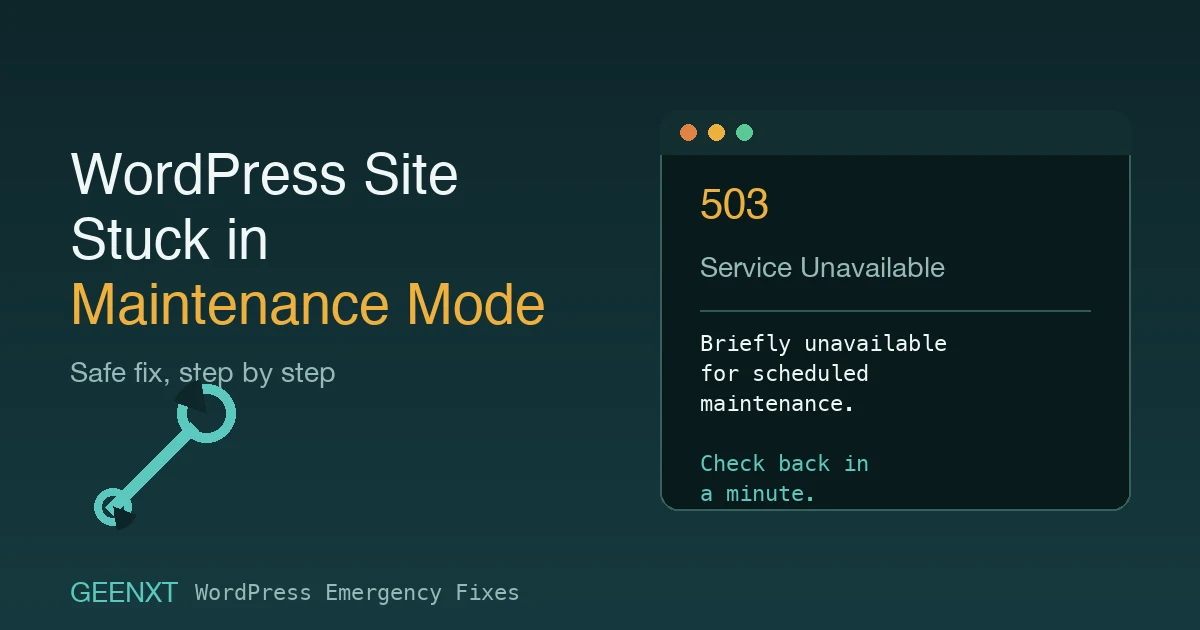
A site stuck in maintenance mode shows visitors (and you, in wp-admin) a plain message along the lines of “Briefly unavailable for scheduled maintenance. Check back in a minute.” That message is WordPress’s built-in maintenance page, and it appears whenever a file named .maintenance exists in your WordPress root directory.
The most common causes are:
- An interrupted update. WordPress writes the .maintenance file automatically the moment you start updating core, a plugin, or a theme, and deletes it again when the update finishes. If the update crashes, times out, or the connection to your host drops mid-way, the file never gets cleaned up.
- A plugin that manages maintenance mode directly. Some plugins write their own maintenance flag when they run a scheduled task or bulk operation, and can leave it active if that task errors out.
- A host-level maintenance flag. Some managed WordPress hosts run their own scheduled maintenance windows, separate from WordPress’s own file, which can look identical from the outside.
Before You Touch Anything: Safe First Checks
A few quick checks before you edit any files can save you a wasted trip and rule out the easy explanations first.
- Wait a minute, then hard-refresh. If an update genuinely just finished, the file may already be gone and your browser or a caching layer is just showing you an old copy of the page.
- Check whether an update was actually running. Look for a “WordPress auto update failed” email, check with anyone else who has admin access, or look at the time the maintenance screen first appeared against your update logs.
- Take a full backup before you change anything. Back up both your files and your database first, even though deleting one small file feels harmless. Whatever interrupted the original update might still be mid-write, and you want a clean restore point if something else goes wrong while you’re in there. See our WordPress backup strategy guide if you don’t already have this automated.
How to Fix a WordPress Site Stuck in Maintenance Mode
Once you’ve confirmed the site is genuinely stuck and you have a backup in hand, work through these methods in order, from safest to riskiest.
Method 1: Delete .maintenance via FTP or SFTP
This is the safest method because it doesn’t touch anything else on the site. Connect to your server with an FTP or SFTP client, navigate to your WordPress root directory (the same folder that contains wp-admin, wp-content, and wp-config.php), and look for a file named .maintenance. Delete it, then reload your site. If the file reappears within a few seconds, an update is still actively running; wait a minute and check again rather than deleting it repeatedly, since deleting it mid-update can leave your site in a worse, half-updated state.
Method 2: Delete It via Your Host’s File Manager
If you don’t have FTP credentials handy, most hosting control panels (cPanel, Plesk, or a custom dashboard) include a File Manager. Log in, browse to your site’s root directory, enable “show hidden files” if the file isn’t visible by default, and delete .maintenance the same way. This works identically to the FTP method, just through your browser instead of a desktop client.
Method 3: Remove It with WP-CLI or a Direct Server Command
If you’re comfortable on the command line and have SSH access, this is the fastest route: run wp maintenance-mode deactivate if WP-CLI is installed, or deactivate maintenance mode manually with rm .maintenance from your site’s root directory. This carries slightly more risk than the first two methods only in the sense that a mistyped path could delete the wrong file, so double-check your current directory with pwd before running the command. If the update that caused the lock never actually finished, re-run it (core update, plugin update, or theme update) once the file is cleared, rather than assuming the site is fully healthy again.
When to Ask Your Host or Developer for Help
Hand this off if any of the following are true: the .maintenance file keeps regenerating no matter how many times you remove it, you don’t have FTP, File Manager, or SSH access to check in the first place, or removing the file reveals a white screen or a critical error underneath instead of your normal site. In that last case, the maintenance lock wasn’t your real problem; a plugin conflict or a fatal PHP error was, and our plugin conflict troubleshooting guide or broader WordPress troubleshooting guide will get you further than repeating the steps above. It’s also worth checking your site’s error logs at this point rather than guessing; our guide to reading WordPress debug and error logs walks through where to find them and what to look for.
One side effect worth knowing about: a site stuck in maintenance mode will also silently miss any posts that were scheduled to publish during the outage, since WordPress can’t serve the public site to trigger the scheduled-post check. If you’ve noticed both problems at once, see our guide on fixing WordPress posts that miss their scheduled publish time.
Maintenance Mode vs. “Coming Soon” Mode: What’s the Difference?
Maintenance mode and a coming soon mode get confused often, but they serve opposite purposes, and deciding between maintenance mode or coming soon comes down to how long the page needs to stay up. Maintenance mode is meant to be short: WordPress (or your plugin) returns an HTTP 503 status telling browsers and search engines the outage is temporary, and Google’s own guidance recommends exactly this approach for planned site downtime, rather than a 404 or a normal 200 response. A coming soon page, by contrast, is meant to be shown for days or weeks before a public launch, is usually indexable, and doesn’t carry the same “come back in a minute” urgency.
How to Put a WordPress Site Into Maintenance Mode on Purpose
You don’t need to use a plugin for routine WordPress updates. WordPress core writes the maintenance file in the root of your installation for you during any core, plugin, or theme update, and clears it again once the update finishes, as long as it completes within that 10-minute window WordPress checks against. You don’t have to manually enable maintenance mode for these; WordPress handles that step on its own.
For anything bigger, like a redesign, a major content migration, or a batch of manual changes you don’t want visitors seeing mid-edit, you can put your WordPress site into maintenance mode manually instead: use a maintenance mode plugin rather than relying on core’s automatic behavior. A good WP maintenance mode plugin lets you activate maintenance mode on demand, customize the maintenance page with your own branding and a custom maintenance mode message, and disable maintenance mode yourself the moment you’re done, instead of waiting on WordPress’s own timer. Most plugins give you a simple enable and disable switch and a maintenance mode option right in your WordPress dashboard, so putting your WordPress website into maintenance mode (and turning it back off) takes seconds, not an FTP session. Knowing when to use WordPress maintenance mode on purpose, versus troubleshooting it once it’s stuck, mostly comes down to whether you triggered it yourself or an update did.
Does Maintenance Mode Hurt SEO?
No, not if it’s brief and returns the right status code. WordPress’s built-in maintenance mode already sends an HTTP 503 response while it’s active, which tells Google the downtime is temporary rather than permanent. The practical limit is time, not the mechanism itself: leave a site in maintenance mode for more than a day or two and search engines can start treating it as a real outage rather than planned downtime, which is exactly why getting a genuinely stuck site unstuck (rather than leaving it and hoping) matters for your rankings, not just your visitors.
Preventing This From Happening Again
- Update one plugin or theme at a time instead of running a bulk update on everything at once, so a failure is easy to isolate.
- Use a staging site for major updates (a new WordPress version, a theme change, or several plugin updates at once) so an interruption happens somewhere that doesn’t affect visitors.
- Keep current backups so an interrupted update is a quick restore instead of a scramble.
- Check your site right after any auto-update, especially overnight ones, so a stuck maintenance screen gets caught in minutes instead of the next morning.
- Schedule bigger maintenance tasks for low-traffic hours, and turn maintenance mode on manually first with a plugin rather than letting a large update trigger it unattended.
A stuck maintenance screen is just one of the ways a WordPress site can go down unexpectedly. See our WordPress emergency fixes hub for more troubleshooting guides covering the rest.
Frequently Asked Questions
How do I get my WordPress site out of maintenance mode?
Delete the .maintenance file from your WordPress root directory using FTP, your host’s File Manager, or WP-CLI (wp maintenance-mode deactivate). Back up your site first. If the file reappears immediately after you delete it, an update is likely still running; wait a minute before trying again rather than deleting it repeatedly.
Why does my WordPress site say “Briefly unavailable for scheduled maintenance”?
This is WordPress’s built-in maintenance message, shown automatically whenever a .maintenance file exists in your site’s root folder. WordPress creates this file itself during core, plugin, and theme updates and normally removes it when the update finishes; the message appears when that file gets left behind after an interrupted update.
Can I still log in to wp-admin while my site is in maintenance mode?
Yes, for WordPress’s own built-in maintenance mode, administrators can generally still reach wp-admin during an update, since the .maintenance file only blocks the public-facing site, not the login screen. Some third-party maintenance mode plugins behave differently and may lock out the wp-admin dashboard too, so check that specific plugin’s own settings if you find yourself unable to get in.
Will maintenance mode hurt my Google rankings?
Not if it’s brief. WordPress’s maintenance mode returns an HTTP 503 status, which tells search engines the outage is temporary rather than permanent. Google has said this signal is fine for planned downtime up to a day or two; leaving a site in maintenance mode longer than that is when it risks being read as a real, ongoing outage.
Is maintenance mode the same as a “coming soon” page?
No. Maintenance mode is meant for a short, temporary outage during updates or changes and returns a 503 status. A coming soon page is meant to sit in front of a site for days or weeks before a public launch, is usually indexable, and doesn’t carry the same “come back shortly” urgency or status code.
How long is it safe to leave a WordPress site in maintenance mode?
WordPress’s own built-in mechanism only honors the .maintenance file for 10 minutes from when it was created before automatically treating the site as no longer under maintenance. For an intentional maintenance window using a plugin, keep it as short as practical; Google’s own guidance treats a day or two as the outer limit before planned downtime starts looking like a genuine outage.
Do I need a plugin to put my WordPress site in maintenance mode?
No. WordPress creates its own maintenance mode automatically during any core, plugin, or theme update, with no plugin required, and clears it again once the update finishes. A plugin only becomes useful if you want to trigger maintenance mode manually yourself, for longer or more visible planned work, with your own branded message and a manual on and off toggle you control.