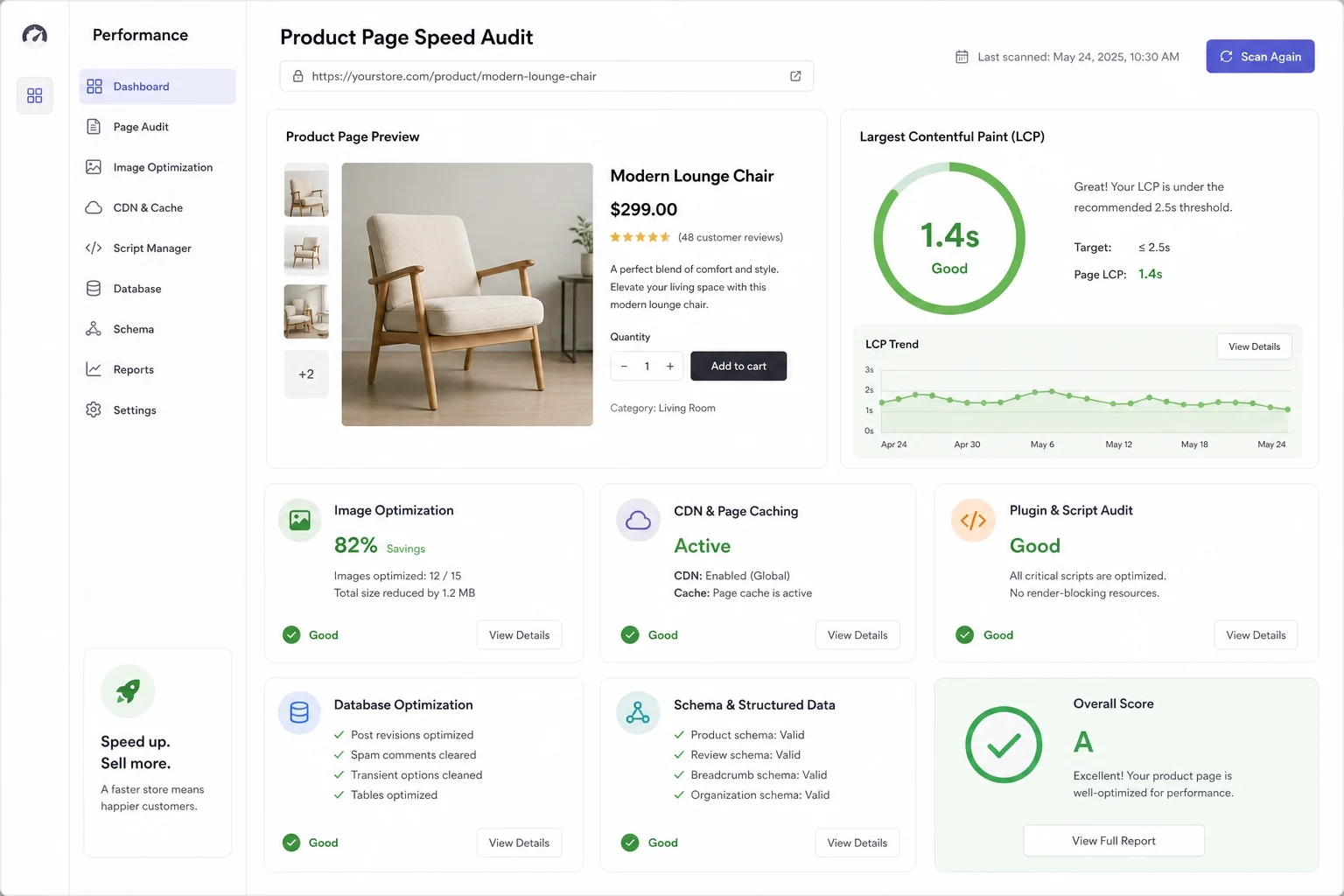
WooCommerce product and category pages are slow because cart fragments and AJAX requests stay uncached, product loops fire heavy database queries, and large images delay loading. To speed up WooCommerce, exclude dynamic pages from caching, add an object cache, optimize product images, trim plugin and theme assets, and serve static files from a CDN.
Out of the box, WooCommerce adds real work that a plain WordPress blog never does. Every product page carries a cart, an add-to-cart action, and session data, so generic speed advice from hosting blogs only takes you part of the way. This guide focuses on the WooCommerce-specific bottlenecks (cart fragments, cache exclusions, and product-query overhead) and walks through the fixes that actually move load time on the product pages and category pages of a WooCommerce website.
Why are WooCommerce product pages slow?
Before you change anything, it helps to know why a slow WooCommerce site loads slower than a static WordPress site. Poor page speeds across WordPress and WooCommerce usually trace back to a few causes:
- Uncached cart fragments. WooCommerce refreshes the mini-cart with an AJAX call (
wc-ajax=get_refreshed_fragments) on most pages. That request bypasses page caching and hits PHP on every load, which is one of the biggest hidden drags on a WooCommerce site. - Heavy database queries. Product loops, variations, stock checks, and category archives run many queries per page. On a large catalog, the WooCommerce database is doing far more work than a typical wordpress site.
- Dynamic, hard-to-cache pages. Cart, checkout pages, and my-account are personalized, so they cannot be page-cached the way a product description can.
- Large product images. Unoptimized product images inflate page weight and push back the largest contentful paint (LCP).
- Plugin and theme bloat. Extra plugins and a heavy theme load CSS and JavaScript that block rendering and slow the initial page load.
Each fix below targets one of these. Together they improve the performance of both product pages and category pages, and they protect WooCommerce behavior (live cart, checkout, stock) while they do it.
Measure first with PageSpeed Insights and real page tests
Optimize what you can measure. Run a representative product page and a busy category page through PageSpeed Insights and note the Core Web Vitals: LCP, INP, and CLS. Test logged-out and logged-in, because a logged-in session skips page caching and shows the true server response time. For deeper context on the metrics Google measures, see our guide to Core Web Vitals on WordPress in 2026.
Record a baseline load time for the same pages before and after each change, so you can see which fixes deliver the biggest speed boost. This kind of performance tuning, measured before and after, is how you improve site speed without guessing, and ongoing performance monitoring matters more than a single score.
Optimize the main product image and LCP
On most product pages the main product image is the LCP element, so image optimization is the fastest win. To load images faster:
- Serve modern formats (WebP or AVIF) instead of large PNG or JPEG files.
- Size images to the dimensions they actually display, then compress them.
- Keep the main product image eager, and lazy load gallery thumbnails and anything below the fold so the browser fetches them only when needed.
- Always set width and height attributes to prevent layout shift.
Category pages benefit even more, because they render a grid of product images at once. Lazy load off-screen rows so the initial page load only fetches what is visible. WebP delivery plus lazy load typically trims the most weight on image-heavy WooCommerce pages.
Use caching without breaking WooCommerce behavior
Caching is the single biggest lever for WooCommerce speed, but you have to cache the right things. The goal is full page caching for catalog pages while you exclude the dynamic ones.
- Page caching serves static versions of your pages (home, shop, product, category) to logged-out visitors. A caching plugin such as WP Rocket, W3 Total Cache, or WP Super Cache handles this well.
- Exclude cart, checkout, and my-account from the page cache so personalized content is never served stale. This cache exclusion step is what separates a WooCommerce-aware setup from generic WordPress advice, and it matches the official WooCommerce caching guidance.
- Disable cart fragments where you can. If the mini-cart does not need a live count on every page, dequeue the
wc-cart-fragmentsscript outside the cart and checkout flow. That removes an uncached AJAX call from every product page. - Add an object cache. A Redis object cache (or Memcached) as a persistent object cache stores the results of repeated database queries, which is a large win on product and category pages with heavy product loops.
If you are unsure which caching layer does what, our edge vs page vs object cache decision tree shows where each one fits. Most fast WooCommerce stores combine page caching, object cache, and a CDN rather than relying on a single optimization plugin. Set up correctly, these speed plugins significantly speed up product and category pages.
Serve static assets from a CDN and browser cache
A content delivery network (CDN) copies your static files (images, CSS, JavaScript) to servers near each visitor, cutting the distance and the time to load. For a global online store this reduces load on your server and speeds the initial page for distant shoppers.
Pair the CDN with a long browser cache (static file caching settings) so returning visitors reuse local copies instead of re-downloading assets. Set far-future cache headers on versioned CSS, JavaScript, and product images, and let the CDN handle invalidation when files change.
Choose hosting built for WooCommerce
Caching hides a slow server only until a logged-in shopper or a checkout bypasses the cache. At that point hosting decides your real response time. Look for tuned PHP, a fast database, server-level page caching, and built-in object cache support. Managed hosts such as WP Engine and other WooCommerce-focused providers offer this out of the box. For specifics, see our roundup of the best WordPress hosting for WooCommerce.
If you are still weighing platforms entirely, our comparison of WooCommerce vs Shopify for business websites covers where self-hosted performance is worth the control it gives you.
Reduce the number of plugin and theme assets
Every active plugin can add CSS and JavaScript to the page, and many load their assets site-wide even where they are not used. To trim the payload:
- Audit plugins and remove or replace anything redundant. Fewer plugins means fewer queries and fewer blocking files.
- Minify and combine CSS and JavaScript, and defer scripts that are not needed for the initial render.
- Only load assets where they are used (for example, keep a reviews script off pages with no reviews).
- Choose a lightweight WooCommerce theme rather than a heavy multipurpose theme or a page builder that ships large stylesheets.
A lean theme and plugin stack improves site performance everywhere, not just on one product page.
Tune the WooCommerce database
WooCommerce accumulates data fast: expired transients, abandoned sessions, order metadata, and post revisions. Database optimization keeps queries quick:
- Clean expired transients and stale session rows on a schedule.
- Limit or remove old post revisions and trashed products.
- Keep indexes healthy on large product tables.
- Use a persistent object cache so repeated queries do not hit the database every time.
Clean your WooCommerce database at least monthly on an active store, or weekly on a high-volume one, so the WooCommerce site stays responsive as the catalog grows.
Speed up category page loading specifically
Category pages have their own challenges because they render many products at once. To optimize category page loading:
- Reduce products per page (paginate) so each request renders fewer items and runs lighter product loops.
- Lazy load product images below the fold so the initial page load stays light.
- Cache the category archive as a static page for logged-out visitors, and lean on the object cache for the product queries behind it.
- Avoid widgets that run extra queries (heavy filters, “related products” everywhere) on the category template.
These steps cut the query count and the image weight that make product category pages feel slow, so pages load faster and keep loading smoothly as shoppers scroll, which improves the user experience for everyone browsing your catalog.
Add structured data without duplicate schema
Rich results help product and category pages earn clicks, but duplicate schema can confuse search engines and add page weight. GEENXT sites output a single structured-data graph (Product, Article, FAQ, and Breadcrumb) from the theme, so you should not also emit JSON-LD from a plugin. Keep one source of schema, validate it, and you get the SEO benefit without the duplication or the extra script loading on every page.
Step-by-step WooCommerce speed checklist
Follow these steps in order to speed up your WooCommerce store:
- Benchmark a product page and a category page in PageSpeed Insights, logged out and logged in.
- Optimize images: convert to WebP, compress, size correctly, and lazy load below-the-fold images.
- Install a caching plugin and enable page caching for catalog pages.
- Exclude cart, checkout, and my-account from the cache, and disable cart fragments outside the cart flow.
- Add an object cache (Redis or Memcached) to absorb repeated product queries.
- Enable a CDN and set long browser-cache headers for static assets.
- Trim assets: remove unused plugins, minify CSS and JavaScript, and switch to a lightweight theme.
- Tune the database: clean transients, sessions, and revisions on a schedule.
- Paginate and lighten category pages.
- Re-test and compare load time against your baseline.
When to get a WooCommerce performance audit
If you have worked through the checklist and product pages still load slowly, the bottleneck is usually deeper: a slow third-party integration, an unindexed custom query, or a hosting limit. A focused audit finds the real performance issue instead of guessing. Our WooCommerce development team can profile your store, fix the cache exclusions and queries, and confirm the speed improvements with before-and-after data.
Frequently asked questions
Why are my WooCommerce product pages slow?
The most common reason is uncached cart fragments: WooCommerce fires an AJAX request to refresh the mini-cart on every page, bypassing page caching and hitting PHP each time. Heavy product queries, large images, and plugin bloat add to it. Excluding dynamic pages from caching and adding an object cache fixes most of it.
What is the best speed plugin for WooCommerce?
WP Rocket is the most popular all-in-one performance optimization plugin because it handles page caching, asset optimization, and lazy load with WooCommerce-safe defaults. W3 Total Cache and WP Super Cache are strong free alternatives. If you only do one thing to improve performance, use a caching plugin configured to exclude cart, checkout, and my-account from the cache.
How can I speed up WooCommerce category pages specifically?
Reduce products per page so each request runs lighter product loops, lazy load product images below the fold, cache the archive for logged-out visitors, and lean on an object cache for the queries behind the grid. Avoid widgets that add extra queries to the category template.
What are the best WooCommerce hosting options for speed?
Choose a host with tuned PHP, a fast database, server-level caching, and built-in object cache support. Managed WooCommerce hosts such as WP Engine and other commerce-focused providers deliver this out of the box, which matters most for logged-in and checkout traffic that bypasses page caching.
How can I optimize images for faster loading on WooCommerce?
Serve WebP or AVIF instead of PNG or JPEG, size images to their display dimensions, compress them, and set width and height attributes. Keep the main product image eager for LCP and lazy load gallery thumbnails and category-grid images that sit below the fold.
How does a CDN improve WooCommerce speed, and how do I set one up?
A content delivery network serves static files from servers near each visitor, cutting distance and load time while reducing load on your server. Set one up by connecting a CDN (such as Cloudflare or Bunny) to your domain, pointing static assets at it, and pairing it with long browser-cache headers.
How can I optimize my WooCommerce database for better performance?
Clean expired transients and stale sessions, remove old post revisions and trashed products, keep indexes healthy on large product tables, and add a persistent object cache so repeated queries do not hit the database. Run this database optimization weekly on a busy store.
How do I minify CSS and JavaScript without breaking WooCommerce?
Use your caching plugin to minify and combine CSS and JavaScript, then defer non-critical scripts. Test cart, checkout, and product galleries after each change, and exclude scripts that WooCommerce needs (like cart fragments on the cart page) from optimization so behavior stays intact.