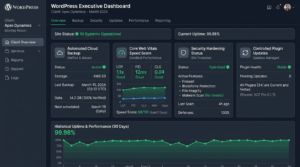
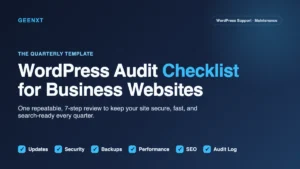
Direct answer: WordPress maintenance tips for business sites center on proactive risk management rather than reactive troubleshooting. High-impact habits include testing every update inside an isolated staging sandbox before deployment, storing automated off-site cloud backups with verified restore drills, pruning database transients and autoloaded options, enforcing two-factor authentication, monitoring Core Web Vitals field data monthly, and performing end-to-end checkout and form verification. Practicing these structured routines protects search visibility, preserves conversion rates, and prevents catastrophic site downtime.
Most business owners treat website maintenance like an administrative chore. They glance at their dashboard once a month, see twenty notification badges, click “Update All,” and hope nothing breaks. In other cases, updates are ignored for months out of fear that clicking a button will take the website offline during business hours.
Both approaches carry operational risk. A modern WordPress site is an active software stack composed of core files, plugins, custom themes, database tables, PHP interpreters, and external API webhooks. When neglected, vulnerabilities accumulate, database queries slow down, and subtle errors leak revenue without triggering obvious warning signs.
Across more than a decade of hands-on WordPress development and over 10,600 billed hours on Upwork, I have repaired hundreds of broken websites. In almost every emergency, the failure was preventable. The site went down not because of an unavoidable disaster, but because the business lacked a consistent maintenance routine.
In this guide, we break down twelve practical wordpress maintenance tips developed through years of production engineering. We examine the routine wordpress maintenance tasks every company website requires, present a structured monthly website maintenance checklist, and explain when managing upkeep in-house costs more in founder hours than a dedicated support plan. If your site is already experiencing critical errors or performance bottlenecks, explore our dedicated WordPress repair service and managed WordPress support plans for immediate assistance.
Why Website Maintenance Is Risk Management, Not a Chore
When leadership teams evaluate operational expenses, website maintenance is often categorized as technical overhead. That perspective changes the moment an unpatched plugin allows malicious code injection, or a silent gateway conflict prevents customers from checking out over a busy weekend.
Professional maintenance is proactive risk reduction. It delivers three concrete business advantages:
- Revenue Protection: Lead capture forms, booking calendars, and checkout funnels must function reliably. Routine testing catches gateway errors before they impact revenue.
- Search Visibility Preservation: Google rewards stable, fast websites. A site plagued by crawling errors, 404 broken links, or sluggish Core Web Vitals metrics gradually slips down search rankings.
- Defense Against Exploitation: Over 90% of WordPress vulnerabilities originate from outdated plugins and themes rather than core software flaws. Regular patching closes attack vectors before automated botnets discover them.
Adopting disciplined website maintenance habits ensures your website functions as a reliable commercial asset rather than a hidden liability.
12 High-Impact WordPress Maintenance Habits for Business Sites
These twelve engineering habits reflect battle-tested wordpress maintenance best practices that prevent downtime, sustain fast load times, and keep your software stack secure.
1. Staging-First Update Discipline
Clicking “Update All” directly on your live production server is the leading cause of sudden website outages. Plugins are built by independent developers worldwide. While individual updates may pass standard tests, they can easily conflict with your active theme, custom code, or server environment.
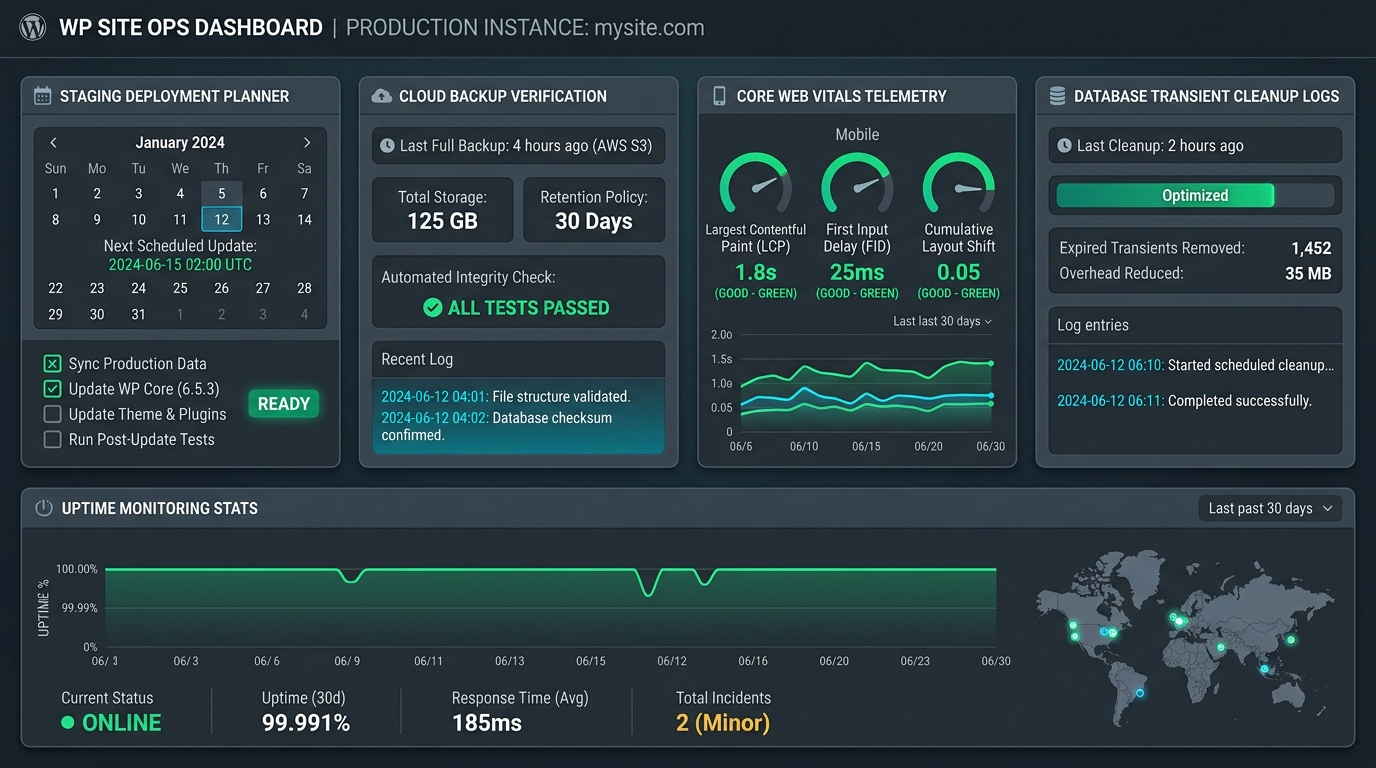
Establish a staging-first workflow for all plugin, theme, and major core updates. Clone production to an isolated sandbox environment, apply updates sequentially, and review changelogs for breaking database migrations. Test critical user journeys on staging, including mobile menus, form submissions, and browser console logs. Once stability is verified, deploy the updates to production during off-peak hours.
For an in-depth look at what comprehensive care routines include, review our guide on what WordPress maintenance plans include.
2. Off-Site Cloud Backups with Verification Drills
Storing backups on the same physical server or hosting account as your live website is a serious single point of failure. If your server is compromised by malware, corrupted during a hardware failure, or suspended by your host, your local backups disappear alongside your site.
Follow the 3-2-1 backup principle: keep three copies of your data across two different media, with at least one copy stored off-site. Send encrypted snapshots to independent object storage providers such as Amazon AWS S3, Google Cloud Storage, or Backblaze B2. Furthermore, schedule quarterly restore drills on staging. A backup archive that has never been restored is merely an untested assumption.
3. Core, Theme, and Plugin Audits (Shrinking the Attack Surface)
Over time, business websites accumulate software clutter. Marketing teams test lead generation tools, developers try new widgets, and past contractors leave behind bespoke extensions that are no longer in use.
Deactivated plugins still pose a security hazard. Their PHP files remain stored on your web server and can be invoked directly by attackers if they contain known arbitrary file read or code execution flaws. Conduct a quarterly software inventory: delete inactive plugins completely, remove unused themes (retaining only your active theme and one default theme as a troubleshooting fallback), and replace abandoned plugins that have not received developer updates in over two years.
4. Database Hygiene and Transient Cleanup
The WordPress database stores pages, posts, customer records, and configuration options. Without periodic maintenance, database tables accumulate overhead that slows down server response times.
The primary bottleneck is frequently the wp_options table, specifically autoloaded options. When options have their autoload flag set to “yes,” WordPress loads all of them into memory on every single HTTP request. If autoloaded data exceeds 1MB, every visitor experiences latency before the page begins rendering. Prune expired transients regularly, cap post revisions in wp-config.php using define( 'WP_POST_REVISIONS', 5 );, remove orphaned metadata, and optimize table indexes quarterly.
5. End-to-End Form and Checkout Verification
Silent form failures are among the most expensive issues a business can encounter. A plugin update might alter JavaScript dependencies, introduce REST API nonce validation conflicts, or break SMTP email delivery. Because the site looks visually intact, business owners often do not realize inquiries have stopped arriving until weeks of revenue are lost.
Perform live functional testing monthly. Submit test entries on all primary lead forms, verify confirmation emails arrive, and ensure records register in the WordPress dashboard. For WooCommerce stores, process a complete test transaction using live credentials or sandbox modes. Verify discount coupons, shipping calculations, tax rules, and payment gateway callbacks.
6. Core Web Vitals and TTFB Monitoring
Website performance is an ongoing requirement, not a one-time project. Speed gradually degrades as marketing scripts, high-resolution imagery, and tracking pixels are added to pages over time.
Monitor real-world field metrics inside Google Search Console monthly. Keep Largest Contentful Paint (LCP) under 2.5 seconds by optimizing hero banners and preloading fonts. Maintain Interaction to Next Paint (INP) under 200 milliseconds by minimizing heavy third-party JavaScript execution. Keep Cumulative Layout Shift (CLS) below 0.1 by defining explicit dimensions on all media. Monitor Time to First Byte (TTFB) to ensure server response times stay below 600 milliseconds.
Learn more about fine-tuning server latency and asset waterfalls in our comprehensive website performance optimization service.
7. Security Hardening Checkups and Access Audits
Security is an ongoing operational posture, not a single plugin setting. Automated bots continuously scan business websites for administrative vulnerabilities, exposed files, and credential reuse opportunities.
Review user accounts quarterly. Demote or delete administrative logins belonging to former employees, past contractors, or completed agency engagements. Enforce two-factor authentication (2FA) via time-based one-time passwords (TOTP) for all administrative and editor accounts. Restrict access to xmlrpc.php, disable directory browsing, and block PHP script execution inside the /wp-content/uploads/ directory.
For detailed server directives and hardening playbooks, read our in-depth developer guide on how to harden WordPress security.
8. Uptime and Error Log Telemetry
Relying on visitors or clients to report site outages damages brand trust and wastes advertising spend. Deploy synthetic uptime monitoring that pings your homepage, checkout flow, and key landing pages every sixty seconds from distributed global locations. Configure instant notifications via SMS or email when response codes drop.
In addition to external uptime checks, review internal server error logs and wp-content/debug.log monthly. Many software conflicts do not trigger a visible white screen of death; instead, they generate silent PHP warnings, memory exhaustion notices, and database deadlocks that gradually consume server resources.
9. Broken Link and Redirect Maintenance
As business websites grow, pages are renamed, services are restructured, and external resources disappear. The resulting 404 errors frustrate visitors and waste search engine crawl budget.
Perform quarterly link hygiene checks. Crawl your site to identify internal links pointing to dead URLs, and update them directly in your post content to avoid unnecessary redirect hops. Monitor the “Not found (404)” report in Google Search Console, and set up clean 301 redirects to relevant replacement pages. Ensure redirected URLs point directly to their final destination rather than passing through multiple redirect chains.
10. PHP and Hosting Infrastructure Upgrades
WordPress relies heavily on PHP performance. Older PHP branches, such as PHP 7.4 or 8.0, have reached official End-of-Life (EOL) status, meaning they no longer receive security patches from the PHP community.
Upgrading to modern PHP versions (such as PHP 8.2 or 8.3) provides immediate speed gains, processing code up to 25% faster with less memory. Test PHP upgrades on staging first to verify plugin compatibility. Review your hosting worker allocation so concurrent dynamic requests process without queuing.
11. Content, Navigation, and Layout Health Checks
Modern web browsers and mobile operating systems update frequently. Layout elements that displayed cleanly six months ago might experience rendering issues today due to viewport changes, CSS rendering updates, or altered font fallbacks.
Schedule a quarterly visual audit across desktop, tablet, and smartphone screens. Confirm mobile menus open smoothly and sub-links remain tappable. Verify copyright dates, privacy links, and contact details match current business information. Ensure banners, cookie notices, and media do not cover critical buttons or cause layout shifts.
12. Disaster Recovery Readiness Drills
The ultimate test of any maintenance protocol is disaster recovery. Can your business restore its complete website from scratch if your primary hosting account is wiped out or compromised?
Conduct a disaster recovery simulation bi-annually. Create a fresh staging server on an entirely separate host, retrieve your latest off-site backup snapshot, and execute a full restoration. Document the procedure: importing MySQL tables, adjusting DNS records, provisioning SSL, and verifying logins. A tested disaster recovery runbook eliminates panic during an actual crisis.
The DIY Tipping Point: When Managing Maintenance In-House Costs Too Much
Early-stage businesses often handle WordPress maintenance in-house. While this approach saves cash initially, it quickly reaches a point of diminishing returns as the company grows.
Consider the true cost of DIY maintenance:
- Opportunity Cost: Spending four to six hours every month updating plugins, testing workflows, and fixing conflicts diverts valuable time from client work, sales, and core operations.
- The Expense of Emergency Repairs: When an untested update takes a commercial site offline or corrupts a database, hiring an emergency developer on short notice frequently costs hundreds or thousands of dollars.
- Silent Loss of Customer Confidence: If an unmonitored checkout gateway fails for three days, the revenue lost can easily dwarf a full year of professional maintenance fees.
At GEENXT, our WordPress maintenance service delivers complete peace of mind through structured, accessible tiers modeled for growing businesses:
- Care Plan ($49/month): Essential protection for brochure and corporate websites. Includes cloud backups, staging update management, 24/7 uptime monitoring, security hardening, and preferred support rates.
- Professional Plan ($99/month): Comprehensive care for active businesses and lead generation sites. Includes everything in Care plus speed optimization, monthly Core Web Vitals audits, and two hours of dedicated content or technical edits each month.
- Premium Plan ($499/month): Advanced engineering support for mission-critical portals and WooCommerce stores. Includes continuous performance tuning, priority SLA response, and unlimited small development tasks.
All plans operate month-to-month with no long-term contracts, cancel anytime flexibility, guaranteed turnaround under 24 hours, and a 7-day money-back guarantee.
Complete WordPress Maintenance Checklist Table
Use this reference table to organize your operational schedule and ensure no vital maintenance task is overlooked:
| Frequency | Maintenance Task | Recommended Tool or Method | Priority | Business Impact |
|---|---|---|---|---|
| Weekly | Off-Site Cloud Backups | AWS S3, Google Cloud, Backblaze B2 | Critical | Guarantees disaster recovery and business continuity |
| Weekly | Core, Theme, and Plugin Updates | Staging sandbox with regression testing | High | Closes security vulnerabilities and preserves stability |
| Weekly | Continuous Uptime Monitoring | Distributed synthetic monitoring (1-min ping) | Critical | Detects outages before visitors or customers notice |
| Monthly | Form and Checkout Verification | Manual test submissions and live test orders | Critical | Protects lead capture and prevents checkout revenue loss |
| Monthly | Database Transient and Options Hygiene | WP-CLI or database optimization tools | Medium | Prevents server query bloat and preserves low TTFB |
| Monthly | Core Web Vitals Telemetry Review | Google Search Console CrUX field data | High | Protects organic search rankings and user experience |
| Monthly | Server Error Log Inspection | debug.log and hosting server logs |
Medium | Catches silent PHP errors, notices, and memory spikes |
| Quarterly | Inactive Software and Theme Pruning | WordPress dashboard and WP-CLI audits | High | Shrinks the attack surface and removes dormant exploits |
| Quarterly | User Account and Privilege Audit | User management review and 2FA enforcement | High | Neutralizes rogue access and stale contractor logins |
| Quarterly | Broken Link and 404 Redirect Audit | Site crawler and Google Search Console 404 report | Medium | Preserves crawl budget and eliminates dead-end navigation |
| Bi-Annually | PHP and Server Stack Upgrades | Staging test followed by production host upgrade | High | Delivers 20% to 30% execution gains and security patches |
| Bi-Annually | Disaster Recovery Restore Simulation | Full backup restoration onto fresh staging server | Critical | Validates backup integrity before an actual emergency occurs |
Protect Your Website with Proactive Maintenance
Your business website is central to your brand credibility, customer acquisition, and daily operations. Leaving its health to chance or treating updates as an afterthought creates unnecessary commercial vulnerability.
By establishing disciplined website maintenance habits, staging every software update, maintaining isolated cloud backups, and regularly testing your critical conversion paths, you ensure your WordPress installation remains fast, secure, and resilient.
If you prefer to focus on growing your business while experienced engineers manage your website operations, explore our flexible WordPress support plans or contact our engineering team today. We will keep your site running smoothly month after month.