Direct answer: A real WordPress maintenance report is an executive summary proving your website is secure, fast, and operational. Rather than generic plugin exports, a complete report verifies six essential areas: a controlled updates log with staging tests, confirmed off-site cloud backups with test restores, active security scans, Core Web Vitals performance tracking, uptime and PHP error log audits, and proactive strategic recommendations.
Each month, business owners receive automated PDF reports from their agencies. The cover looks clean, listing dozens of plugin version numbers with green checkmarks. Yet when a WooCommerce store crashes after an automated database update or gets infected with an SEO spam redirect, they discover the truth: nobody was actually maintaining the site. They were paying for an automated script that clicked update and exported a generic receipt.
Over ten years of hands-on WordPress development and client support, I have audited hundreds of websites with supposed active maintenance. Frequently, backups had failed months earlier due to expired API tokens, or plugin updates broke checkout fields unnoticed. A maintenance report should never be an automated data dump. It must provide proof of work, operational health, and practical decision support.
In this guide, we break down what a professional wordpress maintenance report must contain, provide a complete real-world example, show you how to spot lazy reporting, and give you an actionable checklist you can use immediately. Whether you maintain your own website or work with an external team through dedicated WordPress maintenance and support plans, this framework ensures genuine accountability instead of vanity metrics.
Why Automated Plugin Exports Are Not Real Maintenance Reports
Most site owners do not realize how easily maintenance reports are automated. Multi-site dashboards let an agency manage dozens of websites simultaneously. With one click, an operator updates plugins across twenty sites and generates generic client reports automatically.
That automated PDF might look neat, but it suffers from severe operational blind spots:
- No functional testing: Automated reports log version numbers (3.2 to 3.3) without testing forms, checkout flows, or mobile menus.
- False backup confidence: Automated tools log local archive creation without verifying off-site cloud delivery or test restore viability.
- Vanity speed scores: Synthetic audits during zero-traffic windows look neat, but fail to reflect real visitor experience during busy hours.
- Zero proactive guidance: Scripts cannot flag abandoned plugins, outdated PHP releases, or database transient bloat.
A true WordPress maintenance report is not a receipt for software updates. It is a documented quality assurance log proving your digital storefront is actively monitored, tested, and protected against avoidable downtime.
The 6 Essential Sections of a Real WordPress Maintenance Report
When reviewing a maintenance report from your internal team or provider, look for these six core sections. If your current report is missing more than two of them, you are likely receiving an unverified automated export rather than genuine maintenance.
1. Controlled Updates Log (Core, Themes, and Plugins)
Applying WordPress software updates is foundational, but how updates are deployed determines whether your site stays online. Your report must distinguish minor maintenance patches from major architectural releases.
A detailed updates section should log:
- Version transitions: Every plugin, parent theme, child theme, and WordPress core update should record its starting and ending version (such as WooCommerce updated from 9.2.1 to 9.3.0).
- Staging verification: Confirmation that high-risk plugins (e-commerce, custom post types, and page builders) were tested on staging before deployment to production.
- Functional testing notes: Explicit notes confirming that critical user flows were tested after updates went live, including checkout funnels, lead forms, and mobile layouts.
- Rollback documentation: If an update created a conflict and had to be rolled back, the report should explain the conflict and the next step with the plugin author.
For revenue-generating sites, applying updates blindly on a live server creates unnecessary risk. To see how a structured update workflow protects your site, read our guide on what WordPress maintenance plans include.
2. Security, Vulnerability Monitoring, and Malware Audits
WordPress powers over 40% of the web, making it a constant target for automated scanners, credential stuffing, and brute-force attacks. Security reporting must provide clear visibility into your defensive posture.
The security section should include:
- Core file integrity checks: Verification that standard WordPress core files and plugins match their official checksums and have not been modified.
- Vulnerability tracking: Monitoring active plugins against security vulnerability databases (such as Patchstack, Wordfence, or WPScan) to ensure no unpatched security flaws remain.
- Blocked malicious requests: Data on blocked brute-force login attempts, malicious IP ranges, and unauthorized REST API access attempts filtered by your firewall.
- User access audits: A review of administrative users, ensuring that former employees or inactive contractors have had their access revoked.
If your site ever experiences unexpected errors or suspicious behavior, having an experienced developer ready through our emergency WordPress repair service ensures rapid troubleshooting and recovery before your search rankings suffer.
3. Off-Site Cloud Backups and Test Restores
Backups are your ultimate insurance policy. Storing backups on the same server hosting your site is a critical failure. If the server suffers hardware issues, corruption, or suspension, your backups disappear alongside your website.
A transparent backup section should confirm:
- Off-site storage location: Confirmation that archives reside in isolated cloud storage (Amazon S3, Cloudflare R2, or Wasabi) outside your hosting environment.
- Frequency and scope: Verified daily database snapshots and weekly full-site archives.
- Archive size and integrity: Storage footprint logs (e.g. 14.2 GB) and successful database dump verification.
- Scheduled restore testing: Documentation proving the latest archive was successfully restored and tested in a staging sandbox.
4. Performance and Core Web Vitals (Real-User Field Data)
A maintenance report should never rely on a single synthetic score. A dedicated wordpress performance report tracks real visitor experience, referencing field data from the Chrome User Experience Report (CrUX) alongside synthetic speed tests.
A meaningful performance section should cover:
- Largest Contentful Paint (LCP): How fast your main content loads for visitors. A healthy site aims for under 2.5 seconds.
- Interaction to Next Paint (INP): How quickly your pages respond when visitors click links, open menus, or submit forms. Google requires under 200 milliseconds.
- Cumulative Layout Shift (CLS): Visual stability during page load, ensuring elements do not shift while visitors read. The target threshold is under 0.1.
- Time to First Byte (TTFB): Server responsiveness and edge caching efficiency. For dynamic WordPress sites, a TTFB under 600 milliseconds is essential for fast overall rendering.
- Optimization actions taken: Specific engineering tasks completed during the month, such as optimizing oversized images, converting media to WebP, configuring object caching with Redis, or tuning CDN edge rules.
5. Uptime Monitoring and PHP Error Log Audits
Downtime damages customer trust and advertising return. Your report must document availability and server health.
Key metrics for this section include:
- Uptime percentage: Availability tracked every 60 seconds globally, targeting 99.9% or higher.
- Incident analysis: Root causes, durations, and resolution steps for any recorded downtime.
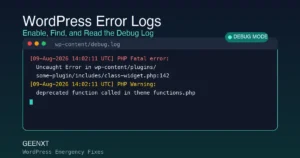
- PHP error logs: Auditing
debug.logto catch warnings before they escalate into 500 errors. - Certificate and domain renewals: Tracking SSL, domain, and license expiration dates.
6. Strategic Recommendations and Technical Hygiene
A skilled maintenance partner does not just look backward. They look ahead to protect your site against emerging bottlenecks, translating technical expertise into business value.
Typical strategic items include:
- Database optimization: Purging orphaned post revisions, expired WooCommerce session tokens, spam comments, and overhead tables that slow down database queries.
- PHP version roadmaps: Planning updates to modern PHP releases (such as PHP 8.2 or 8.3) while testing plugin compatibility to maintain active security support and execution speed.
- Plugin stack audits: Identifying bloated or redundant plugins that can be safely replaced with lightweight custom code or consolidated to reduce attack surface.
- Technical SEO hygiene: Flagging 404 crawl errors, broken internal links, missing canonical tags, or XML sitemap warnings that could degrade search visibility.
Example WordPress Maintenance Report (Executive Breakdown)
Here is an example monthly summary from a production client website managed under our professional maintenance framework.
| Operational Area | Monthly Status | Verified Metrics & Details |
|---|---|---|
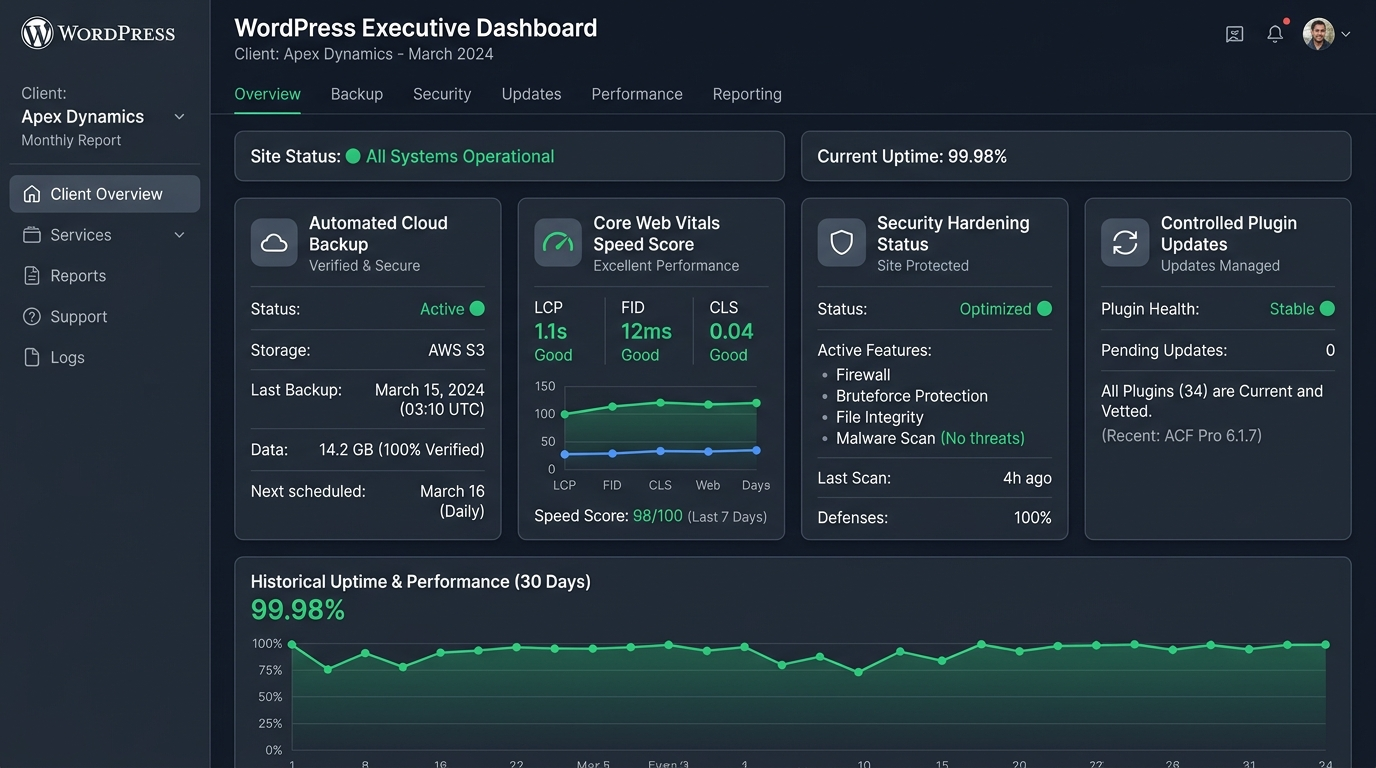
| System Availability | 99.98% Operational | Single 8-minute maintenance window during scheduled server reboot. 0 unscheduled outages. |
| Software Updates | 14 Plugins & Core Vetted | WordPress 6.7.1 verified. WooCommerce 9.3.2 tested on staging before live deployment. 0 regressions. |
| Cloud Backups | 100% Verified (AWS S3) | 31 daily database snapshots, 4 weekly full-site archives. Test restore performed on staging on October 4. |
| Security Posture | Hardened & Clean | 0 malware infections. 248 brute-force login attempts blocked. 1 inactive administrator account removed. |
| Core Web Vitals | Passing All Metrics | LCP: 1.1s (Good), INP: 110ms (Good), CLS: 0.03 (Good). TTFB average: 280ms across US and Europe. |
| Database Hygiene | Optimized | 3,410 post revisions purged. 480 expired WooCommerce transients cleared. Database size reduced by 142 MB. |
Detailed Monthly Task Log
Alongside the summary table, a comprehensive report includes an itemized task log for full transparency:
- October 2: Completed staging test. Patched minor CSS conflict between Gravity Forms and theme update in child stylesheet before release.
- October 4: Performed monthly backup disaster recovery drill. Restored S3 archive to staging sandbox; verified database tables, media, and checkout flow.
- October 11: Converted 84 newly uploaded product images to WebP, trimming category page weight by 3.8 MB.
- October 18: Audited PHP error log; fixed three deprecated function notices from a legacy custom snippet in
functions.php. - October 25: Rotated WordPress security authentication salts in
wp-config.phpduring quarterly security hardening.
How to Read a Maintenance Report as a Non-Technical Business Owner
You do not need to be a developer to extract value from your monthly report. Take sixty seconds to review these three areas:
- Check the Backup Restore Date: Look for “restored” or “verified” rather than just “backed up.” Ask your provider when they last restored a test archive to staging. Without a test restore, backups remain unverified assumptions.
- Look for Human Notes: If your report contains only automated charts and version numbers without human commentary, nobody inspected your site. Look for notes detailing what was tested, conflicts resolved, and optimizations completed.
- Monitor Core Web Vitals Trends: Check real-user speed metrics month over month. If LCP or INP creeps upward, technical debt is accumulating. A good partner flags this proactively with image or script optimizations before bounce rates rise.
The Complete Website Maintenance Report Checklist and Template
Use this actionable monthly maintenance checklist and website maintenance report template to hold your internal team or agency accountable. Every item should have an audit trail before being marked complete.
| Review Category | Specific Check | Verification Standard | Deliverable in Report |
|---|---|---|---|
| Updates | Plugin & theme versions | Tested on staging before production deployment | Version diff log and QA confirmation |
| Updates | Form & checkout testing | Test transaction and lead submission completed | Confirmation of form receipt and email delivery |
| Backups | Off-site cloud storage | Stored in Amazon S3, Cloudflare R2, or Wasabi | Timestamp and file size verification |
| Backups | Disaster recovery test | Full restore drill executed on staging | Date of successful sandbox restore |
| Security | Malware & core scan | Clean file integrity and zero vulnerability alerts | Scan summary and patched vulnerabilities |
| Security | User access audit | Only active, authorized administrators remain | List of active admin accounts verified |
| Performance | Core Web Vitals | Real-user CrUX data passing Google thresholds | LCP, INP, CLS, and TTFB scores logged |
| Health | PHP error log review | debug.log free of fatal errors and notices |
Summary of resolved warnings or bugs |
| Uptime | Continuous monitoring | 60-second ping monitoring across global locations | Monthly uptime percentage and incident log |
| Strategy | Database & server hygiene | Revisions, transients, and tables optimized | Database savings and recommended roadmap items |
How GEENXT Delivers Transparent WordPress Maintenance
At GEENXT, we do not believe in sending automated PDF exports that hide whether real maintenance was performed. We approach WordPress care with senior software engineering discipline, backed by over ten years of hands-on technical troubleshooting and more than 10,600 billed hours with clients worldwide.
Our maintenance plans provide complete transparency, measurable performance, and fast execution:
- Care Plan ($49/month): Designed for business websites needing dependable cloud backups, security hardening, uptime monitoring, controlled updates, and rapid incident response.
- Professional Plan ($99/month): Ideal for active businesses needing Core Web Vitals optimization, staging update workflows, monthly database hygiene, and dedicated developer support.
- Premium Plan ($499/month): Built for mission-critical e-commerce and high-traffic sites needing priority response, advanced WooCommerce checkout tuning, custom code reviews, and comprehensive architectural maintenance.
Every GEENXT plan includes under 24-hour turnaround on technical requests, straightforward month-to-month terms with no lock-in contracts, cancel anytime flexibility, and a 7-day money-back guarantee. If you want a dependable technical partner who proactively manages your website so you can focus on running your business, explore our WordPress maintenance and support plans or contact us directly for an evaluation of your site.
Frequently Asked Questions
What is the difference between an automated maintenance report and a manual report?
An automated report is produced by a dashboard script without human oversight, listing version numbers and basic uptime pings without verifying forms, checkouts, or backup restores. A developer-verified report includes human testing notes, staging records, Core Web Vitals analysis, and custom strategic recommendations tailored to your business.
How often should a business receive a WordPress maintenance report?
Most business sites should receive a comprehensive report monthly. This allows sufficient time to evaluate Core Web Vitals field data, track database growth, and assess update stability. For high-volume e-commerce stores, weekly operational summaries with monthly strategic reviews are recommended.
Can a maintenance report help prevent website downtime?
Yes. Tracking server response times, monitoring PHP logs for deprecation warnings, and reviewing database performance reveals early warnings before they escalate into site crashes or 500 internal server errors.
What should I do if my current agency only sends automated plugin update lists?
Ask your agency for proof of verification. Request details on off-site backup storage, staging restore tests, post-update form testing, and real-user Core Web Vitals. If they cannot provide clear answers, your site may be exposed to unmonitored failures.
Reviewed by: Mark Anthony Garcia, GEENXT WordPress Support.